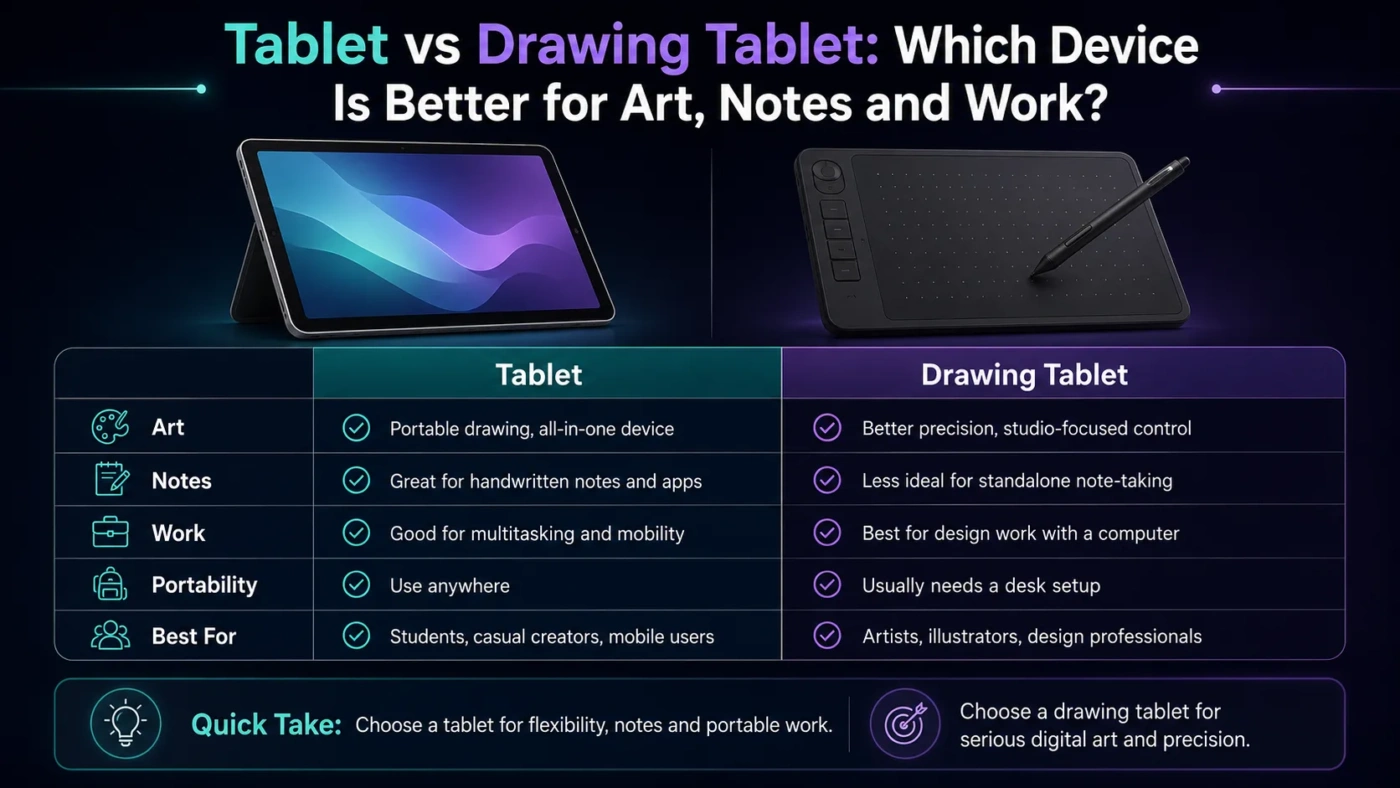
A tablet is better if you want one device for drawing, browsing, reading, note-taking, streaming, schoolwork, and apps. A drawing tablet is better if your main goal is digital art, photo editing, animation, design, or creative work connected to a computer. The right choice depends less on which one is “more advanced” and more on where you want to draw, what software you need, and whether you prefer a standalone screen or a dedicated creative tool.
- Main Differences
- Tablet
- Drawing Tablet
- Where Each Option Fits Best
- What A Tablet Offers
- What A Drawing Tablet Offers
- Choose A Tablet If
- Choose A Drawing Tablet If
- Decision Tree
- Drawing Feel And Pen Control
- Software And Compatibility
- Price And Long-Term Value
- Portability And Setup
- Best Choice By User Type
- Common Misunderstandings
- A Tablet Is Not Always A Drawing Tablet
- A Drawing Tablet Does Not Always Have A Screen
- More Pressure Levels Do Not Guarantee Better Art
- A Bigger Screen Is Not Always Better
- Glossary
- Stylus
- Pressure Sensitivity
- Palm Rejection
- Pen Display
- Latency
- Real Use Differences
- For Notes And Schoolwork
- For Sketching And Casual Art
- For Professional Illustration
- For Photo Editing
- For Travel
- Tablet Pros And Cons
- Pros
- Cons
- Drawing Tablet Pros And Cons
- Pros
- Cons
- Which One Should You Choose?
- Compare More Options
- FAQ
- Can A Regular Tablet Be Used As A Drawing Tablet?
- Is A Drawing Tablet Better Than A Tablet For Art?
- Do Drawing Tablets Need A Computer?
- Is A Screenless Drawing Tablet Hard To Use?
- Which Is Better For Beginners?
| Feature | Tablet | Drawing Tablet |
|---|---|---|
| Main Purpose | General use with optional drawing | Digital art, design, illustration, editing |
| Works Alone | Yes, most tablets are standalone devices | Usually needs a computer, except standalone models |
| Drawing Feel | Good with a compatible stylus, but varies by model | Designed for pen accuracy, pressure, and creative control |
| Screen | Built-in touchscreen | May be screenless, have a display, or be standalone |
| Software | Mobile apps and cloud-based tools | Desktop creative software such as drawing, design, and editing programs |
| Portability | Very portable | Depends on type; screenless models are light, display models need more setup |
| Learning Curve | Easier for beginners | Screenless models take more practice; pen displays feel more natural |
| Best For | Students, casual creators, note-takers, mobile users | Artists, designers, animators, editors, creative professionals |
| Value | Better if you need one device for many tasks | Better if drawing quality and desktop workflow matter most |
Main Differences
A regular tablet is a multipurpose touchscreen device. It can be used for drawing, but it is also built for apps, email, web browsing, video calls, schoolwork, reading, games, and entertainment. Its strength is flexibility.
A drawing tablet is a creative input device. Some models do not have a screen and connect to a computer. Others have a built-in display but still rely on a computer. More expensive standalone drawing tablets can work without a separate computer, but they are closer to professional creative devices than casual tablets.
Tablet
A tablet gives you a screen, battery, operating system, apps, speakers, camera, storage, and wireless connection in one device. Drawing is one of many things it can do.
Drawing Tablet
A drawing tablet focuses on pen input. Its value comes from pressure sensitivity, pen tracking, shortcut control, screen mapping, and compatibility with creative software.
Where Each Option Fits Best
Better for browsing, reading, streaming, notes, email, and casual apps.
Better for pressure control, pen accuracy, shortcuts, and longer art sessions.
Easier if you want to draw directly on the screen without extra setup.
Better when desktop software, layers, file control, and editing tools matter.
What A Tablet Offers
A tablet is the more flexible choice. It is useful even when you are not drawing. You can take handwritten notes, sketch ideas, watch tutorials, read PDFs, browse the web, join online classes, and use creative apps without connecting to another device.
For many beginners, this makes a tablet feel more natural. You draw directly on the screen, zoom with your fingers, rotate the canvas, and move between apps quickly. This is especially helpful for students, hobby artists, planners, and people who want a light device they can carry anywhere.
The main limit is that not every tablet is equally good for drawing. A basic tablet with a simple stylus may be fine for notes but weak for serious art. For drawing, stylus support matters. Pressure sensitivity, palm rejection, tilt support, low latency, screen quality, and app support can change the experience a lot.
Practical note: A tablet is not automatically a good drawing device just because it has a touchscreen. The stylus and software support are what make the difference.
What A Drawing Tablet Offers
A drawing tablet is built around creative control. It usually works with a pen that can detect pressure and movement more accurately than a basic touchscreen stylus. This matters when you draw thin and thick lines, shade, paint, retouch photos, sculpt digitally, or work with detailed brush settings.
There are three common types. A screenless drawing tablet connects to a computer and lets you draw on the tablet surface while looking at the monitor. A pen display lets you draw directly on a screen but still connects to a computer. A standalone drawing tablet has its own operating system and does not need a separate computer.
Screenless models can feel strange at first because your hand moves on the tablet while your eyes look at a monitor. After practice, many artists like them because they are durable, affordable, and comfortable for desk work. Pen displays feel more direct, but they cost more and often need more desk space.
Choose A Tablet If
Choose A Drawing Tablet If
Decision Tree
Drawing Feel And Pen Control
Drawing feel is one of the biggest differences. A tablet can feel smooth and direct because you draw on the same screen you see. This is easy to understand and comfortable for beginners. The downside is that glass can feel slippery unless the tablet has a textured screen protector or a matte surface.
A drawing tablet often gives better control over brush pressure, line weight, and cursor movement. Many models also include shortcut buttons or touch rings that help artists change brush size, undo, zoom, or switch tools faster. For long sessions, those controls can save time.
Screenless drawing tablets have a learning curve. You draw on the tablet surface while watching your monitor. At first, the disconnect can feel odd. With practice, it becomes normal, and some artists prefer it because their hand does not cover the artwork on screen.
Software And Compatibility
A tablet works best with mobile apps. These apps are often easier to learn and are enough for sketching, painting, note-taking, and light design. Many tablets also support cloud storage, so files can move between phone, tablet, and computer.
A drawing tablet depends more on computer compatibility. Before buying one, check whether it works with your operating system and preferred creative software. Driver support also matters. A good drawing tablet can feel poor if the driver is unstable or if shortcut settings are hard to manage.
Compatibility note: Do not choose only by pen pressure numbers or screen size. Operating system support, driver quality, app compatibility, replacement pen nibs, cable setup, and desk space can affect daily use more than a single spec line.
Price And Long-Term Value
A tablet can cost more upfront because it is a full device with a screen, battery, processor, storage, speakers, cameras, and an operating system. A compatible stylus may also be sold separately. Still, the value can be strong if you use it every day for many tasks.
A screenless drawing tablet is often the cheaper entry point for digital art, especially if you already own a computer. Pen displays cost more because they include a screen, and standalone drawing tablets usually cost the most because they combine a display, computer-like hardware, and pen input.
For budget buyers, the better value depends on purpose. If you want to draw sometimes and also need a daily device, a tablet is usually easier to justify. If your computer is already good and drawing is the main goal, a drawing tablet can deliver more creative value for less money.
Portability And Setup
A tablet wins for simple portability. You can draw almost anywhere, as long as the battery is charged and the stylus is with you. This is useful for students, commuters, travelers, and people who like drawing away from a desk.
A drawing tablet can be portable, but the setup varies. A small screenless tablet is easy to carry, yet it still needs a computer. A pen display may need cables, a power source, a stand, and desk space. For home studios, that is not a problem. For quick sketching outside, it can be less convenient.
Best Choice By User Type
| User Type | Better Choice | Reason |
|---|---|---|
| Student | Tablet | Better for notes, reading, classes, browsing, and occasional drawing. |
| Beginner Artist | Tablet or Pen Display | Drawing directly on the screen feels easier than using a screenless pad. |
| Budget Digital Artist | Screenless Drawing Tablet | Good creative control at a lower cost if a computer is already available. |
| Professional Illustrator | Drawing Tablet | Better fit for desktop software, detailed brush control, and long sessions. |
| Photo Editor | Drawing Tablet | Precise pen input helps with masking, retouching, selections, and brush edits. |
| Casual User | Tablet | More useful outside drawing, especially for media, apps, and light productivity. |
| Animator | Drawing Tablet | Better for timeline-based software, frame work, shortcuts, and controlled input. |
Common Misunderstandings
A Tablet Is Not Always A Drawing Tablet
A normal tablet can be used for drawing, but it is not always made for serious pen input. The stylus, screen response, app support, and palm rejection matter.
A Drawing Tablet Does Not Always Have A Screen
Many drawing tablets are screenless pads. They connect to a computer and control the cursor through pen movement.
More Pressure Levels Do Not Guarantee Better Art
Pressure sensitivity helps, but comfort, pen feel, software settings, brush control, and practice also shape the result.
A Bigger Screen Is Not Always Better
Large screens give more room, but they also cost more, take more space, and can be less portable.
Glossary
Stylus
A pen-like tool used to write, draw, tap, and control the screen or tablet surface.
Pressure Sensitivity
The ability of a pen to detect how hard you press, changing line thickness, opacity, or brush behavior.
Palm Rejection
A feature that ignores accidental hand touches while the pen is being used.
Pen Display
A drawing tablet with a built-in screen, usually connected to a computer.
Latency
The delay between pen movement and the line appearing on screen.
Real Use Differences
For Notes And Schoolwork
A tablet is the better fit. It can replace notebooks, open PDFs, run school apps, join video calls, and handle quick research. A drawing tablet is not ideal for this unless it is part of a computer-based study setup.
For Sketching And Casual Art
A tablet is often enough. It is easy to open a drawing app, sketch, save, and share. It also feels natural because the pen touches the same screen where the artwork appears.
For Professional Illustration
A drawing tablet is usually stronger. Desktop software, custom brushes, keyboard shortcuts, large files, external monitors, and detailed pen settings make it better for serious creative work.
For Photo Editing
A drawing tablet has an advantage. Pen input is more accurate than a mouse for masking, retouching, dodging, burning, cutting out subjects, and working with brush-based edits.
For Travel
A tablet is easier. A drawing tablet can travel too, but most models need a computer. If you want to draw on a plane, in a café, or during a commute, a standalone tablet is simpler.
Tablet Pros And Cons
Pros
- Works as a complete standalone device
- Great for notes, browsing, reading, media, and apps
- Easy to use for beginners
- Very portable
- Direct screen drawing feels natural
Cons
- Good stylus support may cost extra
- Mobile apps may be limited compared with desktop software
- Glass screen can feel slippery
- Storage and performance vary by model
- Not all tablets are suitable for serious art
Drawing Tablet Pros And Cons
Pros
- Made for digital art and creative work
- Strong pen control and pressure response
- Works well with desktop creative software
- Screenless models can be budget-friendly
- Good for long editing and illustration sessions
Cons
- Many models need a computer
- Screenless models take practice
- Pen displays can be expensive
- Setup may involve drivers and cables
- Less useful for everyday tasks outside creative work
Which One Should You Choose?
Choose a tablet if you want a portable device that can draw, take notes, run apps, stream videos, browse the web, and support everyday tasks. It is the safer pick for students, casual creators, hobby artists, and people who want one device for many uses.
Choose a drawing tablet if your main goal is creative work. It is the better fit for digital artists, illustrators, animators, designers, and photo editors who want better pen control and desktop software compatibility.
The simplest rule is this: buy a tablet when drawing is one part of your daily device use. Buy a drawing tablet when drawing is the main reason you are buying the device.
Compare More Options
FAQ
Can A Regular Tablet Be Used As A Drawing Tablet?
Yes, a regular tablet can be used for drawing if it supports a good stylus and drawing apps. It is better for casual and mobile drawing than for advanced desktop workflows.
Is A Drawing Tablet Better Than A Tablet For Art?
For serious digital art, a drawing tablet is often better because it is built for pen control and creative software. For casual drawing, a tablet may be easier and more flexible.
Do Drawing Tablets Need A Computer?
Many drawing tablets need a computer, especially screenless tablets and pen displays. Standalone drawing tablets do not, but they usually cost more.
Is A Screenless Drawing Tablet Hard To Use?
It can feel unusual at first because you look at the monitor while drawing on the tablet surface. Most users improve with practice.
Which Is Better For Beginners?
A tablet is usually easier for beginners because drawing directly on the screen feels natural. A screenless drawing tablet can be better for budget learners who are willing to practice.