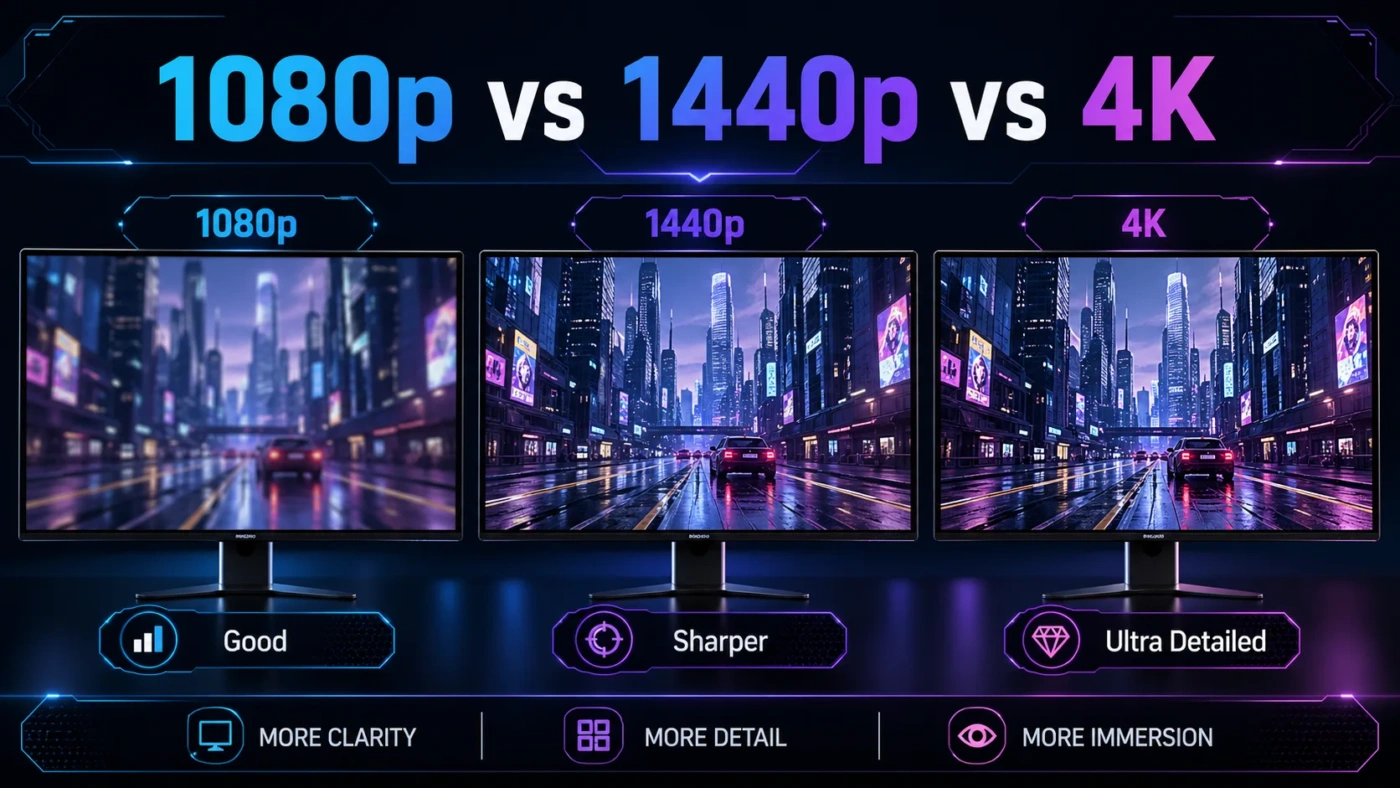
Choosing between 1080p, 1440p, and 4K comes down to more than just pixel count. Your GPU, monitor size, viewing distance, and how you actually use your screen matter just as much as the spec sheet. This article breaks down all three resolutions so you can stop second-guessing and make a confident call.
- What Actually Separates These Three Resolutions
- What Is 1080p?
- What Is 1440p?
- What Is 4K?
- When 1080p Is the Right Choice
- When 1440p Is the Right Choice
- When 4K Is the Right Choice
- Common Misconceptions Worth Clearing Up
- “4K Always Looks Better Than 1440p”
- “1080p Is Outdated and Not Worth Buying”
- “You Need a 4K Monitor to Use a 4K GPU”
- “Upscaling Makes 1080p Look Like 4K”
- Who Should Choose What
| Feature | 1080p (Full HD) | 1440p (QHD) | 4K (UHD) |
|---|---|---|---|
| Resolution | 1920 × 1080 | 2560 × 1440 | 3840 × 2160 |
| Total Pixels | ~2.07 million | ~3.69 million | ~8.29 million |
| Pixel Density (27″) | 81 PPI | 108 PPI | 163 PPI |
| GPU Demand | Low | Medium | High |
| Typical Monitor Price | $100–$250 | $200–$500 | $400–$1,200+ |
| Best For | Budget gaming, casual use | Balanced gaming & work | Content creation, media, flagship gaming |
| High Refresh Rate Availability | Up to 360Hz widely available | Up to 240Hz available | Up to 144Hz (limited, expensive) |
| Ideal Screen Size | Up to 24″ | 27″ | 32″ and above |
| Upscaling Tech Benefit | High (DLSS/FSR helps most) | Moderate | Low (native already sharp) |
What Actually Separates These Three Resolutions
The jump from 1080p to 1440p adds roughly 78% more pixels. Going from 1440p to 4K nearly doubles the pixel count again. But raw numbers don’t tell the whole story. A pixel is only as visible as your screen size and how far you sit from it allow. On a 24-inch monitor at arm’s length, 1080p looks clean. That same resolution stretched across a 32-inch panel starts to show individual pixels along diagonal edges — especially in text rendering.
Resolution also has a direct multiplier effect on GPU load. Rendering at 4K doesn’t just add more pixels; it demands that your graphics card process four times as many fragments per frame compared to 1080p. That’s why GPU recommendations matter so much in this conversation.
What Is 1080p?
1080p — officially called Full HD — has been the standard desktop and console resolution since roughly 2010. At 1920 × 1080, it packs just over two million pixels into the frame. For years, it was the sweet spot for gaming because nearly every GPU could push high frame rates at this resolution, and monitor support was universal.
It still holds a strong position today, particularly for competitive gaming. At 1080p, even mid-range cards like the RTX 4060 or RX 7600 can hit 144fps or higher in demanding titles. That headroom for high refresh rates is something 4K simply can’t match at the same price point. If you’re playing fast-paced shooters where 240fps on a 240Hz panel is the goal, 1080p is still the resolution pros use.
The main limitation shows up on larger screens. On anything 27 inches or above, 1080p’s pixel density (around 81 PPI at that size) becomes noticeably soft. Desktop icons, browser text, and fine UI elements look less sharp compared to higher-resolution alternatives. For productivity use — especially multi-tasking or working with detailed documents — this matters more than most people expect.
What Is 1440p?
1440p, also called QHD (Quad HD) or 2K in common usage, runs at 2560 × 1440. It sits exactly between 1080p and 4K — not just in marketing positioning, but in actual performance cost. On a 27-inch monitor, it delivers around 108 PPI, which is noticeably sharper than 1080p without demanding the GPU horsepower that 4K requires.
This middle-ground nature is why 1440p has become the most popular resolution among PC gamers in the $300–$600 GPU bracket. Cards like the RTX 4070 or RX 7800 XT can comfortably push 100+ fps at 1440p in most modern titles, often without needing to compromise heavily on graphical settings. You get sharp visuals and playable frame rates from the same hardware.
For content work — photo editing, video timelines, UI design — 1440p also offers more screen real estate than 1080p without the scaling complications that can come with 4K on smaller monitors. Panels like the LG 27GP850-B and the Samsung Odyssey G5 have made 1440p monitors accessible at reasonable prices, frequently under $300 for a solid 165Hz panel.
What Is 4K?
4K UHD runs at 3840 × 2160 — four times the pixel count of 1080p. At 163 PPI on a 27-inch monitor, fine detail becomes genuinely photographic. Text edges are razor sharp, gradients in images render without banding, and HDR content (when the panel supports it properly) looks noticeably different from lower resolutions.
4K makes the most visible difference in content consumption and creative work. Editing 4K footage natively, reviewing high-resolution photography, or watching HDR-mastered content on a calibrated display — these are use cases where 4K earns its place. The same can’t be said for most gaming scenarios unless your GPU can sustain high frame rates at that resolution.
The hardware requirement is steep. An RTX 4080 or RTX 4090 handles 4K gaming well; anything below an RTX 4070 Ti will struggle to hit 60fps consistently in demanding titles without DLSS enabled. 4K monitors range from around $400 for a basic 60Hz IPS panel to well over $1,000 for a high-refresh-rate gaming display. The monitor itself is just part of the equation — the total system cost to run 4K gaming at high frame rates is substantially higher than 1440p.
When 1080p Is the Right Choice
- You primarily play competitive multiplayer games where frame rate matters more than resolution
- Your GPU is in the mid-range or entry-level tier (RTX 3060 or below, RX 6600 or equivalent)
- You’re using a 24-inch or smaller monitor
- You want a high refresh rate (240Hz+) without spending a lot
- Budget is tight and you’d rather invest in other components
- Console gaming on a TV where you sit several feet away
At 24 inches, 1080p still looks genuinely good. Most people sitting at a normal desk distance can’t resolve the difference between 1080p and 1440p on that screen size without leaning in. The frame rate advantage you get from staying at 1080p is real and measurable in competitive play.
When 1440p Is the Right Choice
- You play a mix of competitive and visually detailed games
- Your GPU is a mid-to-high range card (RTX 4070, RX 7800 XT range)
- You use a 27-inch monitor
- You want noticeably sharper visuals than 1080p without a massive hardware upgrade
- You do a mix of gaming and productivity — the extra screen space helps
- You want 144Hz or higher without spending $600+ on a monitor
1440p at 27 inches is widely considered the best all-around setup for PC gaming right now. It’s not a temporary compromise — it’s a deliberate choice that pays off across multiple use cases on the same hardware.
When 4K Is the Right Choice
- You have a high-end GPU (RTX 4080, RTX 4090) or plan to use DLSS/FSR upscaling
- You work with photography, video, or graphic design professionally
- Your screen is 32 inches or larger
- You watch a lot of streaming content in 4K HDR
- Frame rate is less of a priority than image fidelity
- You’re building a home theater or large-screen living room setup
For TV-based setups with a couch viewing distance of 8–10 feet, 4K on a 55-inch or larger screen delivers a visible improvement over 1080p in a way that smaller monitors can’t replicate. Viewing angle and distance work in 4K’s favor at that scale.
Common Misconceptions Worth Clearing Up
“4K Always Looks Better Than 1440p”
Not necessarily — not in practice. At 27 inches, the PPI difference between 1440p and 4K is noticeable when you look closely, but during normal use or gaming, the visual difference is smaller than most people expect. Meanwhile, the performance cost is enormous. Without upscaling tech like DLSS 3 or FSR 3, 4K in games can cut your frame rate in half compared to 1440p on the same GPU.
“1080p Is Outdated and Not Worth Buying”
Far from it. In 2024 and 2025, 1080p at 240Hz or 360Hz on a 24-inch IPS or TN panel is still the setup of choice for competitive FPS players at the highest levels. Frame rate has a direct impact on input lag and response time — something resolution doesn’t fix.
“You Need a 4K Monitor to Use a 4K GPU”
A high-end GPU like the RTX 4090 is often used at 1440p or even 1080p to hit extreme frame rates (240fps+). Resolution and GPU tier aren’t required to match. You buy the GPU for the frame rate target at your chosen resolution, not just to match the monitor’s pixel count.
“Upscaling Makes 1080p Look Like 4K”
DLSS, FSR, and XeSS can render at a lower internal resolution and reconstruct a sharper output, but the result isn’t identical to native rendering at the higher resolution. In motion, upscaling introduces artifacts that native rendering avoids. It’s a useful tool, not a like-for-like replacement.
Who Should Choose What
Go with 1080p if you prioritize frame rate above everything else, your GPU is mid-range or lower, or you’re gaming on a 24-inch panel. It’s still a fully capable resolution for the right context.
Go with 1440p if you want the best mix of sharpness, frame rate, and GPU efficiency. For most PC gamers on hardware from the past two or three generations, 1440p at 144Hz or 165Hz delivers more satisfaction per dollar than either of the alternatives.
Go with 4K if you have the GPU to back it up, you value image quality and content fidelity over frame rate, or your screen is large enough (32″+) to make the pixel density difference visible in everyday use. It’s a great choice — just an expensive one that requires the right ecosystem around it.
None of these resolutions is objectively wrong. Each one makes sense under the right conditions. The question is whether those conditions match your setup, budget, and how you actually spend time in front of a screen.