Choosing between G-Sync and FreeSync is mostly about your graphics card, your monitor budget, and how strict you want the variable refresh rate experience to be. Both technologies are designed to make games feel smoother by matching the display’s refresh rate to the frame rate your GPU is producing. The practical difference is not that one “adds more FPS.” It is how each system handles screen tearing, stutter, low frame rates, HDR behavior, monitor certification, connection support, and price.
- G-Sync vs FreeSync: The Main Difference
- What G-Sync Does
- G-Sync Compatible
- G-Sync
- G-Sync Ultimate
- What FreeSync Does
- FreeSync
- FreeSync Premium
- FreeSync Premium Pro
- Performance Differences In Real Games
- When Frame Rates Are High
- When Frame Rates Move Up And Down
- When Frame Rates Drop Low
- Image Quality And Motion Clarity
- Compatibility: GPU, Monitor, Cable, And Port
- If You Have An NVIDIA GPU
- If You Have An AMD GPU
- If You Use A Console
- Price And Value Comparison
- When You Should Choose G-Sync
- G-Sync Makes More Sense If:
- When You Should Choose FreeSync
- FreeSync Makes More Sense If:
- Common Misunderstandings About G-Sync And FreeSync
- Misunderstanding 1: G-Sync And FreeSync Increase FPS
- Misunderstanding 2: Every FreeSync Monitor Works Perfectly With NVIDIA
- Misunderstanding 3: Full G-Sync Is Always Worth The Extra Money
- Misunderstanding 4: FreeSync Premium Pro Means Perfect HDR
- Misunderstanding 5: V-Sync And VRR Are The Same
- G-Sync vs FreeSync For Different Buyers
- For Competitive Gamers
- For Single-Player AAA Games
- For Console Players
- For Budget Buyers
- For High-End PC Builds
- Buying Checklist Before You Decide
- Which One Should You Choose?
| Feature | G-Sync | FreeSync |
|---|---|---|
| Main Owner | NVIDIA | AMD |
| Best Match | NVIDIA GeForce gaming PCs | AMD Radeon PCs, many consoles, and budget gaming monitors |
| Technology Base | NVIDIA-certified variable refresh rate, sometimes with dedicated G-Sync hardware | Uses open VRR standards such as DisplayPort Adaptive-Sync and HDMI VRR |
| Common Price Range | Often higher, especially on monitors with full G-Sync hardware | Usually more affordable and available across more monitor tiers |
| Certification Style | More controlled NVIDIA validation, with G-Sync Compatible, G-Sync, and G-Sync Ultimate labels | AMD certification with FreeSync, FreeSync Premium, and FreeSync Premium Pro labels |
| Low FPS Handling | Strong on full G-Sync displays because of wide VRR range and variable overdrive | Strong on FreeSync Premium and Premium Pro displays because LFC is part of the tier requirements |
| Variable Overdrive | Usually better controlled on full G-Sync monitors | Depends heavily on the monitor model and panel tuning |
| HDR Gaming | Best on G-Sync Ultimate or high-end certified models | Best on FreeSync Premium Pro displays |
| Console Use | Not usually the main reason to buy for console gaming | Often the better fit for Xbox and many HDMI VRR setups |
| Best For | Players with NVIDIA GPUs who want more predictable VRR behavior | Players who want strong value, broad choice, and AMD or console compatibility |
G-Sync vs FreeSync: The Main Difference
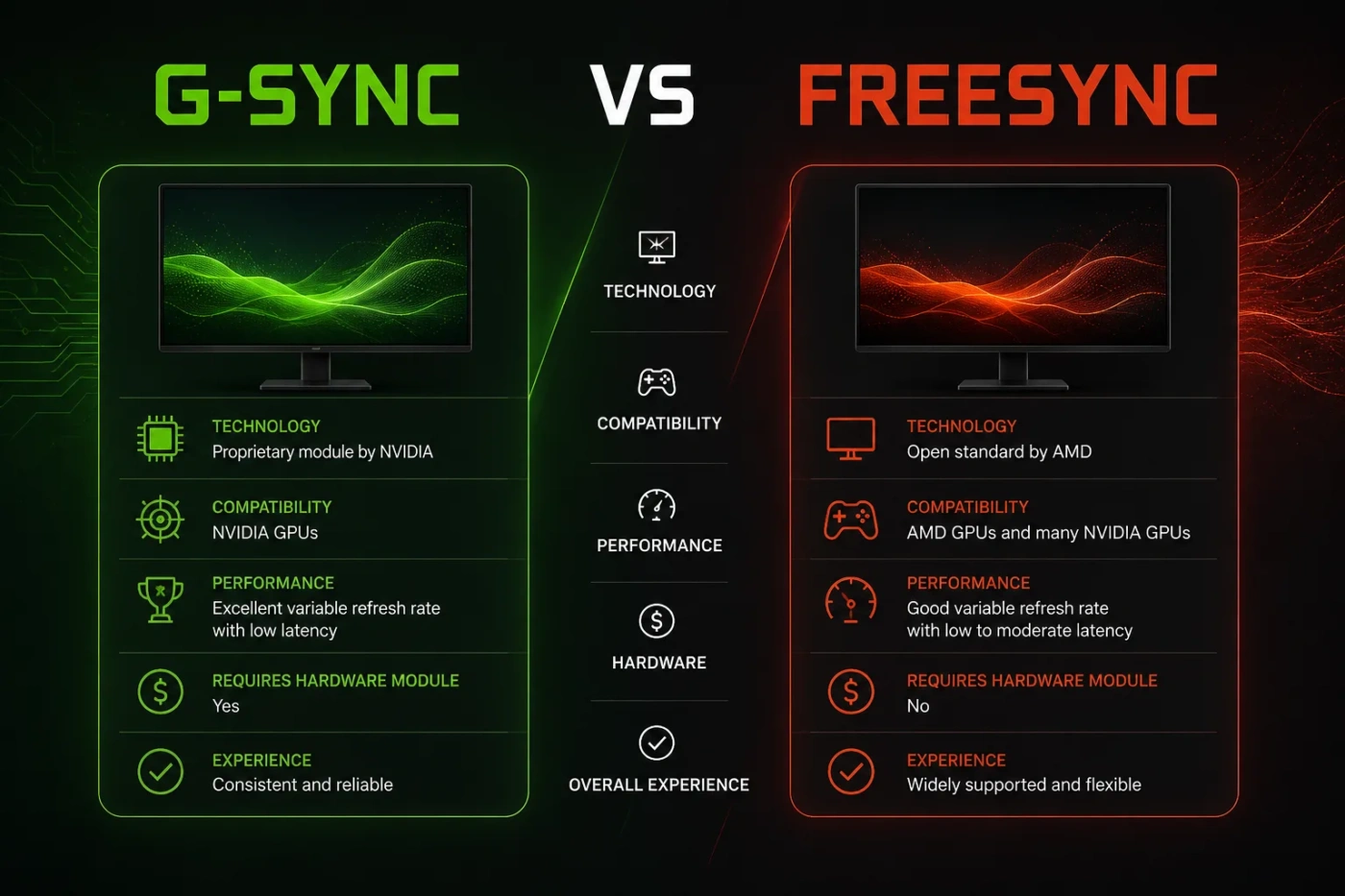
G-Sync is NVIDIA’s variable refresh rate technology, while FreeSync is AMD’s variable refresh rate technology. Both try to solve the same problem: when your graphics card sends frames at one pace and your monitor refreshes at another, you can see screen tearing, judder, or uneven motion.
The cleaner way to think about it is this:
- G-Sync is the safer choice for many NVIDIA-focused gaming PCs, especially if the monitor has a true G-Sync module or a strong G-Sync Compatible rating.
- FreeSync is the better value choice for many buyers because it appears on more monitors, including affordable 1080p, 1440p, ultrawide, OLED, and TV-style displays.
The actual gaming experience depends on the specific monitor, not only the logo on the box. A well-tuned FreeSync Premium monitor can feel better than a weak G-Sync Compatible monitor. A full G-Sync display can feel more stable than many low-cost FreeSync models, especially when frame rates swing up and down.
What G-Sync Does
G-Sync adjusts the monitor’s refresh cycle so it follows the frame output from an NVIDIA GPU. Instead of forcing the monitor to refresh at a fixed rate such as 144Hz or 240Hz all the time, G-Sync lets the display refresh in step with the game when the frame rate is inside the monitor’s supported VRR range.
That helps reduce:
- Screen tearing
- Uneven frame pacing
- Visible stutter from mismatched refresh timing
- Input delay compared with traditional V-Sync in many gaming situations
There are three common G-Sync labels buyers usually see.
G-Sync Compatible
G-Sync Compatible monitors do not use a dedicated NVIDIA G-Sync processor. They are usually Adaptive-Sync monitors that NVIDIA has validated for a basic VRR experience with GeForce graphics cards.
This is the most common label on modern gaming monitors. It can be a very good choice, but it is also the label where monitor quality varies the most. Some models have excellent motion tuning; others may show flicker, ghosting, or limited VRR behavior in certain games.
G-Sync
A full G-Sync monitor includes NVIDIA’s G-Sync hardware or deeper NVIDIA-side validation. These monitors are usually aimed at gamers who want more controlled performance across the refresh range. The biggest practical benefit is often better handling of changing frame rates, especially through variable overdrive.
Variable overdrive matters because pixel response behavior changes at different refresh rates. A monitor that looks clean at 240Hz may show overshoot or ghosting at 80Hz if overdrive is not tuned well. Full G-Sync displays are often stronger here.
G-Sync Ultimate
G-Sync Ultimate is the high-end label. It is aimed at premium displays with advanced HDR behavior, higher refresh rates, and stricter image quality expectations. It is not the normal choice for a budget gaming build, but it can make sense for buyers who want a higher-end HDR gaming monitor and already use an NVIDIA GPU.
What FreeSync Does
FreeSync is AMD’s VRR technology. It also synchronizes the display refresh rate with the frame rate coming from the graphics system. FreeSync is widely used because it is based on open display standards rather than a required proprietary monitor module.
That makes FreeSync common across:
- Affordable gaming monitors
- High-refresh 1080p esports displays
- 1440p and 4K gaming monitors
- Ultrawide monitors
- Some gaming TVs
- Many console-friendly HDMI VRR displays
FreeSync also has three main labels.
FreeSync
The base FreeSync label means the display supports AMD FreeSync VRR. It can reduce tearing and improve smoothness, but the exact refresh range and motion quality depend on the monitor. On cheaper displays, the supported range may be narrow, such as 48Hz to 75Hz or 48Hz to 144Hz.
A narrow range is not automatically bad. It just means the benefit is strongest when your game stays inside that range.
FreeSync Premium
FreeSync Premium adds stronger gaming expectations, including low framerate compensation, often called LFC. LFC helps when the game drops below the monitor’s minimum VRR range by repeating frames in a way that keeps the display inside its supported refresh window.
For most PC gamers, FreeSync Premium is the sweet spot. It usually gives a better real-world experience than base FreeSync without pushing the price too high.
FreeSync Premium Pro
FreeSync Premium Pro is aimed at better HDR gaming behavior. It is most relevant if you are buying a monitor or TV for HDR games and want VRR, low latency, and HDR support to work together more cleanly.
This label does not automatically mean the panel has amazing HDR brightness or perfect local dimming. It means the display meets AMD’s Premium Pro requirements. You should still check the panel type, peak brightness, contrast, dimming system, color coverage, and real review data before paying more.
Performance Differences In Real Games
G-Sync and FreeSync do not create extra frames. They do not replace a stronger GPU, better game settings, or a higher-refresh panel. Their job is to make the frames you already have look and feel more consistent.
When Frame Rates Are High
If your PC is running a game at 160 FPS on a 165Hz monitor, both G-Sync and FreeSync can feel very smooth. In this range, the difference between the two technologies may be hard to notice if both monitors are well tuned.
The panel itself may matter more than the VRR label. OLED response time, IPS overshoot tuning, VA dark-level smearing, backlight strobing options, input lag, and refresh rate ceiling can all affect the final feel.
When Frame Rates Move Up And Down
This is where VRR becomes more useful. Games rarely stay locked at one exact frame rate. A scene may run at 141 FPS, then 116 FPS, then 92 FPS, then back to 130 FPS. Without VRR, those shifts can make motion feel uneven.
Both technologies help smooth out these changes. Full G-Sync monitors often handle these transitions more predictably, while FreeSync quality depends more on the monitor’s scaler and tuning.
When Frame Rates Drop Low
Low FPS behavior is one of the most important buying points. If a monitor supports VRR only from 48Hz to 144Hz, then a game dropping to 42 FPS can leave the normal VRR range. That is where LFC helps.
FreeSync Premium and FreeSync Premium Pro include LFC requirements. Full G-Sync displays are also known for strong low-FPS handling because they are designed around wide VRR operation. For buyers who play demanding AAA games, open-world titles, ray-traced games, or poorly optimized PC ports, low-FPS behavior matters more than the logo.
Image Quality And Motion Clarity
Neither G-Sync nor FreeSync automatically improves color accuracy, contrast, black levels, or sharpness. A 1440p OLED FreeSync monitor can have better image quality than a basic 1080p G-Sync Compatible display. A high-end G-Sync Ultimate monitor can offer better HDR than a cheap FreeSync display with limited brightness.
For motion clarity, pay close attention to:
- Panel type: OLED usually has extremely fast pixel response; IPS is often balanced; VA can have deeper contrast but may show dark smearing on some models.
- Refresh rate: 144Hz is already smooth for many players, while 240Hz, 360Hz, and higher refresh rates are aimed at competitive gaming.
- Overdrive tuning: Poor overdrive can create ghosting or bright trails behind moving objects.
- VRR flicker: Some displays, especially certain OLED and VA models, may show brightness flicker when frame rates fluctuate sharply.
Practical note: VRR quality is a monitor-by-monitor issue. A badge helps, but it does not tell the whole story.
Compatibility: GPU, Monitor, Cable, And Port
Compatibility is where many buying mistakes happen. A monitor can support FreeSync, G-Sync Compatible, HDMI VRR, DisplayPort Adaptive-Sync, or several of these at once. But the feature you get depends on the full chain: graphics card, monitor, cable, port, driver, and settings menu.
If You Have An NVIDIA GPU
G-Sync is the natural match. A full G-Sync monitor gives the most controlled NVIDIA experience, while a G-Sync Compatible monitor can still be excellent if it has been validated and reviewed well.
Many FreeSync monitors can also work with NVIDIA cards as G-Sync Compatible displays, especially through DisplayPort. Some HDMI VRR setups also work, but support depends on the GPU, display, and HDMI implementation.
If You Have An AMD GPU
FreeSync is usually the easier choice. AMD Radeon cards are built around FreeSync support, and FreeSync monitors are widely available at many price levels.
Buying a full G-Sync monitor for an AMD GPU usually makes less sense unless that display also supports open Adaptive-Sync behavior outside NVIDIA’s G-Sync mode. Always check the exact monitor specifications before buying.
If You Use A Console
FreeSync or HDMI VRR is usually the better fit for console gaming. Xbox systems commonly support FreeSync-style VRR behavior on compatible displays, and many modern TVs focus on HDMI VRR rather than G-Sync hardware.
For PlayStation and Xbox users, the bigger questions are often 4K 120Hz, HDMI bandwidth, VRR support over HDMI, HDR quality, input lag, and whether the display handles console resolutions correctly.
Price And Value Comparison
FreeSync usually wins on price. You can find FreeSync monitors across budget and mid-range categories because the technology does not require a dedicated NVIDIA hardware module. That gives buyers more choice under common price points such as $150, $250, $400, or $600.
G-Sync monitors, especially full G-Sync and G-Sync Ultimate models, often cost more. The higher price can be worth it if you want tighter NVIDIA validation, better variable overdrive behavior, and a more predictable VRR experience.
For most buyers, the best value path looks like this:
- Budget gaming PC: FreeSync Premium monitor
- NVIDIA mid-range PC: Well-reviewed G-Sync Compatible monitor
- High-end NVIDIA PC: Full G-Sync or premium G-Sync Compatible monitor
- Console setup: FreeSync or HDMI VRR display with strong 4K 120Hz support
- HDR-focused setup: FreeSync Premium Pro, G-Sync Ultimate, or a display with proven HDR performance
When You Should Choose G-Sync
Choose G-Sync if you use an NVIDIA graphics card and want the least guesswork from your monitor. This is especially true if you play games where frame rates move a lot, such as visually demanding open-world games, flight simulators, racing titles, or ray-traced single-player games.
G-Sync Makes More Sense If:
- You use a GeForce GPU and plan to stay with NVIDIA for your next upgrade.
- You want smoother behavior across a wide refresh range.
- You are sensitive to tearing, stutter, flicker, ghosting, or overshoot.
- You are buying a higher-end monitor and want stricter validation.
- You play demanding PC games where FPS can swing sharply.
- You care about variable overdrive quality.
G-Sync is not automatically the best choice for every NVIDIA user. If your budget is limited, a strong G-Sync Compatible FreeSync monitor can be a better buy than a more expensive display with weaker panel quality.
When You Should Choose FreeSync
Choose FreeSync if you want better value, broad monitor choice, or strong AMD and console compatibility. For many buyers, FreeSync Premium is the most sensible target because it keeps prices reasonable while adding stronger low-FPS behavior.
FreeSync Makes More Sense If:
- You use an AMD Radeon graphics card.
- You want a good gaming monitor without paying extra for a proprietary module.
- You need a console-friendly display.
- You are shopping in the budget or mid-range segment.
- You want more choices in size, resolution, panel type, and refresh rate.
- You are buying a TV or large-format display for gaming.
FreeSync is also a good option for mixed setups. For example, if you have an AMD desktop now but may use a console or different PC later, a good FreeSync Premium monitor with HDMI VRR and DisplayPort Adaptive-Sync can be more flexible.
Common Misunderstandings About G-Sync And FreeSync
Misunderstanding 1: G-Sync And FreeSync Increase FPS
They do not increase performance. Your GPU still decides how many frames your game can produce. VRR only changes how the monitor displays those frames.
If a game runs at 55 FPS, VRR can make it feel smoother than 55 FPS without VRR, but it will not turn it into 100 FPS.
Misunderstanding 2: Every FreeSync Monitor Works Perfectly With NVIDIA
Many FreeSync monitors work with NVIDIA GPUs, but not all of them behave the same way. Some are officially G-Sync Compatible. Others may allow VRR manually, but they might show flicker, blanking, or unstable behavior in certain refresh ranges.
If you use NVIDIA, look for the G-Sync Compatible label or check trusted monitor testing before buying.
Misunderstanding 3: Full G-Sync Is Always Worth The Extra Money
Full G-Sync can be excellent, but it is not always the smartest purchase. If two monitors cost the same, panel quality, resolution, HDR performance, response time, warranty, and input lag still matter.
A better panel with G-Sync Compatible support may be more enjoyable than an older full G-Sync display with weaker contrast or outdated ports.
Misunderstanding 4: FreeSync Premium Pro Means Perfect HDR
FreeSync Premium Pro is helpful for HDR gaming, but it does not guarantee top-tier HDR image quality. Real HDR quality also depends on brightness, dimming zones, OLED contrast, tone mapping, color volume, and game support.
Misunderstanding 5: V-Sync And VRR Are The Same
V-Sync forces synchronization in a more rigid way and can add input delay or stutter when frame rates fall below the refresh target. VRR is more flexible because the monitor changes its refresh timing to follow the GPU.
Many gamers use VRR with an FPS cap slightly below the monitor’s maximum refresh rate to keep gameplay smooth and responsive.
G-Sync vs FreeSync For Different Buyers
For Competitive Gamers
Competitive players usually care about high refresh rate, low input lag, fast pixel response, and stable frame pacing. Both G-Sync and FreeSync can work well here.
If you play esports titles at very high FPS, the monitor’s refresh rate and response tuning may matter more than the VRR brand. A 240Hz or 360Hz display with clean motion can be a better upgrade than choosing a lower-refresh monitor only because it has a preferred badge.
Best pick: Choose the monitor with the better tested input lag, response time, and refresh rate. Use G-Sync for NVIDIA-focused builds and FreeSync Premium for AMD or value-focused builds.
For Single-Player AAA Games
Story-driven, open-world, and visually demanding games often have frame rates that move between low and high ranges. VRR is very useful here because it smooths out uneven delivery.
Best pick: G-Sync is appealing for NVIDIA users who want steady behavior through FPS swings. FreeSync Premium is a strong value choice for AMD users and buyers who want more monitor options.
For Console Players
Console players should focus on HDMI VRR, 4K 120Hz support, HDR quality, and low input lag. FreeSync support can be useful, especially with Xbox, but the display’s HDMI implementation matters more than the label alone.
Best pick: FreeSync or HDMI VRR display, preferably with strong 4K 120Hz support and good HDR performance.
For Budget Buyers
FreeSync is usually the better deal. You can get VRR support without paying for a more expensive monitor category. The smart move is to avoid the cheapest unknown models and choose a well-reviewed FreeSync Premium display instead.
Best pick: FreeSync Premium at your preferred resolution and refresh rate.
For High-End PC Builds
If you are pairing a powerful NVIDIA GPU with a premium OLED, mini-LED, ultrawide, or high-refresh monitor, G-Sync or strong G-Sync Compatible support is worth prioritizing. If you are using a high-end Radeon GPU, FreeSync Premium Pro may be the better match.
Best pick: Match the monitor to your GPU first, then compare panel quality and HDR performance.
Buying Checklist Before You Decide
Before choosing G-Sync or FreeSync, check the full monitor specification instead of relying on the badge alone.
- GPU match: NVIDIA users should prioritize G-Sync or G-Sync Compatible. AMD users should prioritize FreeSync.
- VRR range: A wider range gives smoother behavior across more frame rates.
- LFC support: Useful if games often drop below the minimum VRR range.
- Connection type: Confirm whether VRR works over DisplayPort, HDMI, or both.
- Resolution and refresh rate: 1440p 144Hz or 165Hz is a balanced PC gaming target; 4K 120Hz or higher is better for premium setups.
- Panel quality: Check OLED, IPS, VA, contrast, response time, and brightness behavior.
- HDR quality: Do not trust the HDR label alone. Look for real brightness and contrast capability.
- Reviews: Look for testing on VRR flicker, overshoot, input lag, and motion clarity.
Which One Should You Choose?
Choose G-Sync if you have an NVIDIA GPU, want the most predictable PC VRR experience, and are willing to pay more for tighter monitor validation. It is the cleaner choice for high-end GeForce builds, especially when you care about variable overdrive, low-FPS behavior, and smooth performance in demanding games.
Choose FreeSync if you want better value, more monitor options, AMD Radeon support, or console-friendly VRR. For most buyers, FreeSync Premium is the best target because it gives smoother gaming features without pushing the monitor into a much higher price class.
For a simple decision, use this rule:
- NVIDIA GPU + premium monitor budget: Choose G-Sync or a well-tested G-Sync Compatible display.
- AMD GPU: Choose FreeSync, preferably FreeSync Premium or Premium Pro.
- Console gaming: Choose a display with strong HDMI VRR and FreeSync support.
- Tight budget: Choose a well-reviewed FreeSync Premium monitor.
- HDR gaming: Compare real HDR performance first, then choose G-Sync Ultimate or FreeSync Premium Pro based on your GPU.
The best choice is not the logo by itself. It is the monitor that fits your graphics card, your games, your refresh rate target, and your budget without creating compatibility problems later.