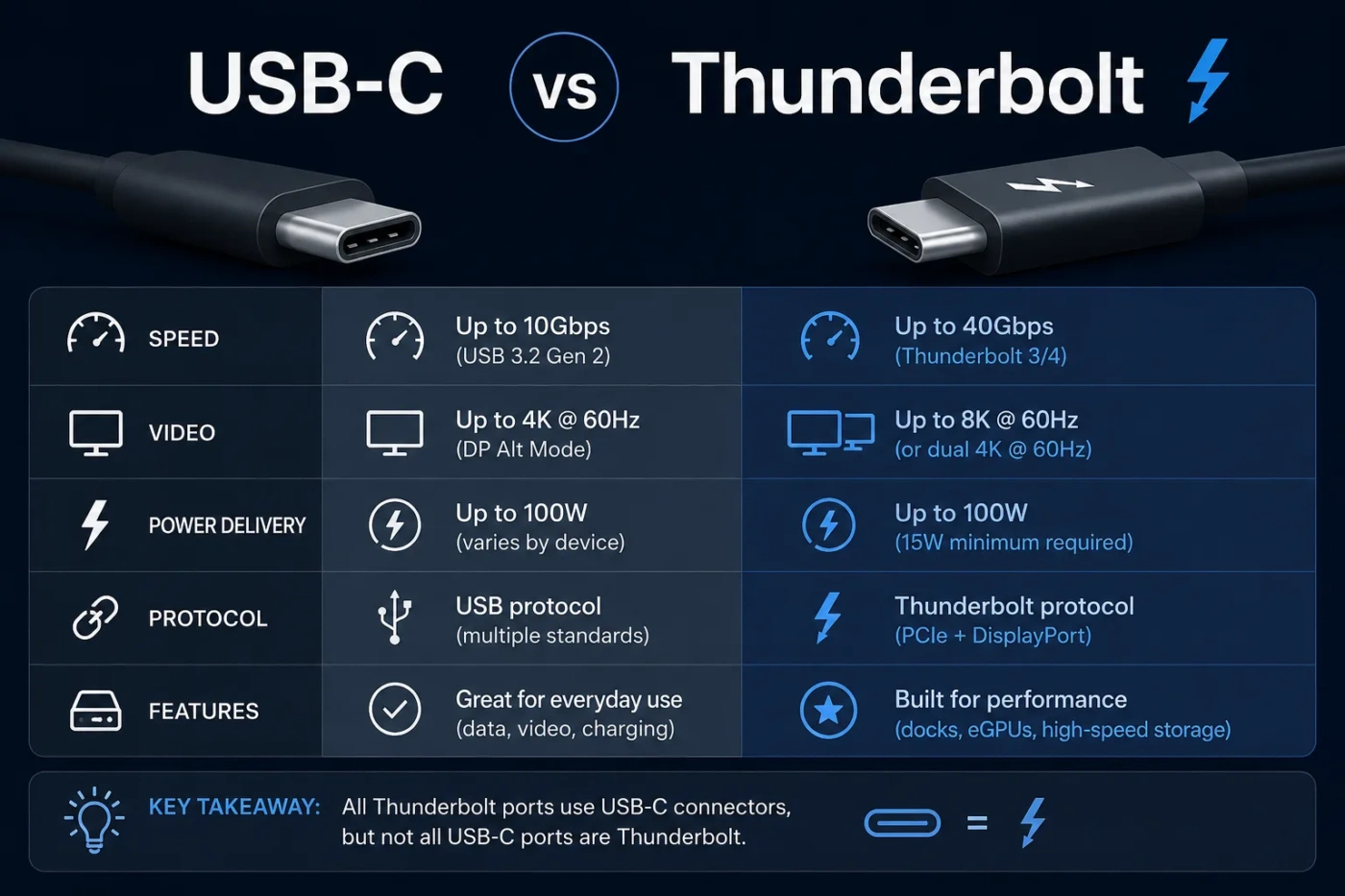
USB-C vs Thunderbolt is a common comparison because both often use the same small oval port. The confusing part is that they are not the same kind of thing. USB-C is the connector shape. Thunderbolt is a high-speed connection technology that usually uses that connector. That means a laptop, monitor, cable, dock, charger, or external SSD can have a USB-C port without giving you Thunderbolt performance.
- USB-C vs Thunderbolt: The Main Difference
- What Is USB-C?
- USB-C Is Common Because It Is Flexible
- What Is Thunderbolt?
- Speed And Performance Differences
- Charging Differences
- Display And Monitor Support
- Choose USB-C For Simple Display Needs
- Choose Thunderbolt For Heavier Display Setups
- Cable Differences: Why The Cable Matters
- What To Check Before Buying A Cable
- Docking Station Differences
- USB-C Advantages
- Thunderbolt Advantages
- When Should You Choose USB-C?
- Choose USB-C If You Mainly Need Charging
- Choose USB-C If You Use Basic Accessories
- Choose USB-C If You Want A Cheaper Dock
- Choose USB-C If You Use Phones And Tablets More Than Laptops
- When Should You Choose Thunderbolt?
- Choose Thunderbolt For Fast External SSDs
- Choose Thunderbolt For Multiple Monitors
- Choose Thunderbolt For A One-Cable Laptop Desk
- Choose Thunderbolt For Professional Devices
- Price And Value Comparison
- Compatibility: What Works With What?
- How To Identify A Thunderbolt Port
- Common Misunderstandings About USB-C And Thunderbolt
- “All USB-C Ports Are Fast”
- “USB-C Always Supports Monitors”
- “Thunderbolt And USB-C Are The Same”
- “Any USB-C Cable Works For Any Job”
- “Thunderbolt Is Always Worth The Extra Cost”
- “USB4 Means The Same Thing As Thunderbolt”
- Real-World Examples
- Example 1: You Want To Charge A Laptop
- Example 2: You Want To Connect One Monitor
- Example 3: You Edit Video From An External SSD
- Example 4: You Use A Phone, Tablet, And Power Bank
- Example 5: You Want A Desk With Two Monitors, Ethernet, Storage, And Charging
- Decision Guide: Which One Should You Choose?
- Who Should Choose USB-C?
- Who Should Choose Thunderbolt?
- Final Buying Checklist
- USB-C vs Thunderbolt: The Better Choice
| Feature | USB-C | Thunderbolt |
|---|---|---|
| What It Means | A physical connector type used by many USB standards | A high-speed data, display, and power technology that uses a USB-C connector on newer devices |
| Best For | Charging, everyday data transfer, phones, tablets, keyboards, basic docks, monitors, and general accessories | High-speed storage, advanced docks, multiple displays, professional workflows, PCIe devices, and demanding laptop setups |
| Typical Speed Range | Can range from USB 2.0 speeds to USB4 speeds, depending on the port and cable | Thunderbolt 3 and Thunderbolt 4 commonly support up to 40Gbps; Thunderbolt 5 can go higher on supported hardware |
| Connector Shape | Reversible USB-C oval connector | Usually the same USB-C connector, often marked with a lightning-bolt symbol |
| Video Support | Possible through DisplayPort Alt Mode or USB4, but not guaranteed on every USB-C port | Built for stronger display support, especially on Thunderbolt 4 and Thunderbolt 5 devices |
| External GPU Support | Not normally available on basic USB-C ports | Possible on many Thunderbolt 3, Thunderbolt 4, and Thunderbolt 5 systems when the device and enclosure support it |
| Daisy Chaining | Limited and not a normal feature of basic USB-C | Supported in many Thunderbolt setups, depending on the devices used |
| Charging | Can support USB Power Delivery, including higher-watt charging when the device, charger, and cable allow it | Can carry power too, but charging wattage still depends on the device, charger, and cable |
| Cable Confusion | High: some USB-C cables are charge-only or low-speed | Lower when buying certified Thunderbolt cables, but cable length and generation still matter |
| Price | Usually cheaper; basic cables may cost around $5–$20 | Usually more expensive; certified Thunderbolt cables and docks often cost more |
| Compatibility | Very wide across phones, tablets, laptops, chargers, displays, and accessories | Works best when both the computer and accessory support Thunderbolt |
| Best Choice For Most People | Yes, for normal charging and accessories | Better for high-performance laptop setups, fast external drives, and multi-display workstations |
USB-C vs Thunderbolt: The Main Difference
The easiest way to understand the difference is this: USB-C describes the port shape, while Thunderbolt describes what the port can do.
A USB-C port may support only basic charging and slow USB 2.0 data transfer. Another USB-C port may support USB 3.2, DisplayPort video output, USB Power Delivery, or USB4. They can look identical from the outside.
Thunderbolt is more specific. A Thunderbolt port normally supports fast data transfer, display output, power delivery, and PCIe-based device communication through the same USB-C-shaped connector. This is why Thunderbolt is common on higher-end laptops, docking stations, audio interfaces, fast external SSDs, and creator-focused setups.
So the real comparison is not only about the port. It is about speed, display support, cable quality, device compatibility, and what you plan to connect.
What Is USB-C?
USB-C, also called USB Type-C, is a reversible connector used for charging, data transfer, video output, and accessory connection. You can plug it in either way, which made it more convenient than older USB-A, Micro-USB, and Mini-USB connectors.
But USB-C alone does not tell you the port’s speed. A USB-C port can be connected to several different standards, including:
- USB 2.0
- USB 3.2 Gen 1
- USB 3.2 Gen 2
- USB 3.2 Gen 2×2
- USB4
- DisplayPort Alt Mode
- USB Power Delivery
This is why two devices can both say “USB-C” but behave very differently. One cable may only charge a wireless mouse. Another may charge a laptop, move large files quickly, and connect to a 4K monitor.
USB-C Is Common Because It Is Flexible
USB-C is used across many everyday devices:
- Smartphones
- Tablets
- Laptops
- Desktop motherboards
- Portable monitors
- Game controllers
- Power banks
- External SSDs
- USB hubs and docks
- Wall chargers
For most people, that wide device support is the main advantage. You can often use one cable type for your phone, tablet, headphones, laptop charger, and portable drive. The catch is that the cable must support the job you want it to do.
What Is Thunderbolt?
Thunderbolt is a high-speed connection technology developed for data, display, power, and PCIe communication through one port. Newer Thunderbolt versions use the USB-C connector, so a Thunderbolt port may look exactly like a normal USB-C port.
Thunderbolt is often found on premium laptops, creator laptops, Mac computers, high-end Windows ultrabooks, docking stations, professional displays, audio equipment, storage arrays, and fast external NVMe enclosures.
The main Thunderbolt versions you may see are:
- Thunderbolt 3: Uses USB-C and can support up to 40Gbps on compatible devices.
- Thunderbolt 4: Also uses USB-C, keeps up to 40Gbps, and adds stricter minimum requirements for data, display, docks, and security support.
- Thunderbolt 5: Uses USB-C and is designed for higher-bandwidth setups, including faster storage and more demanding display configurations.
Thunderbolt does not just mean “faster USB-C.” It also gives device makers a stricter feature set. That is why Thunderbolt docks and storage devices are usually more reliable for demanding work than basic USB-C accessories.
Speed And Performance Differences
Speed is one of the biggest reasons people compare USB-C vs Thunderbolt. The problem is that USB-C speed depends on the exact USB standard behind the port.
| Connection Type | Connector | Possible Speed | What It Feels Like in Real Use |
|---|---|---|---|
| USB 2.0 over USB-C | USB-C | Up to 480Mbps | Fine for charging and basic accessories, slow for large files |
| USB 3.2 Gen 1 over USB-C | USB-C | Up to 5Gbps | Good for everyday file transfers and many external drives |
| USB 3.2 Gen 2 over USB-C | USB-C | Up to 10Gbps | Better for portable SSDs and faster backups |
| USB 3.2 Gen 2×2 over USB-C | USB-C | Up to 20Gbps | Useful for fast external storage, but not supported by every computer |
| USB4 over USB-C | USB-C | 20Gbps, 40Gbps, or higher on newer certified hardware | Can be very fast, but features still depend on device support |
| Thunderbolt 3 / 4 | USB-C | Up to 40Gbps | Strong for docks, fast SSDs, displays, and PCIe-based accessories |
| Thunderbolt 5 | USB-C | Higher than Thunderbolt 4 on supported systems | Better suited for high-resolution displays, fast storage, and heavier workstation setups |
For simple tasks, the speed difference may not matter. A keyboard, mouse, printer, microphone, webcam, or phone charger does not need Thunderbolt. For large 4K video files, external SSD editing, multi-display docks, or high-bandwidth accessories, Thunderbolt can feel much smoother.
Charging Differences
Both USB-C and Thunderbolt can carry power, but the label on the port does not guarantee a specific charging wattage. Charging depends on three things:
- The device’s charging limit
- The charger’s output
- The cable’s power rating
USB Power Delivery can support high-watt charging, including laptop charging. Some newer USB-C cables support up to 240W with Extended Power Range, but only when the full charging chain supports it. Many common cables are rated for lower wattage.
Thunderbolt cables can also charge devices, but Thunderbolt does not automatically mean maximum charging power. A Thunderbolt dock may provide 60W, 85W, 100W, 140W, or another amount depending on its design.
Practical rule: for charging, look for the wattage rating. For data and display performance, look for the USB or Thunderbolt specification.
Display And Monitor Support
USB-C can support monitors, but only when the port supports video output. This is often called DisplayPort Alt Mode. Some laptops have USB-C ports that charge and transfer data but do not send video to a monitor.
Thunderbolt is usually better for monitor setups because display support is part of its higher-end use case. A Thunderbolt dock can often connect one or more external monitors while also handling storage, Ethernet, audio, and USB accessories.
Choose USB-C For Simple Display Needs
USB-C is often enough when you want to connect:
- One portable monitor
- One standard office monitor
- A tablet-style display
- A simple USB-C to HDMI adapter
Before buying the cable or adapter, check that your laptop’s USB-C port supports video output. The port may have a DisplayPort symbol, Thunderbolt symbol, or a clear mention in the device specifications.
Choose Thunderbolt For Heavier Display Setups
Thunderbolt is usually the safer choice when you want:
- Multiple external monitors from one dock
- High-refresh displays
- High-resolution creator monitors
- A clean desk setup with one cable to the laptop
- Display, charging, Ethernet, storage, and accessories through one dock
This is where Thunderbolt docks earn their higher price. They reduce cable clutter and handle more data through one connection.
Cable Differences: Why The Cable Matters
The cable is often the hidden problem in USB-C vs Thunderbolt setups. Many cables look the same from the outside, but they can have very different abilities.
A cheap USB-C cable may only support charging and slow data transfer. A better USB-C cable may support 10Gbps or 20Gbps. A certified USB4 or Thunderbolt cable may support higher bandwidth, video output, and stronger docking performance.
What To Check Before Buying A Cable
- Speed rating: Look for 5Gbps, 10Gbps, 20Gbps, 40Gbps, or higher depending on your needs.
- Power rating: Look for 60W, 100W, 140W, or 240W if charging a laptop.
- Video support: Needed for monitors and docks.
- Certification: Certified Thunderbolt or USB4 cables reduce guesswork.
- Length: Longer high-speed cables often need better design and may cost more.
If you are buying a cable for a Thunderbolt dock or fast external SSD, do not use a random phone charging cable. It may connect physically but limit speed or fail to carry the display signal.
Docking Station Differences
USB-C docks are usually cheaper and good enough for many desks. They can add HDMI, USB-A ports, Ethernet, SD card slots, and power passthrough. For office work, browsing, email, spreadsheets, and a single monitor, a good USB-C dock can be the right choice.
Thunderbolt docks cost more, but they are made for heavier setups. They can handle faster storage, more display bandwidth, better multi-monitor support, and stronger device expansion through one cable.
| Use Case | USB-C Dock | Thunderbolt Dock |
|---|---|---|
| Basic Office Desk | Usually enough | Works well, but may be more than needed |
| One External Monitor | Often enough if the laptop supports video over USB-C | Good choice, especially if you also need fast storage |
| Two Or More Monitors | Can work, but support varies by laptop, dock, and operating system | Usually the better choice |
| Fast External SSD | Fine for moderate speeds | Better for high-speed NVMe storage |
| Creative Workstation | Can feel limited | Better fit for video editing, large media files, and multi-device setups |
| Budget Setup | Usually better value | Higher cost, but better expansion |
USB-C Advantages
USB-C wins when you want broad compatibility, lower cost, and simple daily use. It is the connection type most people use without thinking about it.
- Lower accessory cost: USB-C chargers, hubs, and cables are often cheaper than Thunderbolt versions.
- Wide device support: Phones, tablets, laptops, headphones, power banks, and monitors often use USB-C.
- Good enough for normal use: Charging, syncing, webcam use, and basic external drives do not need Thunderbolt.
- Simple charging setup: One USB-C charger can often power several devices, as long as the wattage matches.
- More choices: There are many USB-C hubs, cables, adapters, and chargers at different prices.
The downside is inconsistency. A USB-C port may not support video. A USB-C cable may be slow. A USB-C dock may not run two monitors the way you expect. You need to check the details.
Thunderbolt Advantages
Thunderbolt wins when you need higher performance and fewer compatibility surprises in advanced setups.
- Faster external storage: Good for large video projects, photo libraries, backups, and fast NVMe drives.
- Better docking: Strong fit for one-cable desk setups with displays, charging, Ethernet, and accessories.
- Display strength: Better choice for multi-monitor and high-resolution monitor setups.
- PCIe support: Useful for external GPUs, pro audio gear, capture devices, and specialized expansion devices.
- Clearer expectations: Certified Thunderbolt devices usually meet stricter performance rules.
The downside is cost. Thunderbolt cables, docks, and accessories usually cost more than ordinary USB-C options. You also need a Thunderbolt port on your computer to get the full benefit.
When Should You Choose USB-C?
Choose USB-C if your needs are simple, mobile, and budget-friendly. It is the better fit for most everyday users.
Choose USB-C If You Mainly Need Charging
If you only want to charge a phone, tablet, headphones, power bank, or laptop, USB-C is usually enough. Focus on wattage, cable quality, and charger safety rather than Thunderbolt.
Choose USB-C If You Use Basic Accessories
USB-C is fine for:
- Keyboards
- Mice
- Printers
- Webcams
- Microphones
- USB flash drives
- Card readers
- Basic external hard drives
These devices do not need Thunderbolt bandwidth. Paying extra will not make a keyboard or mouse work better.
Choose USB-C If You Want A Cheaper Dock
A USB-C dock is usually enough for a single monitor, Ethernet, a few USB-A ports, and laptop charging. For a home office or student desk, this can be the better value.
Choose USB-C If You Use Phones And Tablets More Than Laptops
Most phones and tablets use USB-C but do not need Thunderbolt accessories. A well-rated USB-C charger and cable will usually matter more than a high-end Thunderbolt cable.
When Should You Choose Thunderbolt?
Choose Thunderbolt if you use a laptop as the center of a larger workstation. It is made for people who connect more than one demanding device through a single port.
Choose Thunderbolt For Fast External SSDs
If you edit video from an external drive, move huge project folders, or use an NVMe enclosure, Thunderbolt can save time. It is also more stable for storage-heavy work than many low-cost USB-C hubs.
Choose Thunderbolt For Multiple Monitors
If you want to connect two external monitors, a high-resolution display, or a high-refresh monitor setup, Thunderbolt is often the cleaner choice. A Thunderbolt dock can reduce the number of cables on your desk while keeping performance strong.
Choose Thunderbolt For A One-Cable Laptop Desk
A Thunderbolt dock can connect your laptop to:
- External monitors
- Ethernet
- Speakers or audio gear
- External SSDs
- USB accessories
- SD card readers
- Laptop charging
This is one of Thunderbolt’s best real-use advantages. You plug in one cable and your desk setup is ready.
Choose Thunderbolt For Professional Devices
Thunderbolt is a better match for devices such as:
- External GPU enclosures
- High-speed RAID storage
- Professional audio interfaces
- Video capture hardware
- High-end docking stations
- Creator-focused monitors
If your accessory specifically says it needs Thunderbolt, a normal USB-C port may not be enough.
Price And Value Comparison
USB-C usually gives better value for everyday users. A basic USB-C cable may cost around $5–$20, while higher-quality USB-C charging or data cables may cost more. USB-C hubs are also widely available at lower prices.
Thunderbolt accessories usually sit in a higher price range. Certified Thunderbolt cables can cost more than standard USB-C cables, and Thunderbolt docks often cost much more than basic USB-C hubs. That extra cost makes sense only when you use the added bandwidth and display support.
| User Type | Better Value | Why |
|---|---|---|
| Phone User | USB-C | Charging and basic data transfer do not need Thunderbolt |
| Student | USB-C | Lower cost and enough for chargers, drives, and simple docks |
| Office Worker | USB-C or Thunderbolt | USB-C is enough for a simple desk; Thunderbolt is better for multi-monitor docks |
| Video Editor | Thunderbolt | Better for fast SSDs, monitors, and media-heavy workflows |
| Photographer | Thunderbolt | Useful for fast storage, card workflows, and large libraries |
| Gamer With External GPU | Thunderbolt | External GPU setups usually need Thunderbolt support |
| General Home User | USB-C | Cheaper and easier for normal device charging and accessories |
Compatibility: What Works With What?
USB-C and Thunderbolt compatibility can be confusing because the connector shape is shared.
A Thunderbolt port can usually handle many USB-C devices. For example, you can plug a USB-C flash drive, phone cable, or USB-C hub into a Thunderbolt port and use it as a normal USB device.
The reverse is not always true. A normal USB-C port may not support a Thunderbolt-only device. If an external SSD, dock, display, or capture device requires Thunderbolt, plugging it into a basic USB-C port may result in lower performance or no connection at all.
How To Identify A Thunderbolt Port
Look for:
- A lightning-bolt symbol near the USB-C port
- Thunderbolt listed in the laptop specifications
- Thunderbolt Control Center on some Windows systems
- Mac model specifications that mention Thunderbolt or USB4
- Dock or cable packaging that clearly says Thunderbolt 3, Thunderbolt 4, or Thunderbolt 5
Do not rely only on the port shape. The same oval connector can mean very different things.
Common Misunderstandings About USB-C And Thunderbolt
“All USB-C Ports Are Fast”
No. A USB-C port can be slow or fast depending on the standard behind it. Some USB-C ports only support USB 2.0 data rates, especially on simple chargers, low-cost accessories, and some mobile devices.
“USB-C Always Supports Monitors”
No. Video output requires DisplayPort Alt Mode, USB4, Thunderbolt, or another supported video feature. A USB-C port can charge and transfer files without supporting a monitor.
“Thunderbolt And USB-C Are The Same”
No. Thunderbolt uses the USB-C connector on newer devices, but it is not the same as basic USB-C. Thunderbolt refers to a higher-performance connection standard.
“Any USB-C Cable Works For Any Job”
No. Some cables are charge-only or low-speed. Others support fast data, high wattage, and display signals. The cable can limit the whole setup.
“Thunderbolt Is Always Worth The Extra Cost”
No. If you only charge devices and connect basic accessories, Thunderbolt is unnecessary. It becomes useful when you need fast storage, advanced docking, PCIe devices, or stronger monitor support.
“USB4 Means The Same Thing As Thunderbolt”
No. USB4 and Thunderbolt overlap in some areas, but they are not identical labels. USB4 can offer strong performance, yet supported features may vary by device. Thunderbolt certification usually gives clearer expectations for docks, displays, and high-speed accessories.
Real-World Examples
Example 1: You Want To Charge A Laptop
Pick USB-C if the charger and cable support your laptop’s wattage. Thunderbolt is not needed just for charging.
Example 2: You Want To Connect One Monitor
USB-C is enough if your laptop supports video over USB-C and your monitor or adapter matches it. Thunderbolt is useful if you also want a dock, fast storage, and cleaner cable management.
Example 3: You Edit Video From An External SSD
Thunderbolt is the better choice. It can help maintain faster transfer speeds and smoother editing from external NVMe storage.
Example 4: You Use A Phone, Tablet, And Power Bank
USB-C is the right choice. You need good charging cables and a safe charger, not Thunderbolt bandwidth.
Example 5: You Want A Desk With Two Monitors, Ethernet, Storage, And Charging
Thunderbolt is usually the better fit. A Thunderbolt dock can handle more devices through one cable with fewer limits.
Decision Guide: Which One Should You Choose?
Choose USB-C if you want an affordable, widely compatible connection for charging, simple accessories, basic storage, and everyday use.
Choose Thunderbolt if you want a high-performance laptop setup with fast external drives, multiple displays, advanced docks, or specialized professional devices.
Simple decision: If you are buying for normal charging and accessories, choose USB-C. If you are building a serious desk setup around one laptop cable, choose Thunderbolt.
Who Should Choose USB-C?
- People who mainly charge phones, tablets, laptops, and headphones
- Students who want affordable cables and adapters
- Home users with basic accessories
- Office users with one monitor and simple peripherals
- Travelers who want one common cable type
- Anyone who does not use large external SSDs or advanced docks
USB-C is the more practical option for most everyday buyers. Just make sure the cable supports the speed, charging wattage, and video features you need.
Who Should Choose Thunderbolt?
- Video editors working with large files
- Photographers using fast external storage
- Developers or professionals using multi-monitor docks
- Music producers with Thunderbolt audio interfaces
- Gamers or creators using external GPU setups
- Laptop users who want one cable for a full desktop workstation
Thunderbolt is better when performance, display flexibility, and docking reliability matter more than price.
Final Buying Checklist
Before buying a cable, dock, monitor, or external drive, check these points:
- Does your computer port support only USB-C, or does it support Thunderbolt?
- What speed does the port support: USB 3.2, USB4, Thunderbolt 3, Thunderbolt 4, or Thunderbolt 5?
- Does the port support video output?
- What charging wattage do you need?
- Does the cable support both the speed and wattage you want?
- Does the dock support your monitor count, resolution, and refresh rate?
- Does your accessory require Thunderbolt, or can it run over normal USB-C?
If you are unsure, buy based on the most demanding device in your setup. A phone charger does not need Thunderbolt. A high-speed external SSD or multi-monitor dock may.
USB-C vs Thunderbolt: The Better Choice
For most people, USB-C is the better everyday choice because it is cheaper, widely supported, and good enough for charging, normal accessories, and simple data transfer.
For power users, Thunderbolt is the better performance choice because it handles fast storage, advanced docks, multiple displays, and PCIe-based devices with fewer limits.
The safest way to decide is to start with your setup. If your goal is convenience, charging, and general compatibility, choose USB-C. If your goal is speed, one-cable docking, and workstation-level expansion, choose Thunderbolt.