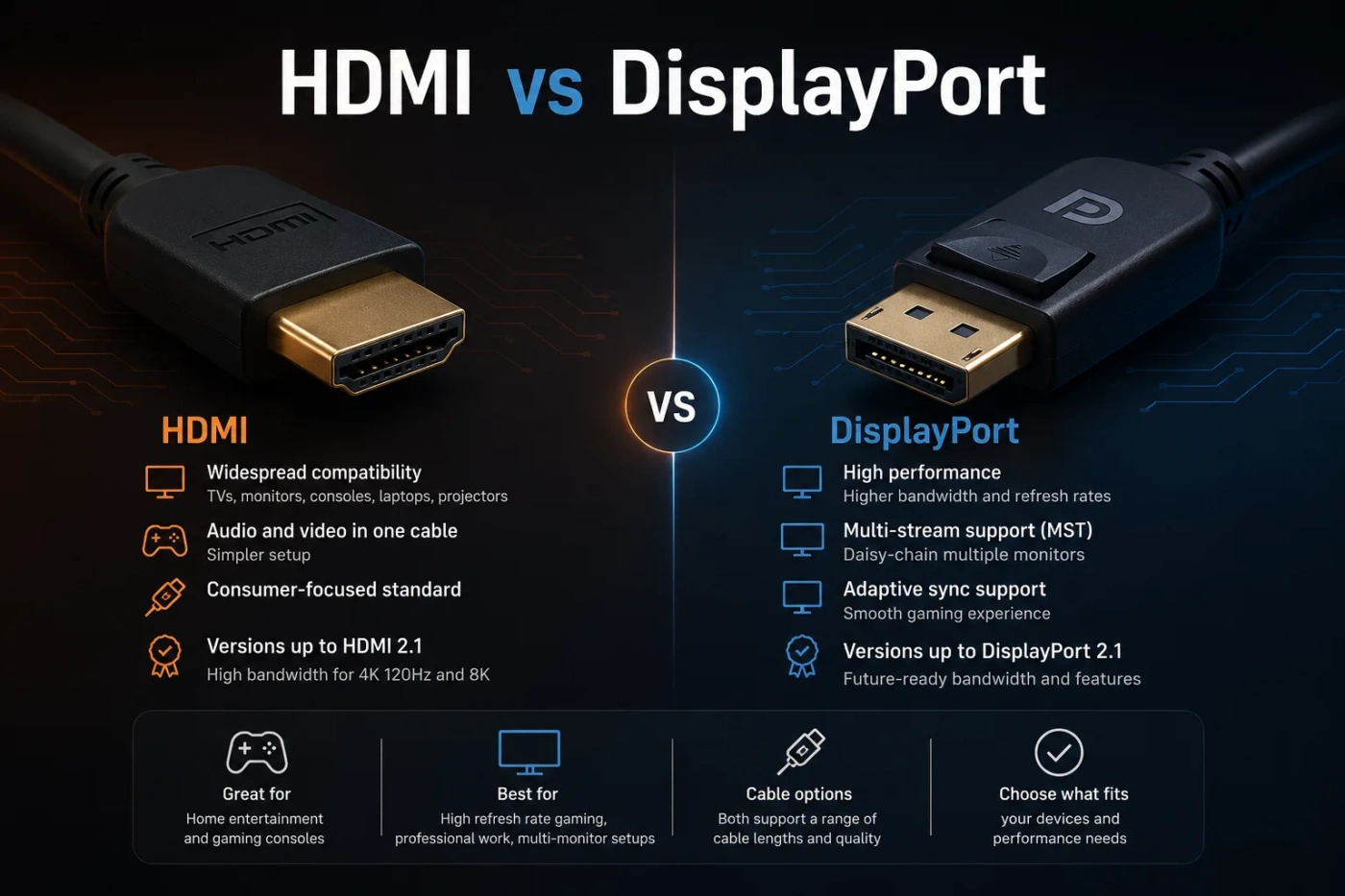
HDMI and DisplayPort can both carry high-quality digital video and audio, but they are built around different real-world priorities. HDMI is usually the safer choice for TVs, game consoles, soundbars, AV receivers, projectors, and living-room setups. DisplayPort is usually the better fit for desktop monitors, high-refresh gaming, multi-monitor workstations, USB-C monitor connections, and PC-focused display performance. The right choice depends less on which connector is “better” and more on the device, screen, refresh rate, audio setup, and cable you plan to use.
- HDMI vs DisplayPort: The Short Decision
- What Is HDMI?
- Where HDMI Works Best
- Important HDMI Versions
- What Is DisplayPort?
- Where DisplayPort Works Best
- Important DisplayPort Versions
- Core Differences That Matter in Real Use
- 1. HDMI Is More Common on TVs
- 2. DisplayPort Is More Common on PC Graphics Cards
- 3. HDMI Has Better Home-Theater Audio Support
- 4. DisplayPort Is Often Better for Multi-Monitor Work
- 5. Cable Quality Matters More Than the Connector Name
- Performance Comparison: Resolution, Refresh Rate, and Bandwidth
- Bandwidth Is Not the Same as Visible Quality
- Display Stream Compression Is Not a Bad Thing
- Gaming: HDMI or DisplayPort?
- Choose HDMI for Console Gaming
- Choose DisplayPort for PC Gaming Monitors
- Variable Refresh Rate Support
- Work, Productivity, and Multi-Monitor Setups
- DisplayPort Is Usually Better for Desktop Workstations
- HDMI Is Fine for Single-Monitor Office Use
- USB-C Often Uses DisplayPort Behind the Scenes
- Home Theater: Why HDMI Usually Wins
- ARC and eARC
- CEC Device Control
- Cable and Port Confusion
- HDMI Cable Labels
- DisplayPort Cable Labels
- HDMI vs DisplayPort for Laptops
- When HDMI Is Better on a Laptop
- When DisplayPort or USB-C DisplayPort Is Better on a Laptop
- HDMI vs DisplayPort for Monitors
- Check the Monitor’s Input Limits
- For a Desktop GPU, Try DisplayPort First
- For Console Use on a Monitor, Use HDMI
- Price and Value
- Biggest Misunderstandings
- “HDMI Always Means TV Quality and DisplayPort Always Means PC Quality”
- “The Newest Version Always Works at Full Speed”
- “A More Expensive Cable Improves Picture Quality”
- “DisplayPort Cannot Carry Audio”
- “HDMI 2.1 and DisplayPort 2.1 Are Automatically Comparable by Number”
- When You Should Choose HDMI
- When You Should Choose DisplayPort
- Which One Should You Choose?
- Choose HDMI If You Are This User
- Choose DisplayPort If You Are This User
- Simple Buying Checklist
| Feature | HDMI | DisplayPort |
|---|---|---|
| Best For | TVs, consoles, home theater, soundbars, AV receivers, projectors | PC monitors, gaming monitors, workstations, multi-monitor setups |
| Common Devices | TVs, PlayStation, Xbox, Blu-ray players, streaming boxes, laptops, cameras | Desktop GPUs, gaming monitors, professional monitors, docking stations, USB-C displays |
| Latest High-End Bandwidth | Up to 48 Gbps with HDMI 2.1; up to 96 Gbps with HDMI 2.2 hardware and Ultra96 cables | Up to 80 Gbps with DisplayPort 2.1 UHBR20 hardware and certified DP80 cables |
| Gaming Strength | Excellent for console gaming, 4K TVs, VRR, ALLM, and living-room gaming | Excellent for PC gaming, high-refresh monitors, adaptive sync, and multi-monitor layouts |
| Audio Features | Stronger home-theater support, including ARC and eARC on compatible devices | Carries audio, but is not usually the main choice for soundbars or AV receivers |
| Multi-Monitor Support | Usually one display per port, depending on device support | Often better for daisy-chaining and multi-display PC setups through MST |
| Connector Locking | Standard HDMI usually does not lock into place | Many full-size DisplayPort cables include a latch, though not all do |
| USB-C Compatibility | Possible through adapters or HDMI Alt Mode, but less common in current laptops | Very common through USB-C DisplayPort Alt Mode and many Thunderbolt/USB4 docks |
| TV Compatibility | Very strong; almost every modern TV has HDMI | Rare on TVs |
| Monitor Compatibility | Common on monitors, especially for consoles and laptops | Very common on gaming, office, and professional PC monitors |
| Best Simple Choice | Choose HDMI for a TV, console, soundbar, or home theater system | Choose DisplayPort for a desktop PC monitor, high refresh rate, or multi-monitor setup |
HDMI vs DisplayPort: The Short Decision
Choose HDMI if your main screen is a TV, your device is a game console, or your setup includes a soundbar or AV receiver. HDMI is the default connection for living-room devices because it supports video, audio, device control, and home-theater features in one familiar cable.
Choose DisplayPort if your main screen is a PC monitor, especially a gaming monitor or a productivity display with high refresh rates. DisplayPort is common on graphics cards and monitors because it is designed around computer displays, high bandwidth modes, and flexible monitor layouts.
For many people, the easiest rule is this: HDMI for TVs and consoles; DisplayPort for PC monitors. There are exceptions, but that rule will be right for most everyday setups.
What Is HDMI?
HDMI stands for High-Definition Multimedia Interface. It is a digital connection used to send video and audio from one device to another. You see it on TVs, game consoles, streaming devices, Blu-ray players, projectors, laptops, AV receivers, soundbars, capture cards, and many monitors.
HDMI became the normal choice for home entertainment because it does more than send a picture. It can also carry audio, support device control through CEC, send TV audio back to a soundbar through ARC or eARC, and handle modern gaming features on supported hardware.
Where HDMI Works Best
- TV setups: Nearly every modern TV uses HDMI as its main input.
- Game consoles: PlayStation, Xbox, and Nintendo systems are built around HDMI output.
- Home theater: Soundbars and AV receivers rely on HDMI ARC or eARC for cleaner audio routing.
- Projectors: Most consumer projectors expect HDMI input.
- Simple plug-and-play use: HDMI is easy to recognize and widely supported.
Important HDMI Versions
HDMI versions matter because they affect bandwidth, resolution, refresh rate, and feature support. The port shape may look the same, but the capability can be very different.
- HDMI 1.4: Older standard. Fine for 1080p and basic 4K at lower refresh rates.
- HDMI 2.0: Common on many TVs and monitors. Often used for 4K at 60 Hz.
- HDMI 2.1: Supports up to 48 Gbps on compatible devices and cables. Often used for 4K at 120 Hz, VRR, and modern console gaming.
- HDMI 2.2: Newer high-bandwidth standard with up to 96 Gbps on compatible devices and certified Ultra96 cables. Early adoption depends on new hardware.
The version label alone is not enough. Some devices advertise an HDMI version but do not support every feature associated with it. Always check the actual features you need, such as 4K 120 Hz, VRR, eARC, HDR, or 8K output.
What Is DisplayPort?
DisplayPort is a digital display connection developed mainly for computers and monitors. You usually find it on desktop graphics cards, gaming monitors, professional monitors, docking stations, and some laptops through USB-C DisplayPort Alt Mode.
DisplayPort can carry video and audio, but its strength is PC display performance. It is especially useful when you want high refresh rates, high resolutions, adaptive sync, multiple monitors, or a clean desktop workstation setup.
Where DisplayPort Works Best
- Desktop PCs: Most dedicated graphics cards include DisplayPort outputs.
- Gaming monitors: Many high-refresh monitors perform best through DisplayPort.
- Multi-monitor setups: DisplayPort can support daisy-chaining on compatible monitors through MST.
- USB-C displays: Many laptops send DisplayPort video over USB-C.
- Workstations: High-resolution professional displays often support DisplayPort as a primary input.
Important DisplayPort Versions
- DisplayPort 1.2: Older but still useful for many 1080p, 1440p, and basic multi-monitor setups.
- DisplayPort 1.4: Very common on gaming monitors and GPUs. Supports higher resolutions and refresh rates, often using Display Stream Compression for demanding modes.
- DisplayPort 2.0: Introduced much higher bandwidth, but real hardware adoption has been uneven.
- DisplayPort 2.1: Current high-end DisplayPort standard, with UHBR modes that can reach up to 80 Gbps on compatible devices and certified cables.
As with HDMI, the printed version is not the whole story. A DisplayPort 2.1 device may support different UHBR levels, and a monitor may limit certain refresh rates by input. Check the monitor manual, GPU specifications, and cable certification before buying for a demanding setup.
Core Differences That Matter in Real Use
1. HDMI Is More Common on TVs
If you are connecting to a TV, HDMI is almost always the correct answer. Modern TVs are built around HDMI inputs because they need to work with consoles, streaming boxes, cable boxes, soundbars, and AV receivers.
DisplayPort is rare on TVs. Even if your desktop graphics card has DisplayPort, you will usually use HDMI when connecting that PC to a living-room TV.
2. DisplayPort Is More Common on PC Graphics Cards
Modern desktop GPUs usually include more DisplayPort outputs than HDMI outputs. That makes DisplayPort convenient for multi-monitor PC setups, gaming monitors, and high-resolution productivity screens.
If your graphics card has three DisplayPort outputs and one HDMI output, that is a clue: the card expects DisplayPort to handle most monitor connections.
3. HDMI Has Better Home-Theater Audio Support
HDMI is the stronger choice when audio routing matters. ARC and eARC allow compatible TVs to send audio back to a soundbar or AV receiver through the same HDMI connection. This is useful for apps built into the TV, external streaming devices, and console setups.
DisplayPort can carry audio, but it is not usually used for home-theater audio chains. A monitor with DisplayPort may have speakers or a headphone jack, but that is different from a full TV-and-soundbar setup.
4. DisplayPort Is Often Better for Multi-Monitor Work
DisplayPort supports Multi-Stream Transport, known as MST, on compatible hardware. MST can allow daisy-chaining from one monitor to another or splitting one DisplayPort output into multiple displays through a hub.
This does not mean every DisplayPort monitor supports daisy-chaining. The monitor must have the right DisplayPort output, the GPU must support the mode, and bandwidth must be enough for the combined resolution and refresh rate.
5. Cable Quality Matters More Than the Connector Name
A poor cable can cause flickering, black screens, limited refresh rates, color format problems, or random signal drops. This happens with both HDMI and DisplayPort.
For HDMI 2.1 devices, look for a certified Ultra High Speed HDMI cable when you need 4K 120 Hz, VRR, or high-bandwidth HDR modes. For HDMI 2.2 hardware, Ultra96 cables are designed for the newer 96 Gbps mode.
For DisplayPort, look for certified cables such as DP40 or DP80 when using high-bandwidth DisplayPort 2.1 modes. For many DisplayPort 1.4 monitors, a good certified cable is still the safer choice, especially at 1440p 240 Hz, 4K 144 Hz, or similar modes.
Performance Comparison: Resolution, Refresh Rate, and Bandwidth
Performance depends on four things working together: the source device, the display, the cable, and the selected settings. One weak link can limit the whole setup.
| Use Case | HDMI | DisplayPort |
|---|---|---|
| 1080p 60 Hz | Works easily on almost any modern HDMI connection | Works easily on almost any DisplayPort connection |
| 1440p High Refresh | Works on many HDMI 2.0 and HDMI 2.1 monitors, depending on refresh rate | Often the preferred PC monitor connection |
| 4K 60 Hz | Common with HDMI 2.0 and newer | Common with DisplayPort 1.2 and newer, depending on color settings |
| 4K 120 Hz | Strong choice for TVs and consoles with HDMI 2.1 | Strong choice for PC monitors when the monitor and GPU support it |
| 4K 144 Hz or Higher | Possible on compatible HDMI 2.1 or newer devices | Very common on PC gaming monitors, often with DisplayPort 1.4 DSC or DisplayPort 2.1 |
| 8K Displays | Supported on compatible HDMI 2.1 or HDMI 2.2 devices, often depending on compression and settings | Supported on compatible DisplayPort 1.4 DSC or DisplayPort 2.1 devices |
| Ultra-High Refresh PC Gaming | Good when the monitor’s HDMI input supports the full mode | Usually the safer first choice for PC monitors |
Bandwidth Is Not the Same as Visible Quality
Higher bandwidth allows more data to move through the cable, but it does not automatically make the picture look better. A 4K movie, a 4K console game, and a 4K desktop signal may use different refresh rates, color depth, chroma formats, and HDR modes.
For everyday viewing, both HDMI and DisplayPort can look identical when they are running the same resolution, refresh rate, color depth, and HDR setting. The visible difference appears when one connection cannot support the mode you want.
Display Stream Compression Is Not a Bad Thing
Many high-resolution, high-refresh displays use Display Stream Compression, often called DSC. It is designed to make demanding display modes possible without a visible drop in image quality for normal use.
Some buyers see the word “compression” and assume it means blurry video. That is usually not the case with DSC in monitor connections. The more useful question is whether your GPU, monitor, cable, and input support the target mode reliably.
Gaming: HDMI or DisplayPort?
For gaming, the best choice depends on whether you play on a TV, console, or PC monitor.
Choose HDMI for Console Gaming
Use HDMI for PlayStation, Xbox, Nintendo Switch, and living-room gaming. Consoles are designed around HDMI output, and modern gaming TVs support HDMI features such as 4K 120 Hz, VRR, HDR, ALLM, and eARC on compatible ports.
For a current console and 4K 120 Hz TV, use the correct high-speed cable and plug into the TV’s HDMI port that supports the gaming features you need. Some TVs have only one or two full-bandwidth HDMI ports, while the others may be more limited.
Choose DisplayPort for PC Gaming Monitors
For a desktop PC connected to a gaming monitor, DisplayPort is often the better first choice. Many monitors expose their highest refresh rate, adaptive sync range, or full PC feature set through DisplayPort.
This is especially true for 1440p high-refresh displays, ultrawide monitors, 4K 144 Hz monitors, and setups with more than one screen.
Variable Refresh Rate Support
Both HDMI and DisplayPort can support variable refresh rate features on compatible devices. This helps reduce tearing and stutter when the game’s frame rate changes.
- HDMI VRR: Common in modern TVs and consoles.
- Adaptive-Sync over DisplayPort: Common in PC gaming monitors.
- G-Sync Compatible and FreeSync displays: Often work through DisplayPort, HDMI, or both, depending on the model.
Do not assume every port supports every gaming feature. A monitor may support adaptive sync over DisplayPort but not over HDMI, or it may support a lower maximum refresh rate on one input.
Work, Productivity, and Multi-Monitor Setups
For office work, coding, design, spreadsheets, and everyday multitasking, both HDMI and DisplayPort can do the job. The difference shows up when you add more monitors, higher refresh rates, docking stations, or USB-C connections.
DisplayPort Is Usually Better for Desktop Workstations
DisplayPort is often easier for two, three, or four monitor setups because graphics cards commonly include multiple DisplayPort outputs. It also supports MST on compatible devices, which can help with daisy-chaining or dock-based display layouts.
If you use a desktop PC with several monitors, DisplayPort usually gives you more flexibility.
HDMI Is Fine for Single-Monitor Office Use
If you have one monitor and the resolution is 1080p, 1440p, or 4K 60 Hz, HDMI may be perfectly fine. Many office laptops, mini PCs, and monitors include HDMI because it is simple and widely understood.
For a basic home office, you do not need to replace HDMI with DisplayPort unless you are hitting a real limit.
USB-C Often Uses DisplayPort Behind the Scenes
Many laptops send video through USB-C using DisplayPort Alt Mode. This is why a USB-C monitor or docking station may support video even though the laptop does not have a physical DisplayPort connector.
This matters if you use a thin laptop. A single USB-C cable can sometimes carry video, data, and charging, while the video signal itself is based on DisplayPort technology.
Home Theater: Why HDMI Usually Wins
For TVs, soundbars, streaming devices, and AV receivers, HDMI is the practical choice. It is not just about video quality. It is about how living-room devices talk to each other.
ARC and eARC
ARC and eARC allow a TV to send audio back to a soundbar or receiver through HDMI. eARC supports higher-quality audio formats on compatible devices and is useful for clean home-theater wiring.
DisplayPort does not play the same role in a typical home-theater chain. A TV with DisplayPort is uncommon, and soundbars are built around HDMI, optical, Bluetooth, Wi-Fi, or app-based audio paths instead.
CEC Device Control
HDMI CEC lets compatible devices control each other in simple ways. For example, turning on a console may turn on the TV, or a TV remote may control volume on a soundbar. CEC can be inconsistent across brands, but it is still useful when it works well.
DisplayPort is not designed around this kind of living-room control experience.
Cable and Port Confusion
The most common mistake is buying based only on the connector shape. HDMI and DisplayPort are not single fixed performance levels. The version, cable certification, device support, and display settings all matter.
HDMI Cable Labels
- High Speed HDMI: Good for many older 1080p and 4K 30 Hz uses.
- Premium High Speed HDMI: Often used for HDMI 2.0-era 4K 60 Hz setups.
- Ultra High Speed HDMI: Designed for HDMI 2.1 bandwidth up to 48 Gbps.
- Ultra96 HDMI: Designed for HDMI 2.2 bandwidth up to 96 Gbps on compatible hardware.
DisplayPort Cable Labels
- Standard DisplayPort cables: Can be fine for ordinary monitor use, but quality varies.
- Certified DP40 cables: Designed for 40 Gbps DisplayPort modes.
- Certified DP80 cables: Designed for 80 Gbps DisplayPort 2.1 UHBR20 modes.
For demanding setups, certified cables reduce guesswork. That does not mean the most expensive cable is always better. It means the cable should match the mode you want to run.
HDMI vs DisplayPort for Laptops
Laptops can be tricky because their ports vary a lot. A laptop may have HDMI, USB-C, Thunderbolt, USB4, Mini DisplayPort, or a mix of these.
When HDMI Is Better on a Laptop
- You often connect to TVs, projectors, or meeting-room screens.
- You want a simple cable that works in hotels, classrooms, and offices.
- Your external display does not need very high refresh rates.
When DisplayPort or USB-C DisplayPort Is Better on a Laptop
- You use a USB-C monitor with charging.
- You connect through a Thunderbolt or USB4 dock.
- You need high refresh rates on an external monitor.
- You use multiple monitors from one dock.
Before buying a cable or dock, check the laptop’s port details. A USB-C port does not always support video output. Some USB-C ports are data-only, while others support DisplayPort Alt Mode, Thunderbolt, or USB4 display output.
HDMI vs DisplayPort for Monitors
Many monitors include both HDMI and DisplayPort, but they may not offer the same capability on every input. This is one of the biggest buying traps.
Check the Monitor’s Input Limits
A monitor might support 165 Hz through DisplayPort but only 144 Hz through HDMI. Another monitor might support full performance through both. Some ultrawide or high-refresh screens also have different color depth, HDR, or adaptive sync limits by port.
Before choosing a cable, look at the monitor’s specification page or manual and compare the maximum resolution and refresh rate for each input.
For a Desktop GPU, Try DisplayPort First
If your monitor and graphics card both have DisplayPort, use DisplayPort first for PC gaming or workstation use. It is usually the intended connection for monitor features such as high refresh rate, adaptive sync, and multi-monitor setups.
For Console Use on a Monitor, Use HDMI
If you connect a console to a gaming monitor, use HDMI. Consoles output HDMI, and the important question becomes whether the monitor’s HDMI port supports the console mode you want, such as 1440p 120 Hz or 4K 120 Hz.
Price and Value
For ordinary cable lengths, HDMI and DisplayPort cables are usually affordable. You do not need a luxury cable for a normal setup. You need the right certified cable for the bandwidth and distance.
| Buying Situation | Better Value Choice | Why |
|---|---|---|
| 4K TV and Console | HDMI | Console and TV features are built around HDMI, especially 4K 120 Hz, VRR, and eARC. |
| Desktop PC and Gaming Monitor | DisplayPort | Most gaming monitors and GPUs support their PC-focused modes through DisplayPort. |
| Laptop to Projector | HDMI | Projectors and meeting-room screens commonly use HDMI. |
| Laptop to USB-C Monitor | USB-C DisplayPort | One cable may handle video, charging, and USB data if the devices support it. |
| Three-Monitor Desk Setup | DisplayPort | Desktop GPUs usually provide more DisplayPort outputs, and MST can help on compatible gear. |
| Soundbar or AV Receiver Setup | HDMI | ARC and eARC make HDMI the practical home-theater option. |
As a general shopping range, a normal certified HDMI or DisplayPort cable is often around $8 to $25 for common lengths. Longer active cables, optical cables, or certified high-bandwidth cables can cost more. Paying extra only makes sense when the cable length, bandwidth, or installation type requires it.
Biggest Misunderstandings
“HDMI Always Means TV Quality and DisplayPort Always Means PC Quality”
Not exactly. Both can deliver excellent image quality. The better choice depends on the device and the mode. A high-end HDMI 2.1 TV connection may outperform an older DisplayPort connection, while a high-end DisplayPort monitor connection may outperform an older HDMI input.
“The Newest Version Always Works at Full Speed”
The version name does not guarantee every feature. A port, cable, GPU, monitor, TV, and firmware all need to support the same display mode. If one part is limited, the final output is limited.
“A More Expensive Cable Improves Picture Quality”
Digital cables do not improve sharpness, color, or contrast once the signal is stable and the target mode works. A better cable helps when your current cable cannot carry the required signal reliably. It does not make a correct signal look more cinematic.
“DisplayPort Cannot Carry Audio”
DisplayPort can carry audio. The reason HDMI is better for home theater is not basic audio support; it is the broader TV, soundbar, receiver, ARC, eARC, and CEC ecosystem.
“HDMI 2.1 and DisplayPort 2.1 Are Automatically Comparable by Number”
The version numbers come from different standards. HDMI 2.1 and DisplayPort 2.1 are not direct equivalents. Compare actual bandwidth, resolution, refresh rate, HDR support, VRR support, and the exact ports on your devices.
When You Should Choose HDMI
Choose HDMI when your setup is centered around entertainment devices, a TV, or home-theater audio.
- You are connecting a console to a TV.
- You are connecting a streaming box, Blu-ray player, or cable box.
- You need ARC or eARC for a soundbar or AV receiver.
- You want the easiest connection for a projector.
- You connect a laptop to hotel TVs, classroom screens, or meeting-room displays.
- Your monitor’s HDMI input supports the resolution and refresh rate you need.
HDMI is also the better default when someone else may need to use the cable. It is more familiar, more common on shared screens, and easier to explain.
When You Should Choose DisplayPort
Choose DisplayPort when your setup is centered around a desktop PC, a gaming monitor, or a multi-monitor desk.
- You are connecting a desktop GPU to a monitor.
- You want high refresh rates on a PC gaming display.
- You use more than one monitor.
- You want to use MST daisy-chaining on compatible monitors.
- Your monitor offers better specs through DisplayPort than HDMI.
- You use USB-C DisplayPort Alt Mode or a Thunderbolt/USB4 dock.
DisplayPort is usually the cleaner choice for a serious PC monitor setup. It does not replace HDMI everywhere, but it often gives PC users fewer compromises.
Which One Should You Choose?
Choose HDMI If You Are This User
- Console gamer: Use HDMI, especially with a 4K 120 Hz TV.
- Movie and TV viewer: Use HDMI for streaming boxes, Blu-ray players, soundbars, and receivers.
- Home-theater user: Use HDMI because ARC, eARC, and CEC matter.
- Projector user: Use HDMI unless the projector offers a better PC input for your needs.
- Casual laptop user: Use HDMI for the easiest connection to common screens.
Choose DisplayPort If You Are This User
- PC gamer: Use DisplayPort first when connecting a desktop GPU to a gaming monitor.
- High-refresh monitor user: Use DisplayPort if it unlocks the monitor’s full refresh rate.
- Multi-monitor worker: Use DisplayPort for easier GPU output planning and MST options.
- USB-C monitor user: Use USB-C DisplayPort Alt Mode when supported.
- Professional monitor user: Use DisplayPort when your display’s best color, resolution, or refresh mode depends on it.
Simple Buying Checklist
Before buying a cable, adapter, monitor, TV, dock, or GPU, check these points:
- What ports are available on your source device?
- What ports are available on your display?
- What resolution and refresh rate do you want?
- Does the device support HDR, VRR, ALLM, ARC, eARC, or adaptive sync if you need them?
- Does the monitor offer different limits on HDMI and DisplayPort?
- Is the cable certified for the bandwidth you need?
- Are you using a direct cable, an adapter, a dock, or a long cable run?
If you want the safest practical answer: use HDMI for TVs, consoles, soundbars, and AV receivers; use DisplayPort for desktop PC monitors, high-refresh gaming displays, and multi-monitor workstations. If both are available and both support the exact same mode, picture quality should be the same, so choose the one that fits your devices and leaves your other ports free.