A router and an access point can both improve a Wi-Fi network, but they do different jobs. A router creates and manages a network, while an access point adds wireless coverage to a network that already exists. If you only need one device for a home internet connection, choose a router. If you already have a router and want better Wi-Fi in another room, floor, office area, or outbuilding, an access point is usually the cleaner choice.
- Router vs Access Point: The Main Difference
- What Is a Router?
- What Is an Access Point?
- Router Mode vs Access Point Mode
- Router Mode
- Access Point Mode
- Technical Differences That Affect Real Use
- DHCP And IP Addresses
- NAT And Double NAT
- Firewall And Security Controls
- Roaming And Wi-Fi Movement
- Performance Comparison
- When a Router Performs Better
- When an Access Point Performs Better
- Price And Value
- When You Should Choose a Router
- Choose a Router If You Are Starting From Scratch
- Choose a Router If Your Current Router Is Outdated
- Choose a Router If You Need More Network Control
- Choose a Router If You Want One Simple Device
- When You Should Choose an Access Point
- Choose an Access Point If You Have Wi-Fi Dead Zones
- Choose an Access Point If You Already Have a Good Router
- Choose an Access Point For Larger Spaces
- Choose an Access Point If You Want Cleaner Network Behavior
- Router vs Access Point For Home Use
- Router vs Access Point For Small Office Use
- Common Misunderstandings
- “An Access Point Replaces a Router”
- “A Second Router Is the Same as an Access Point”
- “Stronger Router Means Better Wi-Fi Everywhere”
- “Access Points Always Need Professional Installation”
- “Mesh and Access Points Are the Same Thing”
- Which One Should You Choose?
- Best Choice By User Type
- Simple Buying Checklist
- Before Buying a Router
- Before Buying an Access Point
- Final Decision
| Feature | Router | Access Point |
|---|---|---|
| Main Job | Creates and manages a local network | Adds Wi-Fi coverage to an existing network |
| Internet Connection | Connects the home or office network to the internet through a WAN port | Needs an existing router or gateway to reach the internet |
| IP Address Assignment | Usually handles DHCP and gives devices local IP addresses | Usually lets the main router handle IP addresses |
| NAT | Usually performs NAT so many devices can share one internet connection | Usually does not perform NAT when used as a normal access point |
| Firewall | Often includes basic firewall and security controls | Relies on the router or gateway for firewall control |
| Wi-Fi Coverage | Provides Wi-Fi if it is a wireless router | Designed mainly to extend or improve Wi-Fi coverage |
| Wired Connection | Connects to modem, ONT, or ISP gateway; often includes LAN ports | Usually connects back to the router by Ethernet |
| Best For | Starting a network, replacing an old router, managing home internet | Fixing weak Wi-Fi areas without creating a second network |
| Setup Complexity | Moderate, especially if replacing an ISP device | Simple when AP mode is available; more technical if configured manually |
| Common Mistake | Using two routers in router mode and creating double NAT | Expecting it to work without a main router |
| Typical Value | Better when you need control, routing, security, and internet sharing | Better when coverage is the problem, not network management |
Router vs Access Point: The Main Difference
The main difference is simple: a router manages traffic between networks, while an access point gives wireless devices a way to join an existing network.
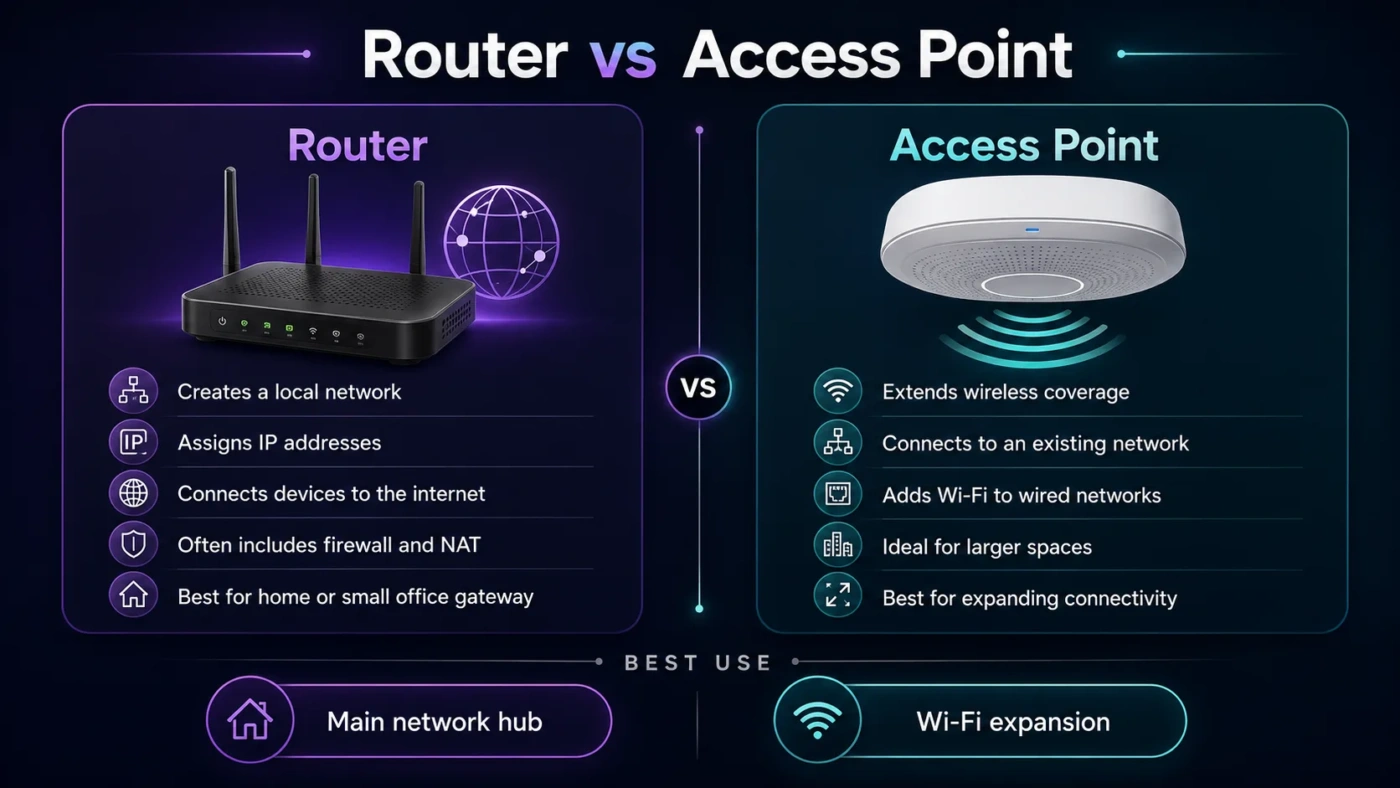
A router sits between your local devices and the outside internet. It usually handles routing, NAT, DHCP, firewall rules, parental controls, guest network settings, VPN features, port forwarding, and traffic management. Many consumer routers also include Wi-Fi, which is why people often use “router” and “Wi-Fi box” as if they mean the same thing.
An access point, often called an AP, focuses on Wi-Fi access. It broadcasts a wireless network name, accepts wireless devices, and passes their traffic back to the wired network. In most home and small office setups, the AP does not decide how the internet connection is shared. The main router still does that.
What Is a Router?
A router is the device that creates a usable local network and connects it to another network, usually the internet. In a home, it often connects to a modem, fiber ONT, or ISP gateway. In a small business, it may connect to a firewall or managed switch.
A typical wireless router may handle several jobs at once:
- Routing: Sends traffic between your local network and the internet.
- DHCP: Assigns local IP addresses to phones, laptops, smart TVs, printers, and other devices.
- NAT: Lets many devices share one public internet connection.
- Firewall Rules: Helps block unwanted inbound traffic.
- Wi-Fi Broadcasting: Provides wireless access when the router has built-in Wi-Fi.
- Network Controls: May include guest Wi-Fi, parental controls, device priority, VPN, port forwarding, and DNS settings.
For most apartments and smaller homes, one good wireless router can be enough. The problem starts when walls, floor levels, distance, furniture, appliances, or building materials weaken the Wi-Fi signal. In that case, replacing the router may help, but adding an access point in the right location can be a better fix.
What Is an Access Point?
An access point is a device that adds Wi-Fi to a wired network. It connects to the router or network switch, usually with an Ethernet cable, then broadcasts Wi-Fi in its area.
Think of an access point as a Wi-Fi entry point, not the main network manager. Your phone or laptop connects to the AP wirelessly, but the AP usually sends that traffic back to the router. The router still manages IP addresses, internet sharing, firewall behavior, and traffic leaving the local network.
Access points are common in larger homes, offices, schools, hotels, shops, warehouses, and any place where one router cannot cover the whole area properly. They are also useful when you want stable Wi-Fi in a specific spot, such as a garden office, upstairs room, garage, classroom, or conference room.
Router Mode vs Access Point Mode
Many modern Wi-Fi routers include an Access Point Mode. This matters because the same physical device can work in different ways.
Router Mode
In router mode, the device acts as the main gateway. It usually uses its WAN port, assigns IP addresses, performs NAT, controls routing, and manages internet-facing features. This is the mode you use when the device is the main router for your home or office.
Access Point Mode
In access point mode, the device stops acting like the main gateway and becomes a Wi-Fi extension point for the existing network. DHCP, NAT, and many router-only features are usually disabled or moved out of the way. The device keeps Wi-Fi active, but the main router stays in charge.
This mode is useful when your ISP gateway or main router already handles the network, but you want stronger Wi-Fi somewhere else. It helps avoid double NAT, duplicate DHCP servers, and confusing network behavior.
Technical Differences That Affect Real Use
DHCP And IP Addresses
DHCP is the service that gives devices local IP addresses. In a normal home network, one device should handle DHCP. That device is usually the main router.
If you add a second router in router mode, it may also try to assign IP addresses. This can create two separate local networks or cause connection problems. An access point avoids that by letting the main router assign addresses to every device.
NAT And Double NAT
NAT allows multiple devices to share one internet connection. It is useful, but two layers of NAT can be annoying. Double NAT can affect online gaming, remote access, port forwarding, smart home hubs, VPN connections, and some peer-to-peer services.
If your goal is only better Wi-Fi coverage, using access point mode is usually cleaner than adding another router in full router mode.
Firewall And Security Controls
A router often includes the main firewall features. It controls what enters and leaves the network. An access point normally does not replace that role. It may offer Wi-Fi security settings such as WPA2, WPA3, SSID names, passwords, band steering, or guest Wi-Fi options, but it still depends on the main router for deeper network control.
Roaming And Wi-Fi Movement
With multiple access points, devices can move from one coverage area to another. Good placement, matching SSID settings, and proper channel planning can make this feel smooth. It may not always be seamless with basic consumer gear, but it is usually better than running two unrelated routers with different network names and separate settings.
Performance Comparison
A router is not automatically faster than an access point, and an access point is not automatically better than a router. Performance depends on the Wi-Fi standard, antenna design, Ethernet speed, processor, firmware, placement, interference, and the internet plan.
When a Router Performs Better
A router performs better when the old router is the weak part of the network. If your router has slow Wi-Fi, an outdated processor, poor range, old security standards, or limited LAN ports, replacing it can improve the whole network.
A newer router may also offer better handling for many connected devices, especially in homes with phones, tablets, smart TVs, game consoles, cameras, speakers, and smart home equipment.
When an Access Point Performs Better
An access point performs better when the router is fine but the signal cannot reach far enough. A wired access point placed near the weak area can give better real-world results than a stronger router placed in the same old corner.
This is especially true in homes with concrete walls, long hallways, multiple floors, metal-backed insulation, or a router hidden inside a cabinet. Wi-Fi does not only need strength; it needs the right location.
Price And Value
Prices vary by Wi-Fi generation, brand, port speed, mesh support, management features, and build quality. In general, basic home routers and basic access points can both be found in affordable ranges, while Wi-Fi 6, Wi-Fi 6E, Wi-Fi 7, multi-gigabit ports, and business-grade management raise the cost.
As a practical rule, spend money based on the problem:
- Choose a router if your current router is old, unstable, slow, missing settings you need, or unable to manage your network properly.
- Choose an access point if your internet and router are fine, but Wi-Fi is weak in certain rooms.
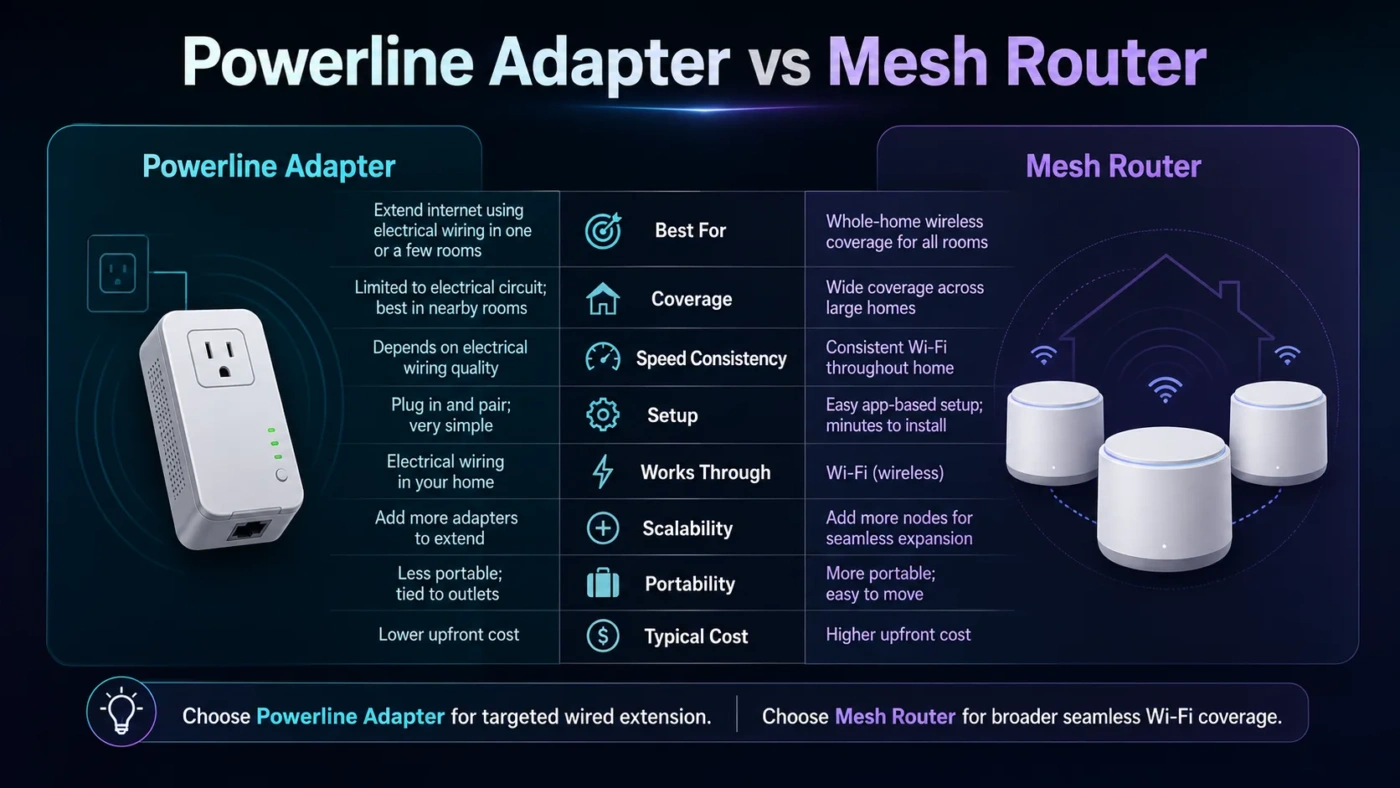
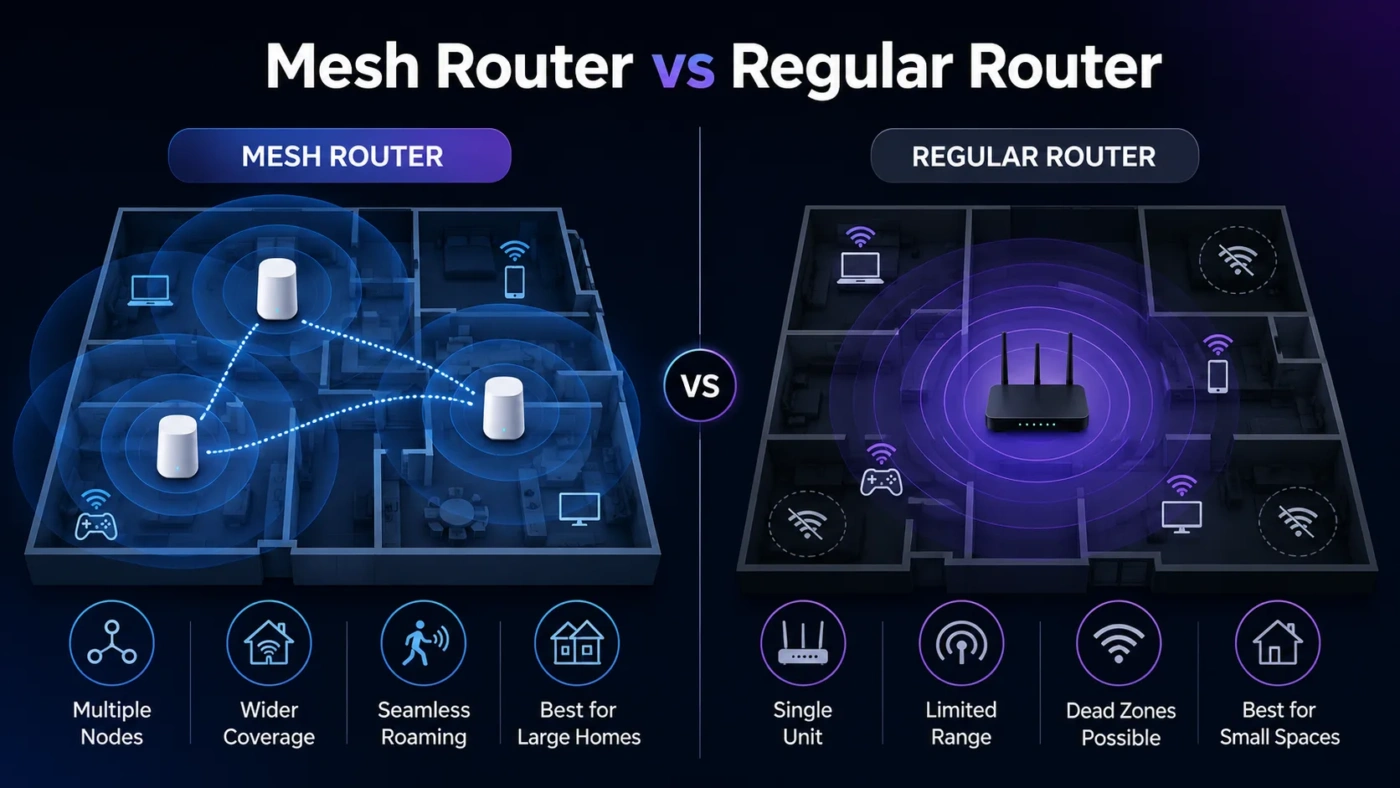
- Choose a mesh system if you want easier multi-room setup and do not want to run Ethernet cables, while accepting that wireless backhaul may reduce performance unless the system is designed well.
If Ethernet wiring is available, a wired access point often gives excellent value. It adds coverage without replacing the entire network and without forcing every device through a weak wireless relay.
When You Should Choose a Router
Choose a router when you need the device to manage the network, not just broadcast Wi-Fi.
Choose a Router If You Are Starting From Scratch
If you have a modem or fiber ONT and need one device to create your home network, a router is the right choice. It will connect your devices, assign addresses, share the internet connection, and provide basic protection.
Choose a Router If Your Current Router Is Outdated
If your router drops connections, overheats, lacks modern Wi-Fi security, cannot handle many devices, or uses older Wi-Fi standards, replacing it makes sense. An access point may improve coverage, but it will not fix weak routing hardware.
Choose a Router If You Need More Network Control
A router is better if you care about device priority, parental controls, DNS settings, VPN, port forwarding, static IP reservations, guest isolation, firewall rules, or better traffic management. Access points may offer some wireless settings, but they are not meant to replace the main gateway.
Choose a Router If You Want One Simple Device
For a small apartment, studio, dorm room, or compact home, one well-placed wireless router may be simpler than buying separate devices. Fewer devices also means fewer cables, fewer power adapters, and less setup work.
When You Should Choose an Access Point
Choose an access point when your main network already works, but the Wi-Fi signal does not reach where you need it.
Choose an Access Point If You Have Wi-Fi Dead Zones
If one side of the house has good Wi-Fi and another side does not, an access point can solve the real problem: location. Placing Wi-Fi closer to users often works better than pushing a stronger signal from far away.
Choose an Access Point If You Already Have a Good Router
There is no need to replace a stable router just because one room has weak Wi-Fi. Add an AP in that area, connect it by Ethernet, and let the router keep managing the network.
Choose an Access Point For Larger Spaces
Large homes, offices, classrooms, shops, and multi-floor buildings often need more than one Wi-Fi source. Access points are built for that kind of layout. They let you spread coverage across the property while keeping one main network structure.
Choose an Access Point If You Want Cleaner Network Behavior
Using an access point instead of a second router helps avoid duplicate DHCP, double NAT, separate subnets, and devices that cannot easily see each other. This matters for printers, network storage, smart home hubs, casting devices, and local file sharing.
Router vs Access Point For Home Use
For most home users, the decision comes down to the current problem.
- Weak Wi-Fi everywhere: Upgrade the router.
- Weak Wi-Fi only in certain rooms: Add an access point.
- Old ISP router with poor settings: Use a better router, or place the ISP device in bridge mode if supported.
- Large house with Ethernet wiring: Use one main router and one or more wired access points.
- No Ethernet wiring: Consider mesh, powerline with caution, or a carefully placed AP with wireless backhaul if supported.
A common home mistake is buying a second router, plugging it in, and leaving it in router mode. It may appear to work, but it can create a separate network. Your phone may be on one network, your printer on another, and your smart TV on a third. An access point setup avoids that mess.
Router vs Access Point For Small Office Use
In a small office, a router usually handles internet access, firewall behavior, VLANs, VPN, and traffic rules. Access points handle wireless coverage for employees, guests, meeting rooms, and shared areas.
For a cleaner office setup, separate the jobs:
- Use a reliable router or firewall as the network gateway.
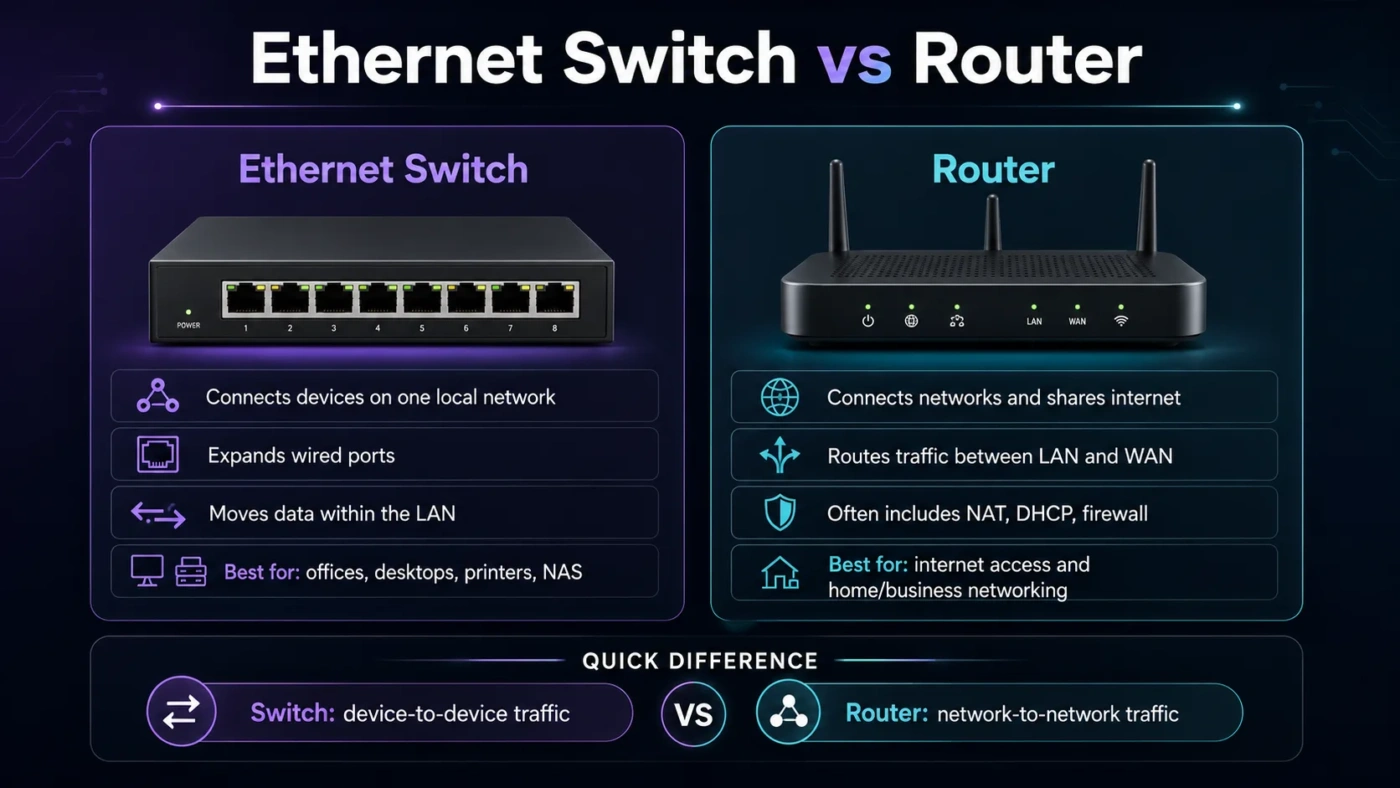
- Use switches to distribute wired connections.
- Use access points for Wi-Fi coverage.
- Use guest Wi-Fi separation when visitors need internet access.
- Place APs based on coverage needs, not just where power outlets are easy.
This setup is easier to scale. If the office grows, you add another access point. You do not rebuild the whole network.
Common Misunderstandings
“An Access Point Replaces a Router”
Not in a normal setup. An access point needs an existing network to connect to. It can add Wi-Fi, but it does not usually replace the router’s job of managing internet sharing, NAT, DHCP, and firewall behavior.
“A Second Router Is the Same as an Access Point”
A second router can sometimes be configured as an access point, but it is not the same by default. You may need to enable AP mode, disable DHCP, avoid the WAN port, or adjust settings depending on the model. If the device has a proper AP mode, use it.
“Stronger Router Means Better Wi-Fi Everywhere”
Not always. Wi-Fi is affected by distance, walls, interference, and device limitations. Your phone also has to send data back to the router. A high-powered router in one corner cannot always fix a weak return signal from a small mobile device far away.
“Access Points Always Need Professional Installation”
Business-grade systems may need planning, but many home access points are easy to set up. If you can run an Ethernet cable from the router or switch to the target area, setup can be straightforward.
“Mesh and Access Points Are the Same Thing”
They overlap, but they are not identical. A wired access point uses Ethernet backhaul, which is usually stable and fast. Mesh systems often use wireless backhaul between nodes, though some support Ethernet backhaul. Mesh is often easier for non-technical users, while wired APs often provide cleaner performance.
Which One Should You Choose?
Choose a router if you need one device to run your network, connect to the internet, assign IP addresses, manage security, and provide Wi-Fi. This is the right choice for a new setup, an outdated router, or a home where the current router cannot keep up.
Choose an access point if you already have a working router and simply need better Wi-Fi coverage. This is the better choice for dead zones, larger spaces, upstairs rooms, offices, garages, classrooms, or any area where the router’s signal is weak.
Best Choice By User Type
- Small Apartment User: A good wireless router is usually enough.
- Large Home User: One router plus one or more access points is usually better.
- Gamer: Use a strong router for NAT, port control, and latency handling; add an AP only if coverage is weak.
- Remote Worker: Use a reliable router first, then add a wired AP near the work area if video calls drop over Wi-Fi.
- Small Office Owner: Use a router or firewall for management and access points for Wi-Fi coverage.
- Smart Home User: Avoid multiple routers in router mode. A single network with access points is usually easier for smart devices, speakers, cameras, and hubs.
Simple Buying Checklist
Before Buying a Router
- Check whether your internet plan needs gigabit or multi-gigabit ports.
- Look for Wi-Fi 6 or newer if you have many modern devices.
- Check security support such as WPA2 or WPA3.
- Make sure it has enough LAN ports or plan to add a switch.
- Check whether it supports the controls you need, such as guest Wi-Fi, VPN, DNS, parental controls, or device priority.
Before Buying an Access Point
- Confirm you already have a router or gateway managing the network.
- Prefer Ethernet backhaul when possible.
- Check whether the AP supports PoE if you want one-cable power and data.
- Match the Wi-Fi generation to your devices and router setup.
- Plan placement before buying; location affects results more than the spec sheet suggests.
Final Decision
If you are asking, “Which one should I buy?”, use this rule: buy a router to create and control a network; buy an access point to expand Wi-Fi coverage on a network you already have.
For a single-room or small-home setup, a wireless router is often the simpler answer. For a larger home or office with weak spots, a router plus access point setup is usually cleaner, faster, and easier to maintain than stacking multiple routers in router mode.