JPEG and PNG are two of the most common image file formats, but they are built for different jobs. JPEG is usually better for photographs and small web images, while PNG is usually better for graphics, screenshots, logos, transparency, and images that need clean edges. The right choice depends less on which format is “better” and more on what the image contains, how it will be used, and whether file size or visual precision matters more.
- JPEG vs PNG: The Main Difference
- What Is JPEG?
- How JPEG Compression Works
- Where JPEG Works Best
- What Is PNG?
- How PNG Compression Works
- Where PNG Works Best
- Image Quality Comparison
- JPEG Quality
- PNG Quality
- File Size And Web Performance
- Practical Web Rule
- Transparency: PNG Has The Clear Advantage
- Text, Screenshots, And Sharp Lines
- Photo Comparison: JPEG Usually Wins
- Graphic Comparison: PNG Usually Wins
- When Should You Choose JPEG?
- JPEG Is A Better Fit If You Need:
- Good JPEG Examples
- When Should You Choose PNG?
- PNG Is A Better Fit If You Need:
- Good PNG Examples
- JPEG vs PNG For Websites
- Use JPEG On Websites For:
- Use PNG On Websites For:
- JPEG vs PNG For Printing
- Use JPEG For Printing When:
- Use PNG For Printing When:
- JPEG vs PNG For Editing
- Editing Rule That Helps
- Common Misunderstandings About JPEG And PNG
- “PNG Is Always Higher Quality”
- “JPEG Is Low Quality”
- “PNG Is Best For Every Website Image”
- “Changing A JPEG To PNG Restores Quality”
- “JPEG Cannot Look Professional”
- Real-World Decision Guide
- JPEG Pros And Cons
- JPEG Pros
- JPEG Cons
- PNG Pros And Cons
- PNG Pros
- PNG Cons
- How To Choose Between JPEG And PNG
- Best Choice For Most Users
| Feature | JPEG | PNG |
|---|---|---|
| Best For | Photos, blog images, product photos, travel images, social media visuals | Logos, icons, screenshots, UI graphics, diagrams, transparent images |
| Compression Type | Lossy compression | Lossless compression |
| File Size | Usually smaller | Usually larger |
| Image Quality After Saving | Quality can degrade after repeated saving | Quality stays the same after saving |
| Transparency | Not supported in standard JPEG | Supported with alpha transparency |
| Sharp Edges And Text | Can show blur, noise, or blocky artifacts | Usually cleaner for text, lines, and flat colors |
| Color Support | Good for full-color images and gradients | Good for full-color images, indexed color, and transparent graphics |
| Web Performance | Often faster to load because of smaller files | Can be heavier, especially for large photos |
| Editing Workflow | Better for final photo export, not repeated editing | Better for screenshots, design assets, and repeated saves |
| Main Tradeoff | Smaller file size with some quality loss | Cleaner image data with larger file size |
JPEG vs PNG: The Main Difference
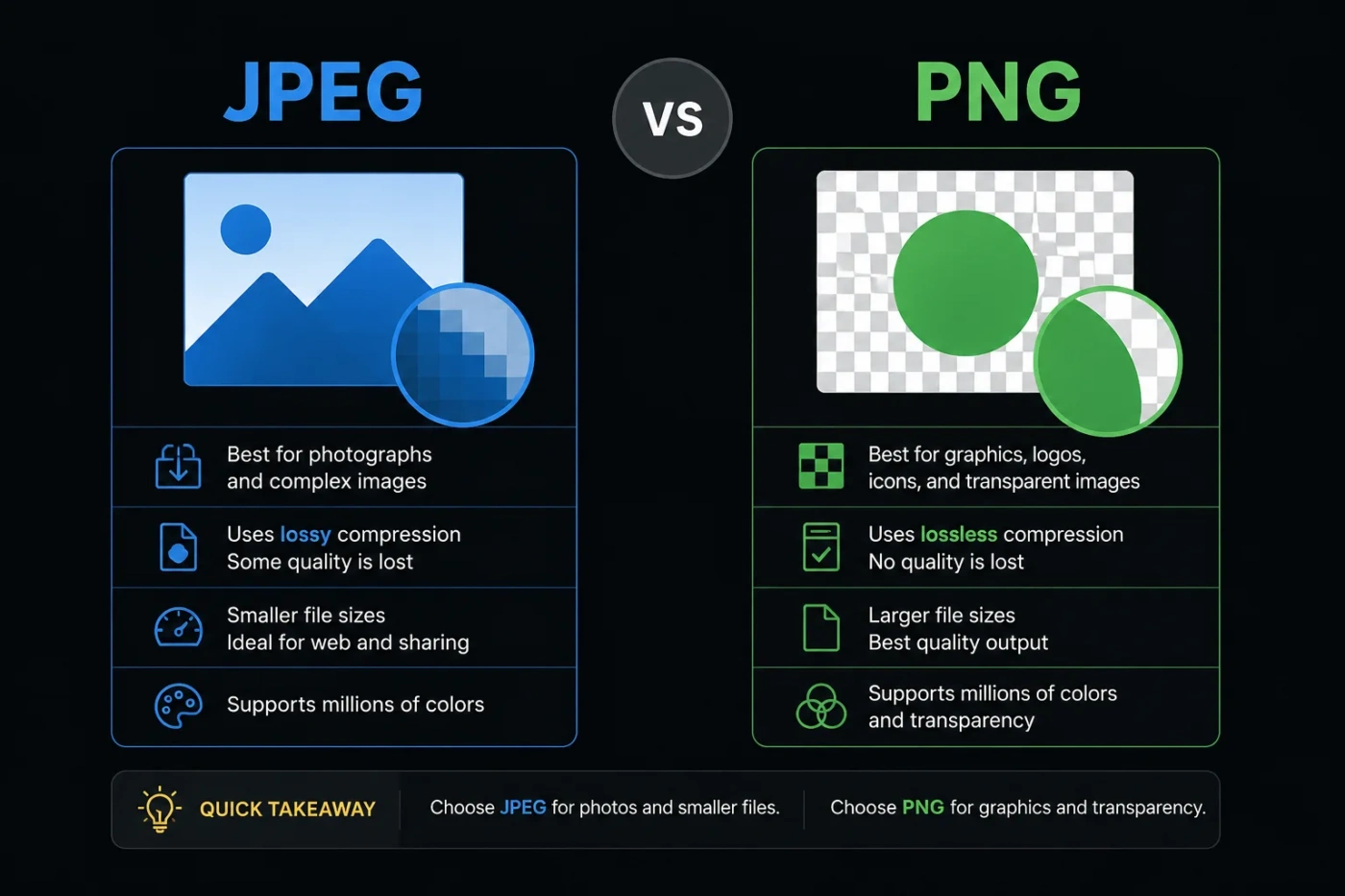
The main difference between JPEG and PNG is compression. JPEG uses lossy compression, which means it reduces file size by removing some image data. That makes JPEG useful for photos where tiny changes are often hard to notice.
PNG uses lossless compression, which means it keeps the image data intact while still reducing file size. That makes PNG useful when clarity matters, especially for text, icons, screenshots, diagrams, app interfaces, and images with transparent backgrounds.
A simple way to choose is this: use JPEG when the image is a photo, and use PNG when the image is a graphic. That rule covers most everyday cases.
What Is JPEG?
JPEG, also written as JPG, is an image format designed mainly for photographs and complex color images. It works well when an image has many shades, soft gradients, natural lighting, skin tones, landscapes, food, buildings, or product details.
JPEG files are popular because they can become much smaller than many other image formats. This helps websites load faster, reduces storage use, and makes images easier to upload or share.
How JPEG Compression Works
JPEG compression reduces file size by simplifying parts of the image that the human eye may not notice easily. This is why a JPEG photo can look good even after its file size has been reduced.
The tradeoff is that JPEG does not preserve every detail perfectly. If compression is too strong, the image can show:
- Blocky squares around detailed areas
- Blurry edges
- Color banding in gradients
- Noise around text or sharp lines
- Reduced detail after repeated saving
For photos, this is often acceptable. For logos or screenshots, it can look messy.
Where JPEG Works Best
JPEG is usually the better option for:
- Website hero images
- Blog post photos
- Product photos without transparency
- Real estate photos
- Travel images
- Food photography
- Social media photos
- Email images where small file size matters
JPEG is also useful when you need a balance between visual quality and page speed. A well-compressed JPEG can look clean while staying light enough for web use.
What Is PNG?
PNG is an image format designed to preserve visual detail. It is especially useful for images with sharp edges, flat color areas, text, line art, interface elements, and transparency.
Unlike JPEG, PNG does not throw away image data during compression. That is why PNG is often the preferred format for design assets and screenshots.
How PNG Compression Works
PNG uses lossless compression. When you save a PNG, the format looks for efficient ways to store the image data without permanently removing detail.
This makes PNG excellent for clean graphics, but it also means PNG files can become large, especially when used for photos. A large photographic PNG may look nearly identical to a JPEG on screen, but the file size can be much higher.
Where PNG Works Best
PNG is usually the better option for:
- Logos
- Icons
- Screenshots
- Charts and diagrams
- Infographics with text
- Transparent backgrounds
- UI mockups
- Digital illustrations with flat colors
- Images that will be edited and saved again
PNG is also the safer choice when small visual defects would be noticeable. Text, thin lines, and clean shapes usually stay sharper in PNG than in JPEG.
Image Quality Comparison
JPEG and PNG can both look good, but they handle quality in different ways.
JPEG Quality
JPEG quality depends heavily on the export setting. A high-quality JPEG can look very close to the original image, especially for photos. A heavily compressed JPEG can look rough, with visible artifacts around edges and details.
JPEG is not ideal for repeated editing. Each time you open, edit, and resave a JPEG with compression, the image can lose more detail. This is called generation loss.
PNG Quality
PNG keeps image detail intact when saved. A screenshot saved as PNG will usually keep text, icons, and interface lines crisp. A logo saved as PNG will usually keep clean edges and solid colors.
The downside is size. For photos, PNG often creates files that are much larger than needed. The image may not look meaningfully better to the reader, but it may slow down the page.
File Size And Web Performance
For web pages, file size matters because large images can slow loading, especially on mobile connections. This is where JPEG often has an advantage.
A photo saved as JPEG is usually much smaller than the same photo saved as PNG. That can improve loading speed, reduce bandwidth, and help the page feel more responsive.
PNG can still be the right choice on a website, but it should be used with care. A small transparent logo or icon in PNG is fine. A full-width photographic banner in PNG is usually not efficient.
Practical Web Rule
- Use JPEG for large photos and realistic images.
- Use PNG for small graphics, transparent images, screenshots, and interface visuals.
- Compress both formats before uploading them to a website.
- Resize images to the actual display size instead of uploading huge files.
This matters more than many people expect. A properly sized JPEG photo can load much faster than a large PNG while looking nearly the same to most visitors.
Transparency: PNG Has The Clear Advantage
Transparency is one of the easiest ways to choose between JPEG and PNG. Standard JPEG does not support transparent backgrounds. PNG does.
If you need a logo to sit cleanly over a colored background, a product cutout with no background, or an icon that blends into a design, PNG is usually the better choice.
JPEG will fill transparent areas with a solid color, often white or black, depending on how the file was exported. That can create an unwanted box around the image.
Text, Screenshots, And Sharp Lines
PNG is usually better for screenshots and images that contain text. It keeps letters, buttons, borders, and interface elements clear.
JPEG can create fuzzy edges around text because its compression was designed for natural images, not crisp digital graphics. This is easy to notice in screenshots, charts, menus, software tutorials, and comparison tables.
If the image includes readable text, PNG is usually the safer choice.
Photo Comparison: JPEG Usually Wins
For photographs, JPEG usually offers the better balance. Photos contain complex color transitions and natural details, which JPEG handles well.
A PNG photo may preserve more data, but the visual difference is often small on a normal web page. The file size difference, however, can be large.
Choose JPEG for photos when:
- The image does not need transparency
- The image will be used online
- Page speed matters
- The image is already final and does not need repeated saving
- You can export it at a high enough quality setting
Graphic Comparison: PNG Usually Wins
For graphics, PNG often gives cleaner results. It handles flat colors, hard edges, and fine details better than JPEG.
Choose PNG for graphics when:
- The image has text
- The image has a transparent background
- The image contains sharp lines or icons
- The image is a screenshot
- The image is a logo, chart, or diagram
- You want to avoid visible compression artifacts
PNG is also better when the image will be reused in different layouts. A transparent PNG logo can work on light, dark, or colored backgrounds without needing a separate version for each one.
When Should You Choose JPEG?
Choose JPEG when you need smaller file sizes and the image is mostly photographic.
JPEG Is A Better Fit If You Need:
- Smaller web images: JPEG can reduce file size while keeping photos visually acceptable.
- Fast page loading: Smaller images help pages load faster, especially on mobile.
- Photo sharing: JPEG is widely supported across phones, cameras, apps, and websites.
- Realistic detail: JPEG handles natural scenes, faces, lighting, and gradients well.
- Simple storage: Large photo libraries are easier to manage when file sizes stay reasonable.
Good JPEG Examples
- A restaurant photo for a blog post
- A product photo with a normal background
- A travel photo used in a city guide
- A profile photo
- A large website banner made from photography
When Should You Choose PNG?
Choose PNG when clean detail, transparency, or repeated saving matters more than file size.
PNG Is A Better Fit If You Need:
- Transparent backgrounds: PNG supports alpha transparency for smooth edges.
- Clean text: Screenshots and text-heavy images stay sharper.
- Accurate graphics: Logos, icons, and diagrams keep their edges.
- Lossless saving: PNG avoids quality loss when the file is saved again.
- Design flexibility: Transparent PNG assets can be placed over different backgrounds.
Good PNG Examples
- A logo with a transparent background
- A screenshot for a tutorial
- An app interface image
- A chart with labels
- An icon set
- A diagram with thin lines
JPEG vs PNG For Websites
For websites, the best format depends on the image type. A website usually needs both JPEG and PNG rather than only one format.
Use JPEG On Websites For:
- Large photos
- Blog images
- Gallery photos
- Background photos
- Product photos without transparency
Use PNG On Websites For:
- Logos
- Transparent images
- Screenshots
- Small UI graphics
- Images with text or flat color
For a fast website, avoid uploading PNG files for every image by default. Use PNG only when its strengths are actually needed.
JPEG vs PNG For Printing
For printing, the best choice depends on the source file and print purpose. JPEG can work well for printed photos if the image is high resolution and saved with light compression. PNG can work well for graphics, logos, and text-based visuals because it keeps edges clean.
For professional print work, designers often use formats such as TIFF, PDF, SVG, or native design files, depending on the project. JPEG and PNG are still useful, but they are not always the final production format.
Use JPEG For Printing When:
- The image is a high-resolution photo
- The file was exported with low compression
- No transparent background is needed
Use PNG For Printing When:
- The image contains text, lines, or a logo
- You need lossless quality
- The image has transparent areas for layout work
JPEG vs PNG For Editing
If you plan to edit an image many times, PNG is usually safer than JPEG because it does not lose quality after each save. This is helpful for screenshots, graphics, and design assets.
For photo editing, the best workflow is often to edit in a non-destructive format inside your editing app, then export a JPEG for final web use. JPEG is best as a final delivery format, not as a repeated working file.
Editing Rule That Helps
- Use PNG when you need to preserve exact pixels.
- Use JPEG when the image is final and needs a smaller export.
- Avoid saving the same JPEG over and over.
- Keep an original copy before compression.
Common Misunderstandings About JPEG And PNG
“PNG Is Always Higher Quality”
PNG preserves more image data, but that does not mean it is always the better choice. For photos, a well-exported JPEG can look nearly identical while using much less storage.
“JPEG Is Low Quality”
JPEG can be low quality if it is over-compressed. It can also look very good when exported properly. The format itself is not the problem; poor compression settings are usually the issue.
“PNG Is Best For Every Website Image”
Using PNG for every website image can make pages heavier than needed. PNG is useful for logos, screenshots, and transparent graphics, but it is often inefficient for large photos.
“Changing A JPEG To PNG Restores Quality”
Converting a JPEG to PNG does not bring back lost detail. It may stop further quality loss, but the compression artifacts already inside the JPEG will remain.
“JPEG Cannot Look Professional”
Many professional images are delivered as JPEG because the format is practical, widely supported, and efficient. The result depends on resolution, export settings, source quality, and how the image is used.
Real-World Decision Guide
| Use Case | Better Choice | Why |
|---|---|---|
| Blog Photo | JPEG | Smaller file size with good visual quality |
| Website Logo | PNG | Cleaner edges and transparency support |
| Software Screenshot | PNG | Sharper text, buttons, and interface details |
| Product Photo | JPEG | Efficient for realistic images without transparency |
| Product Cutout | PNG | Supports transparent background |
| Infographic | PNG | Better for text, lines, and flat colors |
| Large Hero Image | JPEG | Usually better for page speed |
| Icon | PNG | Keeps small details clean |
| Photo Archive | JPEG | More practical for storage and sharing |
| Image With Text | PNG | Reduces blur and compression artifacts around letters |
JPEG Pros And Cons
JPEG Pros
- Usually small file size
- Excellent for photos
- Widely supported by browsers, apps, cameras, and devices
- Good balance between quality and storage
- Useful for fast-loading web pages
JPEG Cons
- Does not support transparency in standard use
- Can lose quality when saved repeatedly
- Can create artifacts around text and sharp edges
- Not ideal for screenshots, logos, or diagrams
PNG Pros And Cons
PNG Pros
- Lossless image quality
- Supports transparent backgrounds
- Excellent for screenshots and graphics
- Keeps text and lines sharp
- Good for repeated saving and editing
PNG Cons
- Often larger than JPEG
- Not efficient for large photos
- Can slow web pages if used for the wrong images
- May use more storage than needed for photographic content
How To Choose Between JPEG And PNG
Use this decision path when you are not sure which format to export:
- If the image is a photo, choose JPEG.
- If the image needs a transparent background, choose PNG.
- If the image has text, icons, lines, or screenshots, choose PNG.
- If the image must load fast on a web page and does not need transparency, choose JPEG.
- If the image will be edited and saved multiple times, choose PNG or keep a separate editable source file.
- If the image is a logo, choose PNG for raster use or SVG when a vector format is available.
Best Choice For Most Users
For most everyday users, JPEG is the better choice for photos and PNG is the better choice for graphics.
Choose JPEG if you are uploading a photograph, building a blog post, sharing product photos, or trying to keep a page fast. Choose PNG if you need transparency, clean text, sharp lines, screenshots, icons, or a logo that should look clean on different backgrounds.
The most practical answer is not to pick one format for everything. Use JPEG where small size matters and PNG where precision matters. That gives you better visual results, faster pages, and fewer problems when images appear across different screens.