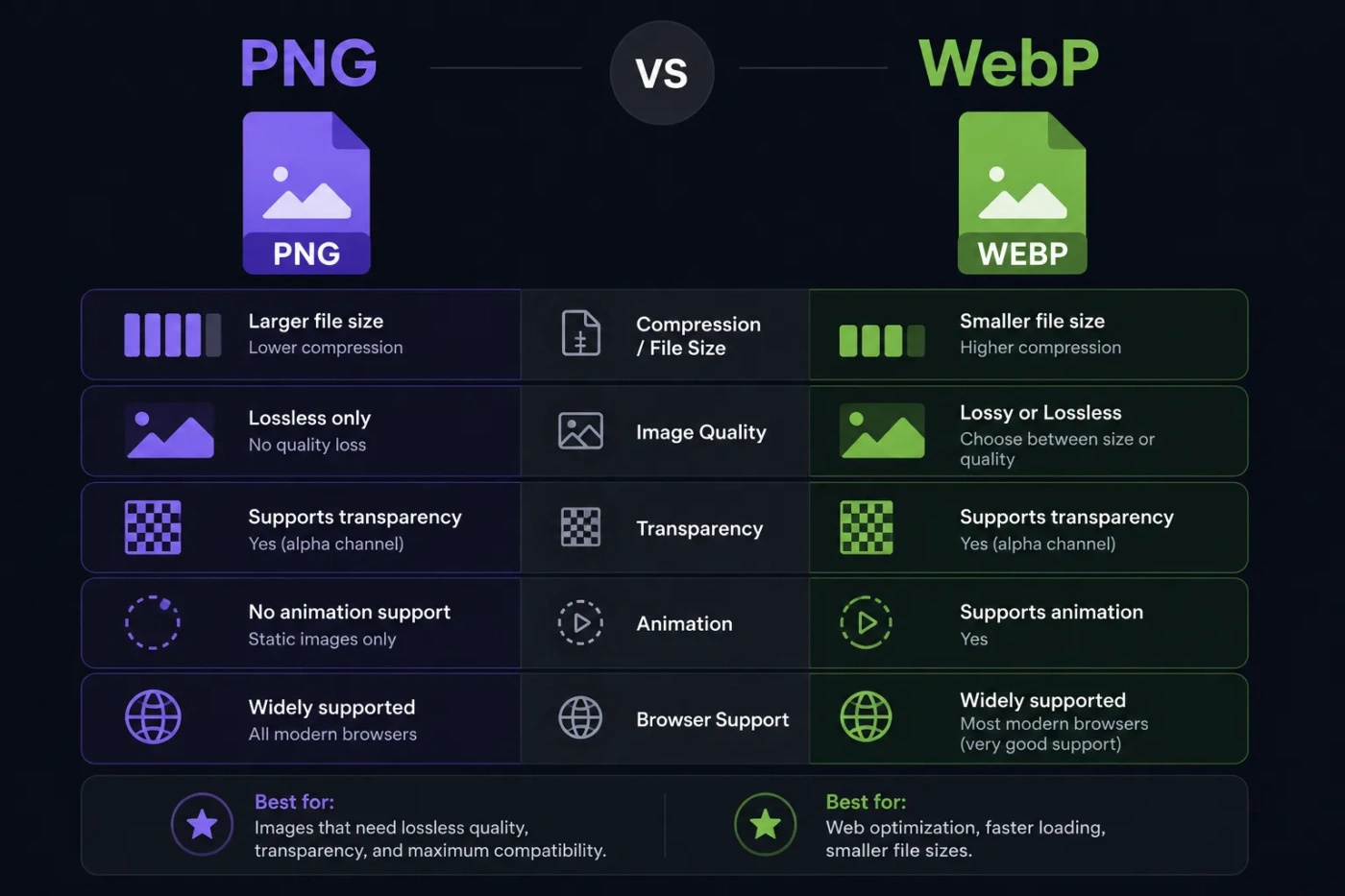
PNG vs WebP is mostly a choice between editing-safe image quality and web delivery efficiency. PNG is the safer pick when you need a lossless file that keeps every pixel clean, especially for logos, UI graphics, icons, screenshots, transparent assets, and images that may be edited again. WebP is usually the better pick when the same image needs to load faster on a website, because it can use lossy or lossless compression, supports transparency, and often produces smaller files than PNG for web pages.
- PNG vs WebP: The Main Difference
- What Is PNG?
- Where PNG Works Best
- Where PNG Falls Short
- What Is WebP?
- Where WebP Works Best
- Where WebP Falls Short
- PNG vs WebP For Image Quality
- Best Choice For Quality
- PNG vs WebP For File Size
- Best Choice For Smaller Files
- PNG vs WebP For Transparency
- Best Choice For Transparent Images
- PNG vs WebP For Websites And SEO
- Better Website Workflow
- PNG vs WebP For WordPress
- When To Use PNG In WordPress
- When To Use WebP In WordPress
- PNG vs WebP For Photos
- PNG vs WebP For Logos And Icons
- PNG vs WebP For Screenshots
- Best Screenshot Rule
- PNG vs WebP For Animation
- Performance Comparison In Real Use
- Price And Value Difference
- When You Should Choose PNG
- Choose PNG If You Need:
- When You Should Choose WebP
- Choose WebP If You Need:
- Common Misunderstandings About PNG And WebP
- “WebP Is Always Better Than PNG”
- “PNG Has Better Quality In Every Situation”
- “WebP Does Not Support Transparency”
- “PNG Is Bad For SEO”
- “You Must Convert Every Image To WebP”
- PNG vs WebP: Which One Should You Use?
- Best Choice By User Type
- Final Decision: PNG Or WebP?
| Feature | PNG | WebP |
|---|---|---|
| Best For | Logos, screenshots, icons, UI elements, transparent graphics, image editing, archiving | Website images, blog graphics, product images, thumbnails, mobile pages, performance-focused delivery |
| Compression Type | Lossless compression only | Lossy and lossless compression |
| Image Quality | Keeps exact pixel detail after saving | Can keep lossless quality or reduce file size with controlled quality loss |
| File Size | Often larger, especially for photos and large graphics | Often smaller for web use, especially photos, mixed graphics, and transparent images |
| Transparency | Excellent alpha transparency | Supports alpha transparency in both lossy and lossless modes |
| Animation | Standard PNG is mainly used as a still image; APNG exists but is a separate practical consideration | Supports animation and can replace GIF in many website cases |
| Browser Support | Universal and safe across browsers, apps, and operating systems | Well supported in modern browsers, but older software may still need fallback files |
| Editing Workflow | Better for master files, repeated edits, and pixel-perfect exports | Better as a delivery format after the final image is ready |
| SEO And Page Speed | Can slow pages if large PNG files are used where smaller formats would work | Often helps reduce page weight, improve load time, and support better image delivery |
| Best Default Choice | Choose PNG when accuracy, transparency, and editing safety matter more than file size | Choose WebP when website speed, bandwidth savings, and delivery efficiency matter more |
PNG vs WebP: The Main Difference
The main difference is simple: PNG is a lossless image format built for exact visual preservation, while WebP is a web-focused image format built for smaller files with flexible compression.
That does not mean WebP is always lower quality. WebP can be lossless too. The real difference is control. PNG keeps image data without quality loss by design. WebP lets you choose between smaller lossy files and larger lossless files, which makes it more flexible for websites.
For a designer, developer, blogger, store owner, or content manager, the practical question is not “Which format is better?” It is where will the image be used?
- Use PNG when you need clean edges, exact pixels, or a reusable file.
- Use WebP when you need a smaller image for web pages, mobile users, and faster loading.
What Is PNG?
PNG stands for Portable Network Graphics. It is a raster image format that uses lossless compression, meaning the image can be compressed without throwing away visual information.
PNG is widely used because it is predictable. If you export a logo, interface icon, chart, app screenshot, or transparent graphic as PNG, the image usually looks exactly as expected. Sharp lines stay sharp. Text in screenshots remains clear. Transparent backgrounds are handled well through alpha transparency.
Where PNG Works Best
PNG is a strong choice for images where clarity matters more than file size. That includes:
- Logos with transparent backgrounds
- Icons and interface elements
- Screenshots with text
- Diagrams, charts, and simple graphics
- Images that need clean edges
- Files that may be edited again later
- Graphics that should not show compression artifacts
PNG is also a safe choice when compatibility matters. Many design tools, office apps, CMS systems, email clients, operating systems, and image editors handle PNG without extra steps.
Where PNG Falls Short
The tradeoff is file size. PNG can become heavy, especially for photos, large website banners, product images, hero images, and graphics with many colors or complex gradients.
A large PNG may look clean, but it can also add unnecessary weight to a page. That can affect loading speed, mobile data usage, and user experience. For websites, a perfect-looking image is not always the best file if it loads slowly.
What Is WebP?
WebP is a modern raster image format developed for the web. It supports lossy compression, lossless compression, alpha transparency, and animation. That mix makes it useful for many website image needs.
WebP is often used as a lighter alternative to PNG, JPEG, and GIF. For example, a site might use WebP for product photos instead of JPEG, transparent graphics instead of PNG, and animated clips instead of GIF.
Where WebP Works Best
WebP works well when the image is being delivered to website visitors and file size matters. It is especially useful for:
- Blog post images
- Product photos
- Category thumbnails
- Landing page graphics
- Hero images
- Transparent web graphics
- Animated web images
- Large media libraries in WordPress or other CMS platforms
For websites, WebP can reduce image weight without making the image look poor to the average visitor. This is why many image optimization plugins, CDNs, and performance tools recommend it.
Where WebP Falls Short
WebP is not always the best master format. Some editing tools, older apps, upload systems, and desktop workflows may still handle PNG more smoothly. WebP is also not ideal if you need a file that will be repeatedly opened, edited, exported, and reused across many tools.
For that reason, WebP is often best treated as a delivery format, not always as the original working file.
PNG vs WebP For Image Quality
PNG is easier to trust when exact quality matters because it is lossless by default. If you export a screenshot or logo as PNG, you do not have to choose a quality level. The format is designed to preserve the image cleanly.
WebP gives you more options. In lossless WebP mode, it can preserve image detail without quality loss. In lossy WebP mode, it reduces file size by removing some data. When the quality setting is chosen well, the difference may be hard to notice on a normal screen. If the quality setting is too low, soft edges, banding, or compression artifacts may appear.
Best Choice For Quality
- Choose PNG for pixel-perfect screenshots, logos, diagrams, and UI graphics.
- Choose lossless WebP when you want PNG-like preservation with a chance of smaller file size.
- Choose lossy WebP when page speed matters and a tiny amount of visual loss is acceptable.
PNG vs WebP For File Size
WebP usually has the advantage in file size. This is the main reason it became popular for websites.
PNG compression is lossless, so it cannot shrink an image by discarding visual information. That is helpful for clean files, but less helpful for large photos or complex visuals. WebP can use lossy compression, so it can make a much smaller file while still looking good enough for normal web viewing.
The file size difference depends on the image:
- A simple flat icon may already be small as PNG.
- A detailed screenshot may look better as PNG, but the file may be larger.
- A large photo will usually be far smaller as WebP than as PNG.
- A transparent product cutout may work well as WebP if the edges stay clean.
- A complex illustration may need testing in both formats.
Best Choice For Smaller Files
WebP is usually the better choice for smaller website images. PNG is better when the file must remain exact and size is less important.
PNG vs WebP For Transparency
Both PNG and WebP support transparency, but they are used differently.
PNG is the classic format for transparent images. It handles alpha transparency very well, which makes it a common choice for logos, icons, badges, overlays, stickers, and interface graphics.
WebP also supports transparency, including in compressed web images. This makes it useful when you want a transparent background but do not want the larger file size that often comes with PNG.
Best Choice For Transparent Images
- Use PNG for logos, brand assets, and graphics where edge quality must be exact.
- Use WebP for transparent website graphics when smaller file size matters.
- Test both if the image has soft shadows, hair-like edges, glow effects, or semi-transparent gradients.
PNG vs WebP For Websites And SEO
For websites, WebP often has the stronger practical advantage because image size affects page weight. Lighter image files can help pages load faster, especially on mobile connections.
Search engines do not rank a page higher just because an image is WebP. The benefit is indirect: smaller images can support better loading speed, better user experience, and cleaner performance metrics when the rest of the page is also well built.
PNG still has a place on websites. It should not be removed from every workflow. A transparent logo, a small icon, or a detailed screenshot may still be better as PNG. The problem starts when large PNG files are used for photos, banners, gallery images, or product images where WebP would be much lighter.
Better Website Workflow
A practical image workflow often looks like this:
- Keep the original design file or high-quality PNG as the source.
- Export WebP versions for website delivery.
- Use PNG only where it gives a clear quality or compatibility benefit.
- Compress images before upload instead of relying only on the browser.
- Check the image on desktop and mobile before publishing.
PNG vs WebP For WordPress
In WordPress, WebP is usually useful for performance-focused sites. Blog images, featured images, product images, and thumbnail-heavy pages can benefit from WebP conversion because smaller images reduce total page weight.
PNG is still useful inside WordPress for brand elements, UI screenshots, tutorial images, and transparent graphics. For example, a step-by-step software tutorial may look cleaner with PNG screenshots because small text and interface lines stay sharp.
When To Use PNG In WordPress
- Your image is a screenshot with readable text.
- Your logo has sharp edges or transparent space.
- Your graphic uses flat colors and clean lines.
- You need the file to stay editable or reusable.
- The PNG is already small and does not slow the page.
When To Use WebP In WordPress
- Your post uses large featured images.
- Your pages include many photos or product images.
- Your mobile loading speed needs improvement.
- Your hosting bandwidth or storage needs better efficiency.
- Your image optimization plugin can create fallback files when needed.
PNG vs WebP For Photos
For photos, WebP is usually the better choice. Photos contain many colors, gradients, shadows, and small details. Saving a photo as PNG often creates a large file without a visible benefit for typical web use.
A high-quality WebP photo can look very close to the original while using far less space than PNG. This makes WebP a better fit for travel photos, food photos, product photos, portraits, blog images, and homepage visuals.
PNG may still be useful for a photo if you need lossless editing, transparent compositing, or a temporary file during design work. For final website delivery, WebP usually makes more sense.
PNG vs WebP For Logos And Icons
PNG is often safer for logos and icons, especially when the image contains clean edges, text, flat colors, or transparent space. A logo with compression artifacts can look unprofessional even if the file is small.
WebP can still work for logos, especially in lossless mode. The best approach is to export both versions and compare:
- Check the edges around letters and shapes.
- Look for blur around small text.
- Test the image on light and dark backgrounds.
- Compare the file sizes after export.
- Use the smaller file only if quality remains clean.
For vector logos, SVG may be a better choice than both PNG and WebP. But when the choice is only PNG vs WebP, PNG is usually the safer logo format.
PNG vs WebP For Screenshots
PNG is usually better for screenshots. Screenshots often contain text, buttons, thin lines, icons, and interface details. Lossy compression can make text look soft or create artifacts around sharp edges.
WebP can still work for screenshots if you use lossless WebP or a high-quality setting. But for tutorial images, software documentation, comparison charts, and UI examples, PNG is often more reliable.
Best Screenshot Rule
Use PNG when the screenshot needs to be read. Use WebP when the screenshot is mostly visual and file size matters more than tiny interface details.
PNG vs WebP For Animation
WebP has a clear advantage for many animated web images. It supports animation and can be much lighter than old GIF files in many cases.
PNG itself is usually treated as a still-image format in normal web publishing. APNG exists and can be useful in some cases, but WebP is often more practical for animated website assets when tool support is available.
For short interface animations, small reactions, stickers, or lightweight motion graphics, WebP can be a good option. For longer video-like content, a video format may be better than either PNG or WebP.
Performance Comparison In Real Use
In real website use, the format choice matters most when images are large or repeated across many pages. A single small PNG icon will not usually harm a site. A homepage with several oversized PNG hero images can create a slow experience.
| Image Type | Better Choice | Why |
|---|---|---|
| Large Photo | WebP | Smaller file size with strong visual quality |
| Transparent Logo | PNG or Lossless WebP | PNG is safer; WebP may be smaller if edges stay clean |
| Screenshot With Text | PNG | Keeps text and UI lines crisp |
| Product Thumbnail | WebP | Good balance of quality and load speed |
| Flat Icon | PNG, SVG, or WebP | PNG is safe; SVG may be best if vector is available |
| Animated Graphic | WebP | Better web delivery than many GIF-style workflows |
| Archive Copy | PNG | Lossless and widely accepted for preservation-style storage |
Price And Value Difference
PNG and WebP are both free to use as image formats. There is no normal per-image license cost for choosing one over the other.
The real cost is practical:
- PNG can cost more in performance when large files slow pages or increase bandwidth.
- WebP can cost more in workflow time when older tools, fallbacks, or conversion settings need extra care.
- PNG can save time when files need to be opened and edited across many tools.
- WebP can save bandwidth for websites with many visitors or many images.
For most website owners, the value choice is clear: keep PNG when it protects quality, and use WebP when it reduces page weight without hurting the image.
When You Should Choose PNG
Choose PNG when the image needs to stay clean, exact, and easy to reuse. PNG is not old or weak; it is simply better suited to different jobs.
Choose PNG If You Need:
- Lossless image quality
- Sharp text in screenshots
- Clean logo edges
- Reliable transparency
- Easy editing across many apps
- Wide compatibility outside browsers
- A safe master copy before exporting other formats
PNG is the better choice for designers, tutorial writers, software reviewers, brand asset managers, UI teams, and anyone working with precise graphics.
When You Should Choose WebP
Choose WebP when the image is mainly used on a website and file size matters. WebP is especially useful when images are part of the public page experience rather than the editing process.
Choose WebP If You Need:
- Smaller website images
- Faster page loading
- Better mobile image delivery
- Transparent images with lower file weight
- Animated web images
- Optimized thumbnails and product photos
- A practical replacement for oversized PNG or JPEG files
WebP is the better choice for bloggers, ecommerce stores, publishers, affiliate-style comparison pages, SaaS landing pages, portfolios, and media-heavy WordPress sites.
Common Misunderstandings About PNG And WebP
“WebP Is Always Better Than PNG”
No. WebP is often better for delivery, but PNG is often better for editing, screenshots, logos, and exact visual preservation. A smaller file is not better if the image looks soft, blurry, or damaged.
“PNG Has Better Quality In Every Situation”
PNG keeps exact image data, but that does not always matter to the viewer. A well-compressed WebP photo may look the same on a website while loading faster. Quality should be judged by the use case, not only by the format name.
“WebP Does Not Support Transparency”
WebP does support transparency. This is one reason it can replace PNG for some website graphics. The important step is checking edges, shadows, and semi-transparent areas after export.
“PNG Is Bad For SEO”
PNG is not bad for SEO by itself. Oversized images are the problem. A small PNG logo or screenshot is fine. A large PNG photo used where a smaller WebP would work can hurt page speed.
“You Must Convert Every Image To WebP”
No. Some images should stay PNG. A smart image strategy uses both formats. Use WebP for delivery efficiency and PNG for exactness where needed.
PNG vs WebP: Which One Should You Use?
Use this simple decision path:
- Choose PNG if the image is a logo, screenshot, icon, chart, UI graphic, or file you may edit later.
- Choose WebP if the image is a website photo, thumbnail, product image, blog image, or large visual that should load faster.
- Choose lossless WebP if you want to reduce size but still avoid quality loss.
- Choose lossy WebP if speed and small file size are more important than exact pixel preservation.
- Keep a PNG master when the image may need future editing, then export WebP for the live website.
Best Choice By User Type
| User Or Situation | Better Pick | Reason |
|---|---|---|
| Blogger | WebP | Featured images and article graphics usually benefit from smaller file sizes |
| Designer | PNG | Better for exports, transparent assets, and files that may be edited again |
| Online Store Owner | WebP | Product images and thumbnails need fast loading across many pages |
| Tutorial Writer | PNG | Screenshots with text and interface details stay clearer |
| Developer | Both | PNG can be used for source assets; WebP can be served to users |
| Photographer Publishing Online | WebP | Photos usually load faster with well-chosen WebP compression |
| Brand Manager | PNG | Logos and official assets need reliable quality and compatibility |
Final Decision: PNG Or WebP?
Pick PNG when the image must stay exact, editable, transparent, and widely compatible. It is the safer choice for logos, screenshots, icons, UI elements, diagrams, and master files.
Pick WebP when the image is going on a website and you want faster loading, smaller files, and better delivery efficiency. It is usually the better choice for photos, thumbnails, product images, blog graphics, and performance-focused pages.
The most practical answer is to use both: PNG for source quality, WebP for web delivery. That gives you clean working files and lighter pages without forcing one format to do every job.