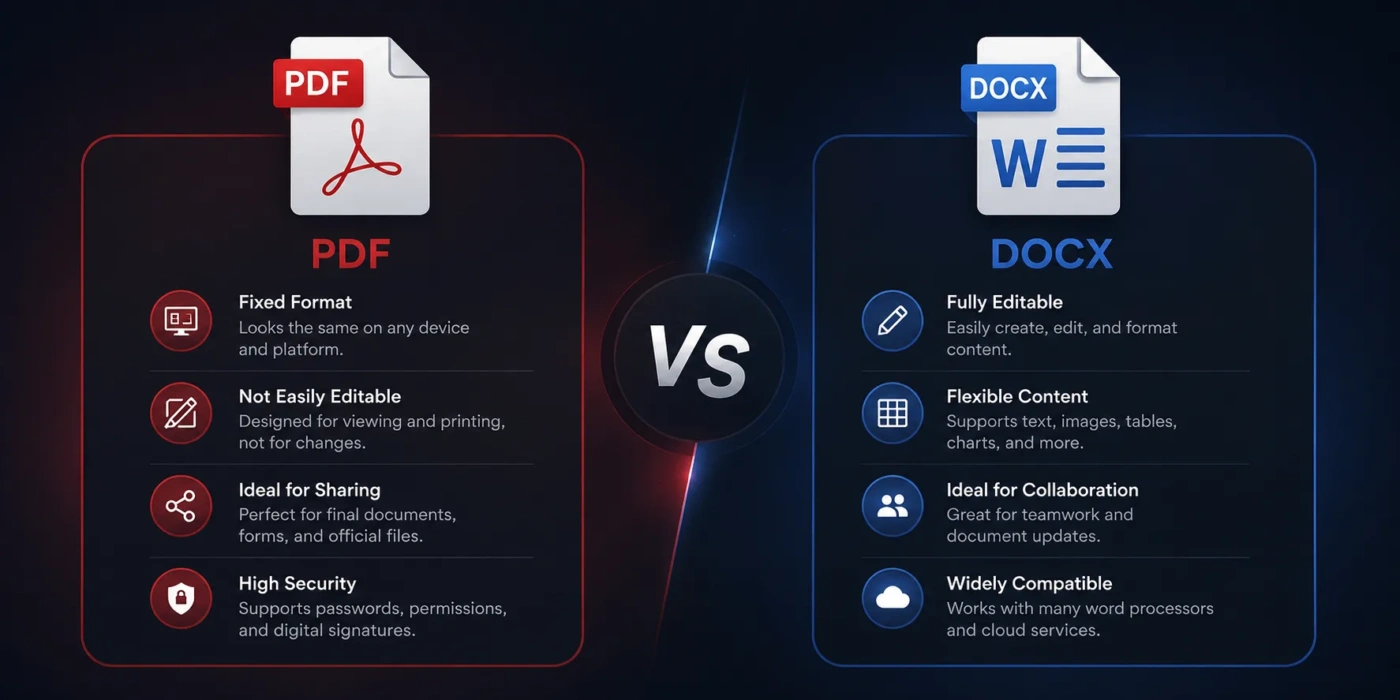
PDF and DOCX look similar because both can hold text, headings, tables, images, page numbers, links, and business documents. The real difference is purpose. PDF is mainly for preserving and sharing a finished document, while DOCX is mainly for writing, editing, and collaboration. Choose PDF when layout accuracy matters more than easy editing. Choose DOCX when the document is still being drafted, reviewed, or reused.
- PDF vs DOCX: The Main Difference
- What Is a PDF?
- Where PDF Works Best
- PDF Strengths
- PDF Weaknesses
- What Is a DOCX?
- Where DOCX Works Best
- DOCX Strengths
- DOCX Weaknesses
- PDF vs DOCX For Editing
- Choose DOCX For Editing When You Need To:
- Choose PDF For Editing When You Only Need To:
- PDF vs DOCX For Sharing
- Simple Sharing Rule
- PDF vs DOCX For Printing
- PDF vs DOCX For Collaboration
- Best Workflow For Teams
- PDF vs DOCX For File Size
- What Usually Makes Files Larger
- PDF vs DOCX For Security
- Metadata Matters In Both Formats
- PDF vs DOCX For Accessibility
- Better Accessibility Workflow
- PDF vs DOCX For Resumes
- Resume Decision
- PDF vs DOCX For Business Documents
- Use PDF For:
- Use DOCX For:
- PDF vs DOCX For Students And Teachers
- PDF vs DOCX For Forms And Signatures
- PDF vs DOCX For Long-Term Storage
- Storage Decision
- PDF vs DOCX For Searchability And Copying Text
- Choose DOCX If You Need Easy Text Reuse
- Common Misunderstandings About PDF And DOCX
- “PDF Cannot Be Edited”
- “DOCX Is Less Professional”
- “PDF Is Always Smaller”
- “PDF Is Always Safer”
- “Converting PDF To DOCX Always Works Perfectly”
- “A Scanned PDF Is The Same As A Normal PDF”
- When Should You Choose PDF?
- PDF Is The Better Choice If:
- Best Examples For PDF
- When Should You Choose DOCX?
- DOCX Is The Better Choice If:
- Best Examples For DOCX
- PDF vs DOCX: Which One Should You Choose?
- Use This Practical Decision Table
- The Best Workflow: Use Both Formats
- A Clean Workflow For Most Documents
| Feature | DOCX | |
|---|---|---|
| Best Use | Sharing final documents, forms, invoices, manuals, contracts, reports, brochures, and print-ready files | Writing, editing, reviewing, formatting, and co-authoring documents before they are final |
| Editing | Possible, but less natural; usually needs a PDF editor | Designed for editing in Word, Google Docs, LibreOffice, and other word processors |
| Layout Stability | Very strong; fonts, margins, images, and page breaks usually stay fixed | Can shift depending on fonts, software, screen size, printer settings, and page setup |
| Collaboration | Good for comments, annotations, signatures, and review notes | Better for live editing, tracked changes, suggestions, comments, and version history |
| Printing | Better choice for predictable printing | Good while drafting, but final printed output can change across devices |
| File Structure | Page-based document format focused on fixed presentation | XML-based word-processing format stored inside a zipped package |
| Accessibility | Can be accessible if properly tagged, but poor exports may cause reading-order issues | Often easier to structure with headings, alt text, lists, and tables before exporting |
| Forms And Signatures | Stronger for fillable forms, digital signatures, locked layouts, and official-looking documents | Usable for simple forms, but less reliable for fixed distribution |
| Archiving | Better for long-term storage, especially when saved as PDF/A | Better for editable records and future revisions |
| Best Decision | Choose PDF when the document is ready to send, publish, print, sign, or store | Choose DOCX when the document still needs writing, editing, feedback, or formatting changes |
PDF vs DOCX: The Main Difference
The main difference between PDF and DOCX is that PDF protects the way a document looks, while DOCX protects the ability to edit the document easily.
A PDF acts like a finished page. It is useful when you want the recipient to see the same layout you created. A DOCX file acts like a working document. It is useful when you want to change wording, rearrange sections, accept edits, update tables, or reuse the content later.
This difference affects almost every practical choice: printing, email sharing, contracts, resumes, manuals, school work, reports, business proposals, online forms, and document storage.
What Is a PDF?
PDF stands for Portable Document Format. It is a document format made to keep the visual appearance of a file consistent across devices, operating systems, and apps. A PDF can include text, images, vector graphics, bookmarks, hyperlinks, annotations, metadata, embedded fonts, form fields, attachments, security settings, and digital signatures.
In daily use, PDF is treated as a final or near-final format. You create a document in Word, Google Docs, InDesign, Canva, Excel, or another tool, then export it as a PDF when you want to share it without layout changes.
Where PDF Works Best
- Final reports and presentations
- Invoices, receipts, and statements
- Contracts and agreements
- Printable forms and fillable forms
- Manuals, guides, and product sheets
- Resumes sent as finished documents
- Academic papers after formatting is complete
- Documents that need digital signatures
- Files that must look the same on Windows, macOS, iOS, Android, and the web
PDF Strengths
PDF is strong when document presentation matters. Page size, margins, line breaks, images, and tables usually remain in place. That makes it a safe option for documents that need to be printed, reviewed, signed, uploaded, or stored as a record.
PDF also supports security options such as password protection, print restrictions, copy restrictions, and document permissions. These settings are not perfect protection against every technical method, but they are useful for ordinary business and personal sharing.
PDF Weaknesses
PDF is not the most comfortable format for heavy editing. You can edit PDFs with tools such as Adobe Acrobat and other PDF editors, but the experience is often less flexible than editing a DOCX file. Changing long paragraphs, moving sections, fixing tables, or updating document structure can be slower.
Another issue is accessibility. A well-made PDF can work with screen readers, but a poorly exported PDF may have missing tags, wrong reading order, unmarked headings, or scanned text that needs OCR. For this reason, accessibility is often easier to prepare in the source document before exporting to PDF.
What Is a DOCX?
DOCX is the modern Microsoft Word document format. It is used by Microsoft Word and widely supported by Google Docs, LibreOffice, Apple Pages, OnlyOffice, and many office suites. A DOCX file is built for editable word-processing content rather than fixed page delivery.
A DOCX file can contain paragraphs, headings, styles, page layouts, tables, images, charts, footnotes, endnotes, comments, tracked changes, headers, footers, metadata, embedded objects, and document themes. It is the better choice when the file is still part of a writing process.
Where DOCX Works Best
- Draft articles, essays, and reports
- Business documents that need review
- Team writing and co-authoring
- Documents with tracked changes
- Editable templates
- Internal notes and policies
- Resumes that still need customization
- Documents that will later be exported to PDF
- Files that need frequent wording or formatting updates
DOCX Strengths
DOCX is easier to edit because it is made for word processors. You can rewrite text, apply styles, change spacing, adjust headings, update tables, insert comments, compare versions, and accept or reject tracked changes.
It is also better for collaboration. When several people need to shape the same document, DOCX gives them a smoother editing path. Comments, suggestions, tracked changes, and cloud-based editing make it easier to see who changed what.
DOCX Weaknesses
DOCX does not always preserve layout perfectly. A document may look different if the recipient does not have the same fonts, opens it in another app, uses different printer settings, or views it on a smaller screen. Even small changes can move page breaks or alter table spacing.
DOCX also feels less final. When you send a DOCX file, the recipient may assume they are allowed to edit it. That can be useful during collaboration, but not ideal for invoices, certificates, signed forms, final reports, or documents that need a fixed appearance.
PDF vs DOCX For Editing
If editing is the priority, DOCX is the better format. It handles writing, rewriting, formatting, comments, styles, and tracked changes more naturally.
PDF editing is useful for small corrections, annotations, form filling, or signing. It is not the best choice for rewriting a long document. A PDF editor can change text and images, but complex pages may become awkward if the original layout was not built for editing.
Choose DOCX For Editing When You Need To:
- Rewrite paragraphs
- Move sections around
- Use tracked changes
- Collect feedback from editors or teammates
- Update tables, charts, and headings
- Create a reusable template
- Prepare a document that will later become a PDF
Choose PDF For Editing When You Only Need To:
- Add comments or highlights
- Fill in form fields
- Add a signature
- Correct a small typo
- Combine pages from several files
- Reorder, rotate, or remove pages
PDF vs DOCX For Sharing
PDF is usually better for sharing with people who only need to read, print, sign, or upload the document. It reduces the chance of unwanted layout shifts and gives the file a more finished feel.
DOCX is better for sharing with people who need to edit, comment, or reuse the content. If a manager, editor, client, teacher, or teammate needs to revise the file, DOCX saves time.
Simple Sharing Rule
Send DOCX when you want changes. Send PDF when you want consistency.
This rule works for most everyday cases. A resume, invoice, application document, brochure, or signed agreement is usually better as a PDF. A draft report, article, proposal, policy document, or editable worksheet is usually better as a DOCX.
PDF vs DOCX For Printing
PDF is the better choice for printing because it is designed to preserve page layout. If your file has precise margins, page numbers, tables, graphics, headers, footers, or a designed cover page, PDF gives more predictable results.
DOCX can print well, but the output can change when the document is opened in another word processor or on a device without the same fonts. A one-page resume can become two pages. A table can move to the next page. A header can shift slightly.
For print shops, formal documents, brochures, certificates, reports, manuals, and files with visual design, export to PDF before printing.
PDF vs DOCX For Collaboration
DOCX is the stronger format for collaboration while the document is still changing. It supports comments, suggestions, tracked changes, style edits, and version comparison. This makes it easier to work with a document as a team.
PDF is better for review after the content is mostly finished. Reviewers can highlight text, add sticky notes, mark areas, draw shapes, and approve pages without changing the source content by accident.
Best Workflow For Teams
- Write and edit the document in DOCX.
- Use comments and tracked changes during review.
- Clean up styles, headings, spacing, and page breaks.
- Export the final version as PDF.
- Share the PDF for reading, signing, printing, or archiving.
This workflow gives you the strengths of both formats without forcing one file type to do everything.
PDF vs DOCX For File Size
There is no universal winner for file size. A simple text-only DOCX can be very small. A PDF with compressed images can also be small. A PDF with scanned pages can be much larger than a DOCX because scanned pages are stored as images. A DOCX with high-resolution photos can also become large.
The better question is not “Which format is always smaller?” but “What is inside the file?”
What Usually Makes Files Larger
- High-resolution photos
- Scanned pages
- Embedded fonts
- Large charts or images
- Uncompressed graphics
- Multiple revisions or hidden data
- Attachments inside the document
If you need a smaller PDF, use image compression and avoid scanning text when a digital text version is available. If you need a smaller DOCX, compress images before sharing and remove unused embedded objects.
PDF vs DOCX For Security
PDF offers more familiar options for controlled distribution. You can add passwords, restrict printing, limit copying, and apply digital signatures. These features are useful for contracts, policies, forms, statements, and documents that need a clear approval trail.
DOCX can also be protected with passwords and editing restrictions, but it is usually shared as an editable file. For sensitive files, the file format is only one part of security. You also need safe storage, careful access control, trusted sharing links, and clean metadata.
Metadata Matters In Both Formats
Both PDF and DOCX can contain metadata such as author names, comments, revision history, hidden text, document properties, and internal notes. Before sharing a formal document, inspect and clean metadata if privacy matters.
PDF vs DOCX For Accessibility
Accessibility depends more on document quality than file extension. A well-structured DOCX can be accessible. A well-tagged PDF can also be accessible. A poorly made file in either format can be difficult for screen readers, keyboard navigation, and text reflow.
DOCX is often easier during creation because you can apply real heading styles, add alt text, create proper lists, use simple tables, and set document language before export.
PDF needs proper tags, reading order, searchable text, bookmarks when useful, and form labels if it contains fields. A scanned PDF without OCR may look fine visually but behave like an image to assistive technology.
Better Accessibility Workflow
- Build the document structure in DOCX first.
- Use heading styles instead of manually enlarged text.
- Add alt text to meaningful images.
- Keep tables simple and label headers clearly.
- Export to tagged PDF if the final file must be PDF.
- Check the PDF reading order after export.
PDF vs DOCX For Resumes
For resumes, PDF is usually better when submitting a finished file because it preserves layout, spacing, and page length. This matters if your resume has carefully placed sections, columns, or a one-page design.
DOCX can be better when the employer, recruiter, or application system asks for it. Some hiring systems parse DOCX files cleanly, while others accept PDF without issue. The safest choice is to follow the upload instructions exactly.
Resume Decision
- Use PDF when sending a finished resume by email or uploading where PDF is accepted.
- Use DOCX when the job post asks for Word format or when a recruiter needs to edit the file.
- Keep both versions if you apply to many jobs.
PDF vs DOCX For Business Documents
Business documents often use both formats in the same process. DOCX is used while the document is being written. PDF is used when the document is approved and ready to share outside the team.
Use PDF For:
- Invoices
- Receipts
- Client-ready proposals
- Signed agreements
- Policy documents
- Training manuals
- Product sheets
- Board reports
Use DOCX For:
- Proposal drafts
- Internal memos
- Editable policies
- Meeting notes
- Content drafts
- Template creation
- Documents needing legal, editorial, or client edits
PDF vs DOCX For Students And Teachers
DOCX is often better for assignments that require comments, grading, revision, or teacher feedback. It lets the reviewer add comments, suggest wording changes, and check structure more easily.
PDF is better for final submissions when layout matters, such as a designed report, poster, certificate, reading handout, or completed worksheet. It is also a good choice when the teacher wants a file that cannot be accidentally changed during download or printing.
PDF vs DOCX For Forms And Signatures
PDF is usually the better format for forms and signatures. It supports fillable fields, checkboxes, dropdowns, date fields, signature areas, and page layouts that remain stable. This makes PDF a practical choice for applications, consent forms, onboarding papers, and approval documents.
DOCX can contain form-like areas, but it is easier for the layout to break. If the form must be filled out by many people on different devices, PDF is usually safer.
PDF vs DOCX For Long-Term Storage
PDF is usually better for long-term storage when the document should remain readable and visually stable. PDF/A, a specialized form of PDF, is designed for archiving. It focuses on preserving the document’s appearance by keeping needed resources such as fonts inside the file.
DOCX is better when you expect to revise the document later. For example, a company policy may be stored as DOCX internally because it will be updated every year, then exported as PDF when published.
Storage Decision
- Store final records as PDF when appearance, signing, or future readability matters.
- Store working files as DOCX when edits, reuse, or annual updates are expected.
- Store both when the document has legal, business, academic, or operational value.
PDF vs DOCX For Searchability And Copying Text
Both PDF and DOCX can be searchable. DOCX files usually contain real text by default. PDFs can contain real text, scanned images, or a mix of both.
A digital PDF exported from Word or another document editor is usually searchable. A scanned PDF may not be searchable unless OCR has been applied. OCR turns scanned page images into machine-readable text, though the result can still contain recognition errors.
Choose DOCX If You Need Easy Text Reuse
If your main task is copying text, repurposing sections, translating content, or extracting paragraphs, DOCX is usually easier. PDF can work, but copying from complex PDFs may bring broken line breaks, strange spacing, missing characters, or table problems.
Common Misunderstandings About PDF And DOCX
“PDF Cannot Be Edited”
PDF can be edited, but it is not meant to behave like a full word-processing file. Small edits are often fine. Large rewrites are better done in DOCX, then exported again as PDF.
“DOCX Is Less Professional”
DOCX is not less professional. It is simply a working format. Many professional documents start as DOCX. The final delivery format depends on how the file will be used.
“PDF Is Always Smaller”
Not always. A scanned PDF can be large. A simple DOCX can be tiny. Images, scans, compression settings, embedded fonts, and document length matter more than the extension alone.
“PDF Is Always Safer”
PDF can offer stronger sharing controls, but it is not magic protection. Passwords, permissions, and signatures help, but sensitive documents still need careful handling and trusted storage.
“Converting PDF To DOCX Always Works Perfectly”
Conversion quality depends on the PDF. Simple text documents convert well. Complex layouts, multi-column pages, scanned files, forms, footnotes, charts, and unusual fonts can create messy DOCX results.
“A Scanned PDF Is The Same As A Normal PDF”
A scanned PDF may just be images of pages. It may look readable, but the text may not be selectable, searchable, or accessible until OCR is applied.
When Should You Choose PDF?
Choose PDF when the file is ready to be read, printed, signed, stored, or sent as a finished document. PDF is the better choice when you care more about presentation than editing.
PDF Is The Better Choice If:
- You want the layout to stay fixed.
- You are sending a final version.
- The document may be printed.
- The file needs a signature.
- You are sharing an invoice, receipt, form, report, or manual.
- You do not want the recipient to casually edit the document.
- You need a stable file for upload or archiving.
- The document includes page-sensitive design.
Best Examples For PDF
- A finished resume
- A signed contract
- A client invoice
- A product manual
- A printable worksheet
- A final academic paper
- A brochure or flyer
- A scanned record with OCR applied
When Should You Choose DOCX?
Choose DOCX when the document is still active. If people need to write, edit, review, comment, restructure, or reuse the content, DOCX is usually the better format.
DOCX Is The Better Choice If:
- You are still drafting the document.
- Someone else needs to edit the file.
- You need tracked changes.
- You want to reuse the content later.
- The file is a template.
- You are preparing content before exporting to PDF.
- You need flexible formatting and easy section changes.
- You are working in Microsoft Word or another word processor.
Best Examples For DOCX
- A draft report
- An editable proposal
- A team policy document
- A manuscript under review
- A resume template
- A school assignment needing feedback
- A meeting agenda that changes often
- A document with comments and tracked changes
PDF vs DOCX: Which One Should You Choose?
Choose PDF if your document is final, visual consistency matters, or the file will be printed, signed, uploaded, archived, or sent to someone who only needs to read it.
Choose DOCX if your document is still being written, reviewed, edited, commented on, or reused as a template.
Use This Practical Decision Table
| Situation | Better Choice | Reason |
|---|---|---|
| Sending a finished resume | Preserves layout and page length | |
| Asking a teammate to revise a report | DOCX | Supports editing, comments, and tracked changes |
| Sharing an invoice | Looks final and prints reliably | |
| Creating a reusable template | DOCX | Easier to update and repurpose |
| Sending a contract for signature | Better for fixed layout and signing tools | |
| Writing a first draft | DOCX | Made for writing and formatting changes |
| Printing a brochure | More predictable page output | |
| Collecting editor feedback | DOCX | Review tools are more flexible |
| Archiving a final record | Better suited for long-term visual preservation | |
| Updating a policy every few months | DOCX | Easier to revise and export again |
The Best Workflow: Use Both Formats
For many people, the best answer is not PDF or DOCX. It is DOCX first, PDF last.
Write the document in DOCX. Use styles, comments, revisions, and proper structure while the file is still changing. When the content is approved, export it as PDF for sharing, printing, signing, or storage.
A Clean Workflow For Most Documents
- Create and edit the document as DOCX.
- Use headings, lists, tables, and alt text correctly.
- Review comments and tracked changes.
- Save a clean editable copy.
- Export the final version as PDF.
- Share the PDF with readers, clients, schools, employers, or external recipients.
This keeps your editable source file safe while giving others a stable document. If you only remember one rule, use this: DOCX is for making the document; PDF is for delivering it.