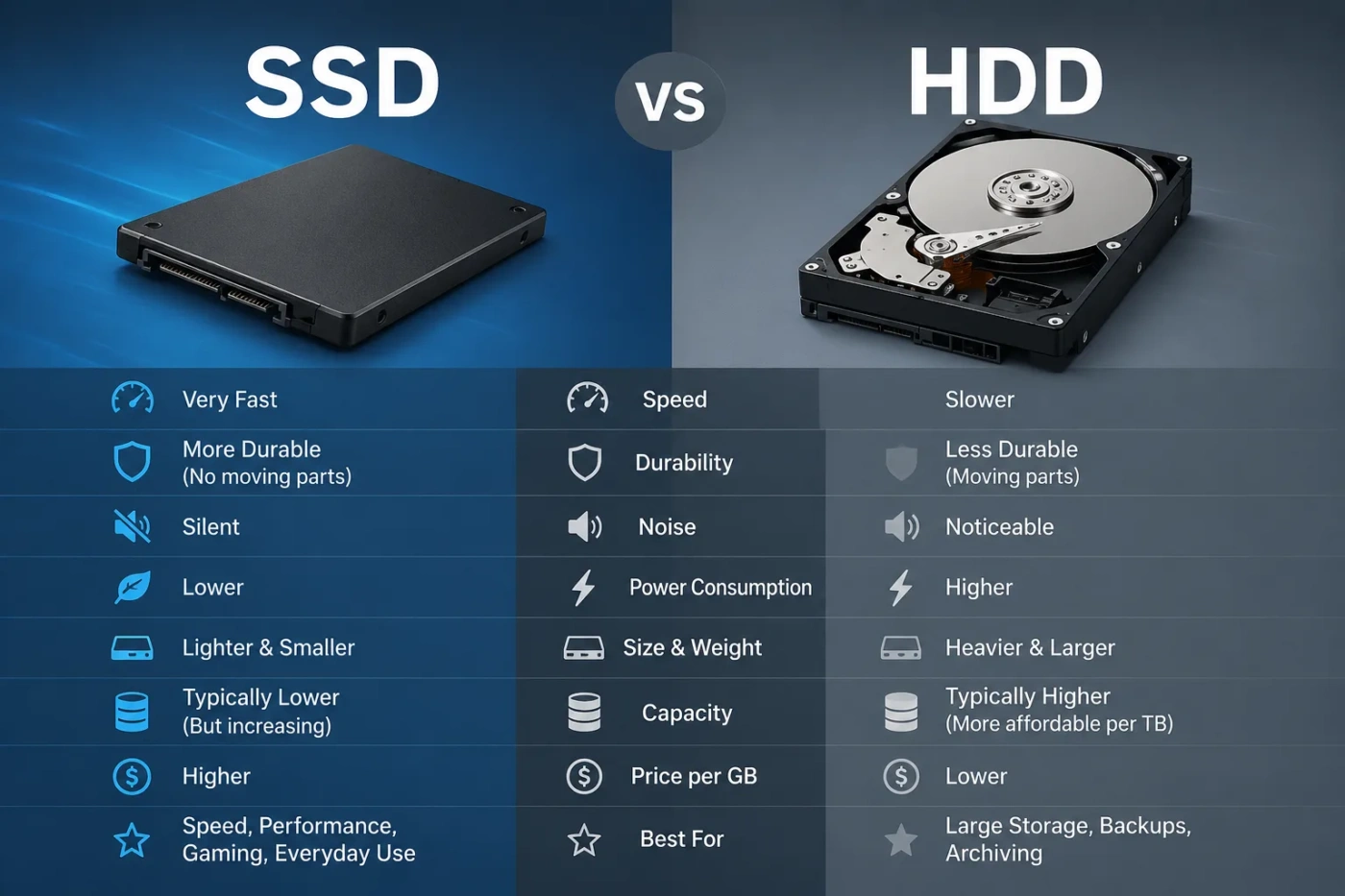
Choosing between an SSD and an HDD is mostly a choice between speed and storage value. An SSD makes a computer feel faster because it reads and writes data electronically with no moving parts. An HDD gives you more storage space for less money, especially when you need several terabytes for photos, videos, backups, games, or archived files. For most laptops, desktops, and everyday computers, the better primary drive is an SSD. For large storage and low-cost backup, an HDD still makes sense.
- SSD vs HDD: The Short Answer
- What Is An SSD?
- Common SSD Types
- What Is An HDD?
- Common HDD Types
- Main Performance Differences
- Boot Time And App Loading
- File Transfers
- Random Access
- Storage Capacity And Price Value
- How To Think About Price
- Reliability, Lifespan, And Data Safety
- SSD Wear: TBW And Write Cycles
- HDD Wear: Mechanics And Vibration
- The Safer Rule: Backup Matters More Than Drive Type
- SSD vs HDD For Gaming
- Best Gaming Setup
- SSD vs HDD For Work And Creative Tasks
- Best Setup For Creators
- SSD vs HDD For Laptops
- When An HDD Still Makes Sense With A Laptop
- SSD vs HDD For Desktops
- Good Desktop Storage Combinations
- When Should You Choose An SSD?
- When Should You Choose An HDD?
- Common Misunderstandings About SSD And HDD
- “An SSD Gives More FPS In Games”
- “An HDD Is Always Bad”
- “An SSD Never Fails”
- “A Bigger Drive Is Always Better”
- “All SSDs Are The Same”
- SSD vs HDD By User Type
- Should You Use Both SSD And HDD?
- Use The SSD For
- Use The HDD For
- Internal Drive Or External Drive?
- Internal SSD
- External SSD
- External HDD
- How Much Storage Do You Need?
- Buying Checklist Before You Decide
- The Clear Decision
| Feature | SSD | HDD |
|---|---|---|
| Full Name | Solid State Drive | Hard Disk Drive |
| Storage Method | Stores data on NAND flash memory chips | Stores data on spinning magnetic platters |
| Moving Parts | No moving parts | Uses spinning disks and a mechanical read/write arm |
| Speed | Much faster for booting, opening apps, loading games, and moving files | Slower, especially for startup, multitasking, and random file access |
| Responsiveness | Feels smoother in daily use | Can feel delayed when many small files are being accessed |
| Noise | Silent | Can make spinning, clicking, or vibration sounds |
| Durability | Better for laptops and portable use because it has no mechanical arm | More sensitive to drops, vibration, and physical shock while running |
| Power Use | Usually more efficient for laptops | Usually uses more power because the platters must spin |
| Capacity Value | Costs more per gigabyte, especially at higher capacities | Usually cheaper per gigabyte for multi-terabyte storage |
| Best For | Operating system, apps, games, editing projects, laptops, fast desktops | Backups, media libraries, NAS storage, archives, low-cost bulk storage |
| Main Weakness | Higher price at large capacities | Much slower performance and more mechanical risk |
| Best Practical Setup | Use as the main drive | Use as a secondary storage or backup drive |
SSD vs HDD: The Short Answer
Choose an SSD if the drive will run your operating system, apps, games, creative software, browser profile, or active work files. It is the better choice when speed, silence, portability, and daily comfort matter.
Choose an HDD if you mainly need a lot of storage space at a lower cost. It is still useful for backups, media collections, older desktop storage, home servers, surveillance storage, and files you do not open every day.
The best setup for many desktop users is not SSD or HDD alone. It is SSD for speed and HDD for capacity. A 1TB or 2TB SSD can handle Windows, macOS, Linux, apps, and games, while a larger HDD can store photos, videos, downloads, project archives, and backup copies.
What Is An SSD?
An SSD, or Solid State Drive, is a storage device that uses flash memory to save data. It has no spinning disk and no mechanical read/write head. Data is stored electronically inside memory cells, which is why an SSD can access files very quickly.
This is the main reason an SSD makes a computer feel faster. It does not only improve large file transfers. It also improves the small, constant tasks that happen while you use a computer: loading system files, opening apps, launching a browser, searching folders, saving project files, and waking from sleep.
Common SSD Types
- 2.5-Inch SATA SSD: A common upgrade for older laptops and desktops. It connects through SATA and is much faster than an HDD, though slower than NVMe.
- M.2 SATA SSD: A small stick-shaped SSD that still uses SATA speed limits. It saves space but does not perform like NVMe.
- M.2 NVMe SSD: A faster SSD that uses PCIe lanes. This is common in newer laptops, gaming PCs, workstations, and compact desktops.
- External SSD: A portable drive for fast file transfer, editing, travel, and moving large folders between devices.
For most buyers, an NVMe SSD is the best primary drive if the computer supports it. A SATA SSD is still a strong upgrade for an older machine that currently uses an HDD.
What Is An HDD?
An HDD, or Hard Disk Drive, stores data on spinning magnetic platters. A mechanical arm moves across the platters to read and write information. This design has been used for decades and remains useful because it can offer large capacities at a lower price.
The trade-off is speed. Because an HDD depends on physical movement, it cannot respond as quickly as an SSD. This is most noticeable when the computer starts up, opens apps, loads large games, scans many small files, or runs several tasks at the same time.
Common HDD Types
- 2.5-Inch HDD: Often used in older laptops and portable external drives. Usually slower than desktop HDDs.
- 3.5-Inch HDD: Common in desktop PCs, backup drives, NAS devices, and large-capacity storage setups.
- External HDD: A low-cost option for backups, photos, videos, and file storage.
- NAS HDD: Designed for network storage devices that may run for long hours.
- Surveillance HDD: Built for continuous video recording workloads.
An HDD is not outdated for every use. It is simply no longer the best drive for the operating system or active software.
Main Performance Differences
The biggest SSD vs HDD difference is not only transfer speed. It is latency, which means how quickly the drive responds when the system asks for data. An SSD can jump between files almost instantly. An HDD must wait for the platter position and the mechanical arm movement.
Boot Time And App Loading
A computer with an SSD usually starts faster, opens apps faster, and feels more responsive after login. With an HDD, the system may feel busy for a while after startup because background services, antivirus scans, app launchers, and update tools all compete for slow mechanical access.
This is why replacing an HDD with an SSD is one of the most noticeable upgrades for an older computer. Even if the CPU and RAM stay the same, the machine often feels much more usable.
File Transfers
For large file transfers, SSDs are generally faster. SATA SSDs are usually limited by the SATA connection, while NVMe SSDs can be much faster through PCIe. HDDs can still move large files at acceptable speeds, but they slow down more when files are scattered, small, or being accessed by several apps at once.
Random Access
Random access is where SSDs clearly win. This matters for operating systems, games, software development, photo catalogs, video editing cache, browser data, and any workload that touches many small files.
An HDD can be fine for storing a movie file or a backup archive. It is much less comfortable as the main drive for Windows, macOS, or heavy apps.
Storage Capacity And Price Value
HDDs still have a strong reason to exist: large storage for less money. If you need 8TB, 12TB, 16TB, or more, HDDs often cost far less than SSDs with similar capacity.
SSD prices have improved over the years, but large SSDs can still become expensive quickly. A 1TB or 2TB SSD is now practical for many users, but very large SSD storage can push the budget higher than necessary if speed is not needed for every file.
How To Think About Price
Do not compare SSD and HDD only by total price. Compare them by how the storage will be used:
- Fast working storage: SSD gives better value because it saves time and improves daily use.
- Large inactive storage: HDD gives better value because capacity matters more than speed.
- Portable storage: SSD may be worth the extra cost because it is silent, smaller, and more shock resistant.
- Backup storage: HDD is often the practical choice when you need multiple copies of large data.
As a simple buying rule, pay extra for SSD storage when you will feel the speed. Use HDD storage when the files mostly sit there.
Reliability, Lifespan, And Data Safety
SSD and HDD reliability is often misunderstood. An SSD is better against bumps and drops because it has no moving parts. An HDD can be more vulnerable to physical shock, especially while spinning. That makes SSDs better for laptops, travel drives, and portable work setups.
However, no drive type is a safe place for your only copy of important data. SSDs can fail. HDDs can fail. Controllers, firmware, power issues, heat, accidental deletion, file corruption, theft, and water damage can affect either type.
SSD Wear: TBW And Write Cycles
SSDs have limited write endurance, usually described with ratings such as TBW (terabytes written) or DWPD (drive writes per day). For normal home and office use, a decent SSD usually has enough endurance for many years. The concern becomes more relevant for heavy write workloads such as servers, constant video recording, scratch disks, database activity, or large daily exports.
HDD Wear: Mechanics And Vibration
HDDs depend on motors, bearings, platters, and a read/write arm. Heat, vibration, power cycles, and physical movement can affect them. A desktop HDD that stays in one place may work for years, while a portable HDD that gets bumped often has more risk.
The Safer Rule: Backup Matters More Than Drive Type
The safer approach is simple: keep more than one copy. For valuable files, use a backup plan with:
- One working copy on your main computer
- One local backup on another drive
- One off-site or cloud copy for protection against loss, theft, or damage
An SSD can be your main drive, and an HDD can be your backup drive. That combination is often smarter than trusting one expensive drive with everything.
SSD vs HDD For Gaming
For gaming, an SSD is usually the better choice for the drive where games are installed. It can reduce loading screens, improve level loading, help texture streaming, and make game launchers feel faster. Some newer games also expect SSD-level performance for smoother asset loading.
An HDD can still store a large game library, especially if you do not play every title often. But if a game has long loading times, large open worlds, or frequent texture loading, moving it to an SSD can make the experience feel cleaner.
Best Gaming Setup
- Budget Gaming PC: 1TB SSD for Windows and favorite games.
- Large Game Library: SSD for active games, HDD for older or rarely played games.
- Modern Console Expansion: Use the storage type required by the console. Some systems need specific high-speed SSD support for current-generation games.
- Competitive Games: SSD helps with loading and updates, but it does not replace a good CPU, GPU, monitor, or internet connection.
SSD storage will not magically increase frame rate in most games. It mainly improves loading, responsiveness, and asset access.
SSD vs HDD For Work And Creative Tasks
If you edit photos, videos, audio, 3D files, code projects, or large design documents, an SSD should be your active work drive. Creative apps often create cache files, previews, temporary exports, and project data. Those tasks benefit from fast random access and high read/write speed.
An HDD can still be useful after the work is done. Finished videos, old client folders, raw archives, and backup copies do not always need SSD speed. This is why many creators use both: SSD for active projects, HDD for storage and backup.
Best Setup For Creators
- Photo Editing: SSD for catalog and current photos; HDD for older albums and backup.
- Video Editing: SSD for current footage, cache, and project files; HDD for archived footage.
- Music Production: SSD for sample libraries and active sessions; HDD for older exports and backups.
- Software Development: SSD for code, build tools, virtual machines, and databases.
For active creative work, the time saved by an SSD can be worth more than the extra storage cost.
SSD vs HDD For Laptops
For laptops, an SSD is usually the better choice. Laptops are moved, carried, opened, closed, and sometimes used on uneven surfaces. Since an SSD has no moving parts, it handles portable use better than an HDD.
An SSD also helps battery life in many situations, reduces heat and noise, and makes the laptop wake faster. If an older laptop still uses an HDD, upgrading to a SATA SSD can make it feel much newer without replacing the whole machine.
When An HDD Still Makes Sense With A Laptop
An HDD may still work as an external storage drive for laptop backups, large media folders, or rarely used files. But as the internal boot drive, it is hard to recommend an HDD unless the computer is very old, the budget is extremely limited, or the machine is used only for simple storage tasks.
SSD vs HDD For Desktops
Desktop computers can use both drive types more easily because they usually have more space for multiple drives. This makes the SSD plus HDD setup especially practical.
Use an SSD as the main drive for the operating system and apps. Add an HDD if you need cheap space for media, backups, downloads, older games, or project archives.
Good Desktop Storage Combinations
- Simple Everyday PC: 1TB SSD only.
- Gaming PC: 1TB or 2TB NVMe SSD, plus optional HDD for a large library.
- Creator PC: Fast NVMe SSD for active work, large HDD for archive and backup.
- Family PC: SSD for the system, HDD for photos, videos, and shared files.
- Home Server: SSD for system/cache, HDDs for bulk storage.
When Should You Choose An SSD?
Choose an SSD if you want the computer to feel fast. This is the right choice when the drive affects daily interaction, not just storage capacity.
- You are buying a laptop.
- You are upgrading an old computer that feels slow.
- You want fast boot time and app loading.
- You play modern games.
- You edit photos, videos, music, or design files.
- You run virtual machines, coding tools, or databases.
- You need silent storage.
- You carry the drive around often.
- You want a clean, responsive everyday experience.
For most users, the main drive should be an SSD. Even a modest SATA SSD can feel much better than an HDD as a boot drive.
When Should You Choose An HDD?
Choose an HDD when storage size matters more than speed. It is still useful when you need many terabytes without spending SSD-level money.
- You need low-cost backup storage.
- You store large photo or video archives.
- You keep many movies, music files, or documents.
- You use a NAS or home server.
- You need storage for security camera recordings.
- You want a secondary desktop drive for inactive files.
- You need multiple backup drives and want to control cost.
An HDD is a practical storage tool. It is just not the best place for your operating system if speed matters.
Common Misunderstandings About SSD And HDD
“An SSD Gives More FPS In Games”
An SSD usually does not raise frame rates by itself. The GPU, CPU, RAM, game engine, and graphics settings matter more for FPS. The SSD helps with loading times, asset streaming, installs, updates, and general smoothness when the game accesses storage.
“An HDD Is Always Bad”
An HDD is bad as a main drive for a modern performance-focused computer. It is not bad for bulk storage. If you need 10TB of backup space, an HDD may be the sensible choice.
“An SSD Never Fails”
SSDs can fail. They are more resistant to physical shock, but they are still electronic devices. A backup is still needed.
“A Bigger Drive Is Always Better”
Capacity alone is not enough. A 4TB HDD may store more data than a 1TB SSD, but it will not make your computer feel as fast. Match the drive to the job.
“All SSDs Are The Same”
They are not. SATA SSDs, NVMe SSDs, DRAM-less SSDs, QLC SSDs, TLC SSDs, external SSDs, and enterprise SSDs can behave differently. For everyday use, even a basic SSD is often better than an HDD. For heavy workloads, SSD type matters more.
SSD vs HDD By User Type
| User Type | Better Choice | Why It Fits |
|---|---|---|
| Everyday Laptop User | SSD | Faster startup, better portability, silent use, smoother daily tasks |
| Student | SSD | Better for carrying a laptop, opening files quickly, and working between classes |
| Office Worker | SSD | Improves app loading, multitasking, browser use, and file search |
| Gamer | SSD For Active Games | Reduces loading time and helps modern games access data faster |
| Video Editor | SSD + HDD | SSD for active edits; HDD for finished projects and raw archives |
| Photographer | SSD + HDD | SSD for catalogs and current shoots; HDD for long-term storage |
| Home Backup User | HDD | More capacity per dollar for backup copies |
| NAS User | HDD, Often With SSD Cache | HDDs provide capacity; SSDs can help with cache or system tasks |
| Traveler | External SSD | Smaller, silent, faster, and better against movement |
| Large Media Collector | HDD | Cheaper for storing many terabytes of video, music, and photos |
Should You Use Both SSD And HDD?
Yes, if your device supports it and your storage needs are mixed. This setup gives you the best parts of both technologies without overspending on SSD capacity you may not need.
Use The SSD For
- Operating system
- Applications
- Active games
- Current work files
- Editing cache
- Browser profile and app data
- Virtual machines and development tools
Use The HDD For
- Backups
- Old projects
- Large video folders
- Photo archives
- Downloads
- Media libraries
- Files you rarely open
This division keeps the computer fast while giving you room for large files.
Internal Drive Or External Drive?
The SSD vs HDD decision also changes depending on whether the drive is internal or external.
Internal SSD
An internal SSD is the best choice for the main drive in most computers. It improves the whole system because the operating system, apps, and background processes all use it.
External SSD
An external SSD is useful when you move large files often, edit directly from a portable drive, travel, or need fast storage between devices. It costs more than an external HDD, but the speed and durability can be worth it.
External HDD
An external HDD is a good low-cost backup drive. It is also useful for storing large media folders. Handle it carefully, especially while it is plugged in and spinning.
How Much Storage Do You Need?
Storage size depends on your files and habits. Buying too little storage becomes annoying, but buying expensive high-speed storage for inactive files can waste money.
- 256GB SSD: Only for very light use. It can fill up quickly.
- 512GB SSD: Fine for basic laptops, documents, browsing, and light app use.
- 1TB SSD: A strong default for most users.
- 2TB SSD: Better for gaming, creative work, and larger app libraries.
- 4TB+ SSD: Good for high-speed work, but the price can rise fast.
- 4TB–20TB HDD: Useful for bulk storage, backups, NAS, and media collections.
If you are unsure, a 1TB SSD is a safe main-drive choice for many people. Add an HDD later if your files grow.
Buying Checklist Before You Decide
Before buying either drive, check these points:
- Device Compatibility: Does your computer support 2.5-inch SATA, M.2 SATA, or M.2 NVMe?
- Available Slots: Can you install more than one drive?
- Capacity Need: Are you storing apps and active files, or mostly archived data?
- Speed Need: Will the drive run your system, games, or editing projects?
- Portability: Will the drive be moved often?
- Backup Plan: Will you have at least one extra copy of important files?
- Budget: Are you paying for speed you will use, or just storage space?
The Clear Decision
Choose an SSD if this will be your main computer drive. It is the better option for speed, daily comfort, app loading, gaming, laptop use, and active work. For most people asking “SSD or HDD?”, the answer is SSD for the primary drive.
Choose an HDD if your main need is affordable capacity. It is the better option for large backups, media archives, NAS storage, and files that do not need fast access.
Choose both if you want a balanced setup: SSD for the system and active work, HDD for bulk storage and backup. That gives you fast performance where it matters and low-cost capacity where speed matters less.
Best overall choice: SSD for your main drive.
Best value for huge storage: HDD.
Best mixed setup: SSD plus HDD.